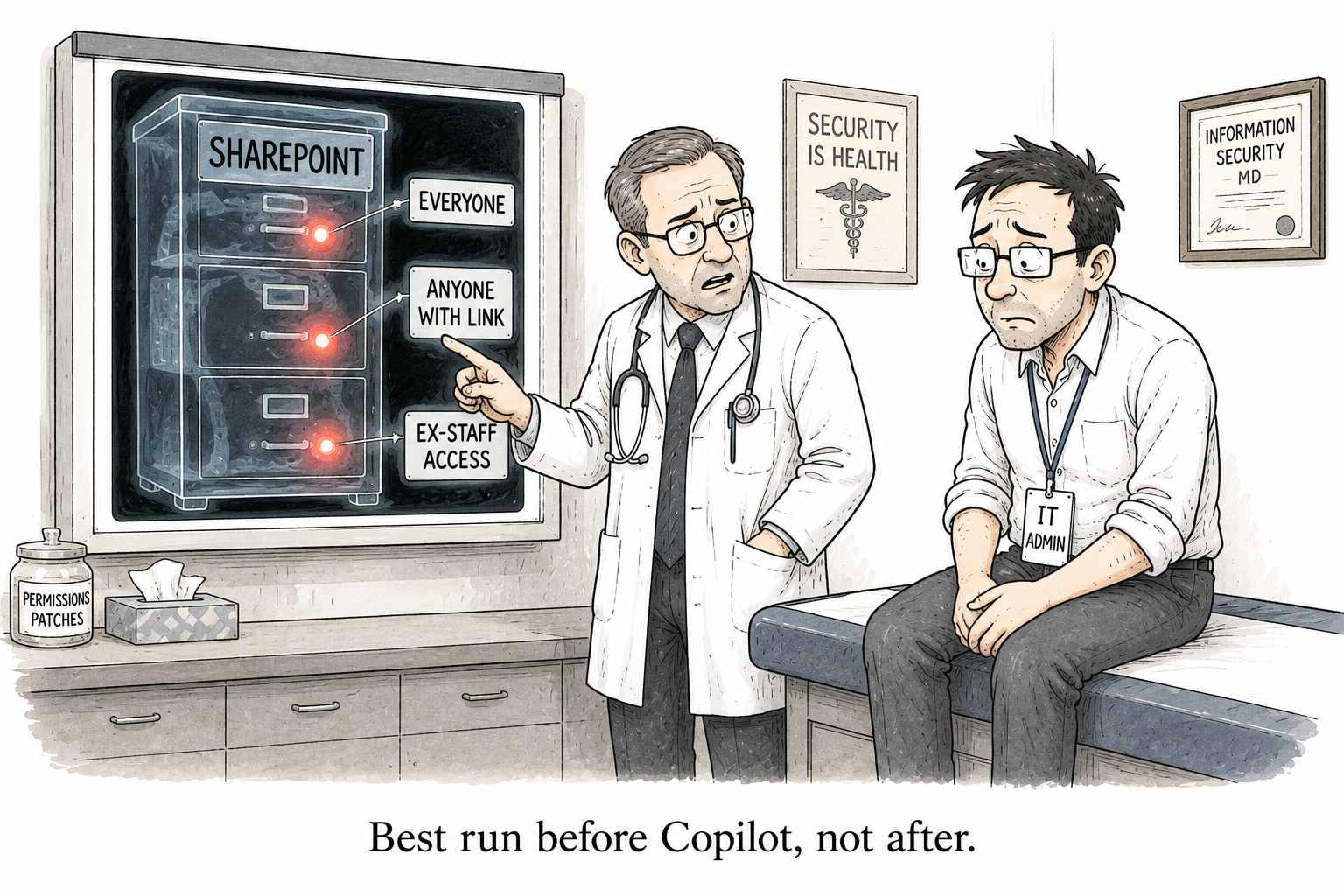
Data Access Governance reports: see your SharePoint oversharing before Copilot does
Before you switch on Copilot, there is one question worth losing sleep over: what in here is overshared? Not in theory — in fact. Which sites are open to the whole company. Which files a long-gone contractor can still reach. Which “anyone with the link” shares are still live from a project that ended two years ago. Most admins have no way to answer that, so they cross their fingers and hope.
SharePoint Advanced Management has a set of reports that answer it precisely. They are sitting in your admin center, and almost nobody runs them. They are called Data Access Governance reports, and this is the tour.
Where they are
In the SharePoint admin center, expand Reports and select Data access governance. Everything below lives on that one page. It splits into two kinds of report, and you want both.
Snapshot reports: the baseline
Snapshot reports show your organisation as it stands right now, the day you run them. Four of them, and the first two are the ones that matter most.
Site permissions across your organisation. Microsoft marks this one “recommended,” and it earns it. It analyses every SharePoint and OneDrive site and shows you which have the broadest access, the sites open to thousands of users, to external guests, or to “Everyone except external users.” This is your first look at where the exposure is concentrated. Run it, and the sites that need attention rise straight to the top.
Sites and files shared via special SharePoint groups. This is the one to really pay attention to. Where the report above tells you which sites are overshared, this one tells you exactly which items are effectively public, through the “Everyone except external users” or “Everyone” groups, and how that access was granted. Down to the file. That precision is the difference between “we have an oversharing problem somewhere” and a list you can actually script a cleanup against.
Site permissions for a user. Pick a person; get every site they can reach, and how, whether it was granted to them directly or inherited through a group. This is the question you dread in an access review or a leaver process, and it used to mean an afternoon of clicking. Here it is a report.
Sensitivity labels for files. Which sites hold files carrying a given sensitivity label, so you can confirm the sensitive stuff is where you think it is and protected the way you think it is.
Activity reports: what changed lately
Activity reports cover the last 28 days — the oversharing that happened recently, so you can catch it as it emerges rather than discovering it a year later.
Sharing links. The sites where people created the most new sharing links lately, across all the types: “anyone” links, “people in the organisation” links, and specific-people links. This is oversharing in the act.
Shared with ‘Everyone except external users’. The sites where content was shared with your entire internal organisation in the last 28 days. Broad internal exposure, as it happens.
How to actually use them
The two kinds work together. Run the snapshot reports quarterly to keep a true picture of your baseline exposure. Run the activity reports monthly to catch new risk before it settles in. Start with site permissions across your organisation; it tells you where to look, and everything else drills in from there.
And the reports are not a dead end. From a finding, you act, without leaving the governance tooling:
- lock an overshared site to a single group with Restricted Access Control;
- check the change history report to see who opened the access up, and when;
- or delegate the cleanup to the site owners with a site access review, instead of doing it all yourself.
That is the whole loop: find the oversharing, decide what to do, enforce it. It is Copilot readiness in three steps.
The licensing catch
The full set needs SharePoint Advanced Management, which you have if anyone in the tenant holds a Microsoft 365 Copilot licence, or you have bought the add-on. There is one partial exception worth knowing: an organisation with Microsoft 365 E5 but no SAM can see the activity reports, capped at 10,000 sites, but not the snapshot reports and not the one-click remedial actions.
If none of this is switched on for you
Plenty of organisations have neither a Copilot licence nor the add-on, so this whole page is dark for them. If that is you, the two questions these reports answer, “every site this one person can reach” and “which sharing links are exposing content,” are exactly the two I built free tools for.
The User Access Explorer gives you the site-permissions-for-a-user view. The sharing-link auditor gives you the sharing-links view, and lets you revoke them. Not as polished as Microsoft’s reports, but free, and they answer the question that actually matters before you turn Copilot on: who can already reach what.

4 Comments
Comments are closed.