SharePoint HTML pages are coming, here is what actually works today
Every few months SharePoint gets a feature that makes me stop and test it before I believe it. This time it is HTML pages.
For years the answer to “can I put my own HTML on a modern SharePoint page” was mostly no. The old Content Editor and Script Editor web parts are gone. The Text web part cleans out anything that looks like a script. So if you wanted real custom HTML you went to SPFx and wrote proper code.
Now there is a new thing on the roadmap. Item 569208, Also referred to as SharePoint HTML pages. In simple terms, SharePoint is capable of displaying an HTML file as a page. It can be created by you and uploaded or by asking Copilot to generate one for you. The feature is listed as being in development, which means it is still not complete, but it has been turned on in my tenant, and thus I have tested it.
What I did
Since I did not want to take any guesses, I created an HTML document where the file performs some checks for itself and displays the output right there. The checks include inline JavaScript and inline CSS, a table that can be filtered right while typing, and three things that should definitely be blocked. The external image, the fetch request from another website, and the external stylesheet.
Then I uploaded this document to my demo website and opened it.
What worked
It worked. It was not a downloaded file, nor text as it is; it became an actual web page enclosed within a locked box.
The JavaScript code embedded into the file performed. In particular, the web page printed out the present time, which is possible only when the embedded code can perform. Furthermore, the embedded CSS style code was present; the blue header, as well as the boxes, were defined through that style block. This is clearly not static HTML, but HTML with your script running inside.
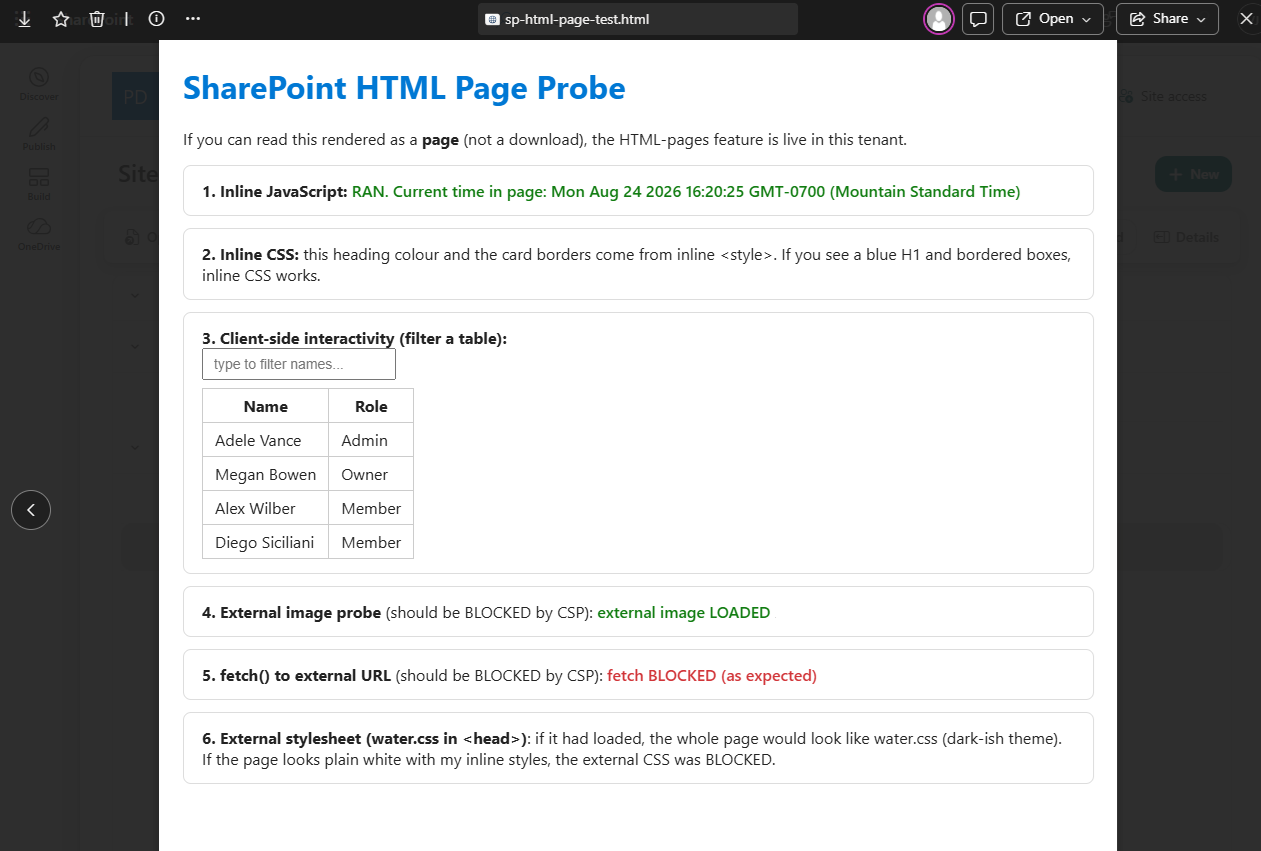
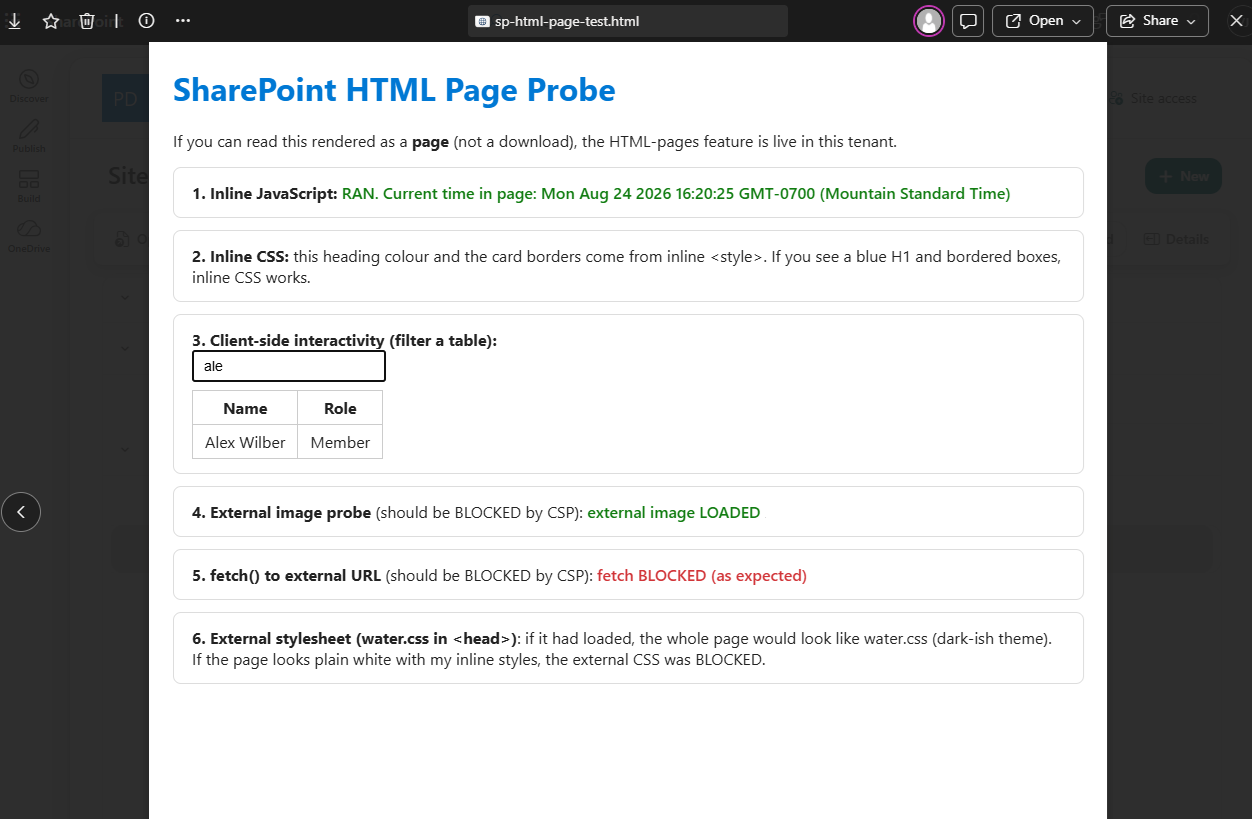
The best thing about it was the small table. On the initial loading of the page, you have all the rows displayed. And then I started typing some characters in the text box, and the table filtered out the row that matched my search query instantly.
What was blocked, and one surprise
The fetch call was blocked. It is a correct action. This kind of page does not need to communicate with other pages silently. The external style sheet was also blocked. The page retained my own CSS styles rather than loading the one I have specified in the link.
However, there is an unexpected result. The image that I have linked from the external source was loaded. From everything that I’ve read about external sources all the sources must be blocked, including images. In my tenant, the image loaded successfully. Thus, I would not rely on the internet on this matter and test myself since there are some exceptions.
Document library or Site Pages, same result
I tested it from a regular document library and then from the Site Pages library, since the language in the roadmap suggests that the pages library is to be used. They appeared identical. The locked preview, the script working, and the image loading were the same for both libraries. So as things stand, putting it in Site Pages does not do anything special.
So what is it good for
Now think read-only dashboards. A nicely summarized list, a little report, a status board which Copilot can build for you all at once. It can read information and let you filter and sort it in your browser but does nothing else. It cannot save anything, make any API calls, or bring in external scripts. It’s just a viewer not an application.
When you want an actual application with buttons and actions to perform, then this will still be SPFx or Power Apps. But now this new HTML page sits below that.
One honest warning
It’s all still under development. This has been noted, and in any case, my tests are already contradicting the articles out there regarding the image issue. So what you see now might well be something entirely different when it reaches its General Availability later this year. Take this as a preliminary version, not the definitive guidelines.
But for the moment, it is something totally new. Your very own HTML, complete with your own script, working within SharePoint safely. I certainly didn’t expect to write those lines this year.




One Comment
Comments are closed.