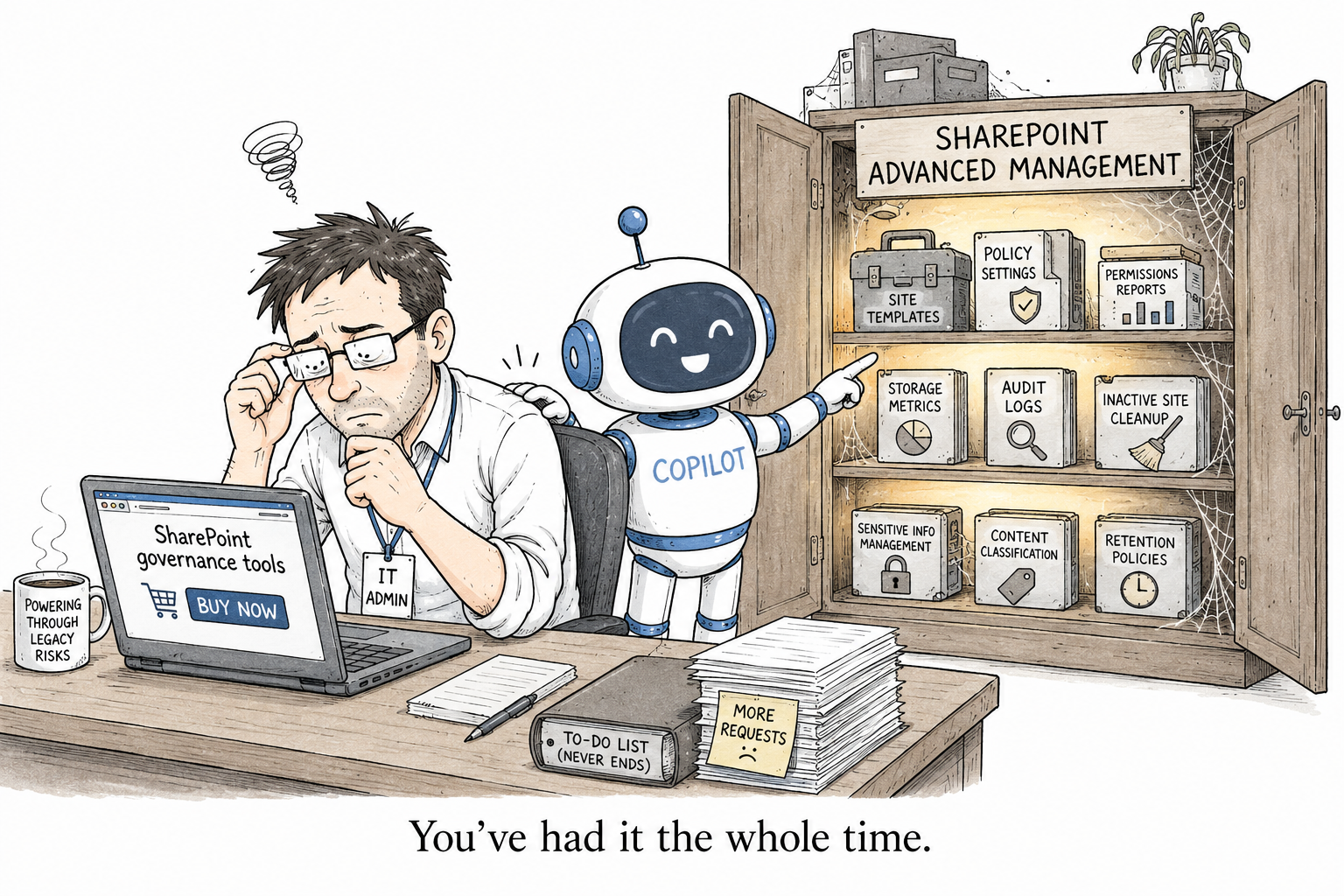
SharePoint Advanced Management: the features that actually earn their keep
SharePoint Advanced Management has a long feature list. Open the Advanced management page and you will count more than twenty capabilities, which is its own kind of problem: a list that long tells you nothing about where to start. Most of them you will open once, nod at, and never touch again. A handful you will come back to every week. This is about that handful, grouped the way Microsoft groups them: preventing oversharing, controlling sprawl, and keeping an audit trail.
Preventing oversharing
This is the part that matters for a Copilot rollout, and it is where SAM earns most of its keep.
Data Access Governance reports. If you use one thing in SAM, use these. They are a set of reports that show how your content is actually exposed, and each answers a question that used to take a day of clicking:
- the permission state report is a tenant-wide snapshot of how broadly your sites are shared;
- the per-user report lists every site a given person can reach and how they got access, which is the question you dread in an access review;
- the sharing links report surfaces the sites where people created the most new links lately;
- the sensitivity label snapshot shows how your labels are distributed;
- and the Everyone except external users report is the single most useful line in here: the content shared with, effectively, the whole company.
These are your oversharing X-ray. Run them before you turn Copilot loose, because they tell you exactly what it is about to surface.
Restricted Content Discovery. Hide a messy site from Copilot and organisation-wide search while you clean it up, without changing anyone’s access. It is the light-touch cover, and I went into it in detail in Restricted Content Discovery vs Restricted SharePoint Search.
Restricted Access Control. The heavier control: lock a site so only members of a specific security group can open it, even if someone else has a direct grant or a sharing link. It is a real access boundary, and it has its own write-up in Restricted Access Control for SharePoint.
Block download. Let people read a site in the browser but not move or download the files out of it. It also covers Teams meeting recordings, which is where a lot of sensitive material quietly walks out.
Site access reviews. This is the one that makes the reports actionable. You found the overshared sites in the Data Access Governance report; now, instead of fixing them all yourself, you delegate the review to the actual site owners, who know whether that access is still needed. It is the difference between a report you feel bad about and a cleanup that actually happens.
Controlling sprawl
Three policies stop your tenant slowly filling up with orphaned and forgotten sites.
The site ownership policy flags sites that have no real owner, or fewer owners than you require, and nudges someone to take responsibility. The inactive site policy finds sites nobody has touched in months and emails the owners to confirm or let go. And site attestations ask owners to periodically confirm that a site is still needed and its access is still right, so the cleanup does not depend on you remembering to chase it.
Run all three in simulation mode first. You want to see what they would flag before they start emailing people.
Keeping an audit trail
Boring until the day you need them, then invaluable.
Change history reports track changes made to individual sites, and to organisation settings, over the last 180 days. When someone asks “who turned sharing back on for this site, and when,” this is the answer. Recent actions is the shorter version: the last changes you made to a site’s properties in the last 30 days, so you can retrace your own steps after a busy afternoon in the admin center.
And a newer one worth a look now that anyone can build one: insights on agents in SharePoint, which show you the agents people have recently spun up across your sites, and which sites are accumulating the most. Agent sprawl is the next version of site sprawl, and it is quietly starting.
Where to start
If the feature list is overwhelming, ignore most of it and start in exactly one place: the Data Access Governance reports. They tell you where your oversharing is. The site access reviews let you delegate the fix. And Restricted Content Discovery or Restricted Access Control hold the line while the cleanup happens. That loop is the whole of Copilot readiness, and it is sitting in your admin center already.
The one thing none of it does is the judgement call underneath it all: deciding who should be able to reach what. SAM will show you the answer and help you enforce it. It will not make the decision for you.
And if you are one of the organisations without a Copilot licence or the add-on, so none of this is switched on for you, that oversharing view is exactly the gap I built User Access Explorer to fill, for free.
One Comment
Comments are closed.