Restricted Access Control (RAC) for SharePoint: the control that actually locks the door
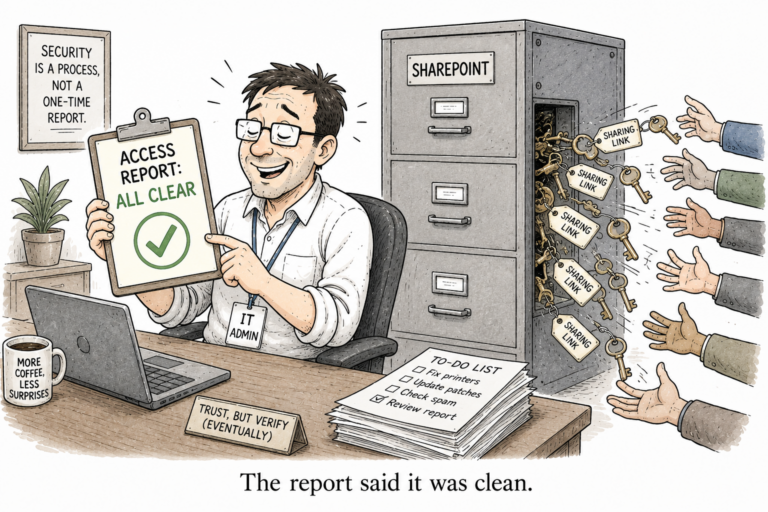
In an earlier post I said Restricted Content Discovery hides a site from Copilot but does not change who can open it. Turn it on, and anyone with a sharing link still walks straight in. They just will not stumble across the site through search. That is fine when hiding is all you want. When you actually need the door locked, there is a different control, and it is the one people reach for RCD by mistake instead. It is called Restricted Access Control.
What it does that RCD does not
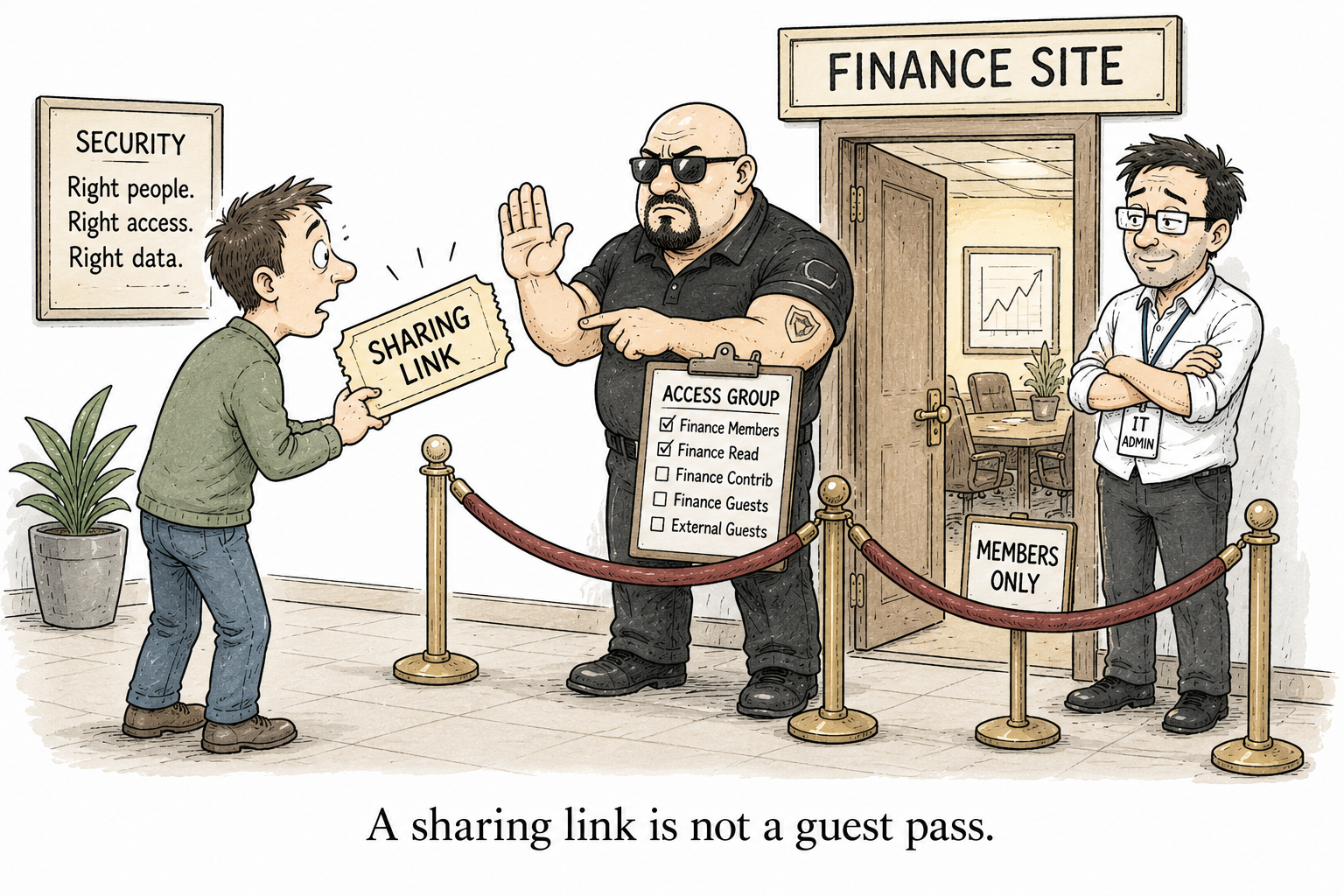
Restricted Access Control, or RAC, restricts a SharePoint site to the members of one or more security groups. Anyone who is not in the group cannot open the site or its content. Here is the line that matters, in Microsoft’s own words: users not in the specified group can’t access the site even if they had prior permissions or a shared link.
Read that again, because it is the whole point. A direct grant does not save you. A sharing link does not save you. If you are not in the control group, the door is shut. That is a real security boundary, which is exactly the thing RCD is not.
The catch in how it lets people in
There is one rule that trips everybody, so learn it first. Being in the control group does not, by itself, let anyone in. To open a RAC-protected site a user needs two things at the same time: permission to the content, and membership in the control group.
Add someone to the group and they still see nothing until they also have permission. Give someone permission and they still see nothing until they are in the group. Both, or nothing.
Copilot honours it too
Copilot and organisation-wide search respect the same policy. A user the door is closed to will not see the site’s content in Copilot or in search either. So RAC quietly gives you what RCD gives you, and then does the thing RCD cannot: it stops the person actually getting in.
Turning it on
You enable it once for the whole tenant, then apply it per site.
Set-SPOTenant -EnableRestrictedAccessControl $true

Set-SPOSite -Identity "https://contoso.sharepoint.com/sites/Finance" -RestrictedAccessControl $true
Set-SPOSite -Identity "https://contoso.sharepoint.com/sites/Finance" -AddRestrictedAccessControlGroups "<group-guid>"

# read it back
Get-SPOSite -Identity "https://contoso.sharepoint.com/sites/Finance" |
    Select-Object RestrictedAccessControl, RestrictedAccessControlGroups
You can point up to ten groups at a single site. For a group-connected site, the site’s own Microsoft 365 group is set as the default control group, and you add more from there.
Two things that will bite you
First, RAC locks who can open the site. By default it does nothing about who can share it. Someone inside can still send the content to a person outside the group, and that share works, until you separately turn off outside sharing for RAC sites:
Set-SPOTenant -AllowSharingOutsideRestrictedAccessControlGroups $false
Second, shared and private Teams channels are separate site collections, so a policy on the team’s main site does not reach them. You configure those one by one, as their own sites.
So which one, and when
Restricted Content Discovery is the light touch: keep a messy site out of Copilot’s line of sight while you clean it up, with access left untouched. It is fine to use on many sites during a rollout. Restricted Access Control is the heavy one: this site should only ever be reachable by this group, full stop, and the blocked list is real. You use it on the few sites that genuinely need a locked door, not casually across a tenant, because you are changing who can get in.
Both, though, rest on the same homework: knowing which sites hold the sensitive material, and who actually belongs in the group. RAC will enforce your answer perfectly. It will not tell you the answer. The who-can-currently-reach-what part is still yours, and it is the thing I built User Access Explorer to show.