Set Up Organization Prompts in the Microsoft 365 Admin Center
The problem with Copilot, after people have gotten used to it for a while, is not that it fails to do its job. It is that no one knows what to ask it.
You can finally do something about that directly. You can create prompts and publish them so that everybody in the tenant can see them and use them in their typing sessions.
The AI Administrator or Search Editor role
There is nothing else. Neither a license change is required, nor any configuration, the feature is turned on by default.
Notice the roles. This is definitely not a Global Admin feature, which means that you can give this responsibility to the experts on the matter without unlocking all of the administrative powers of the tenant for them.
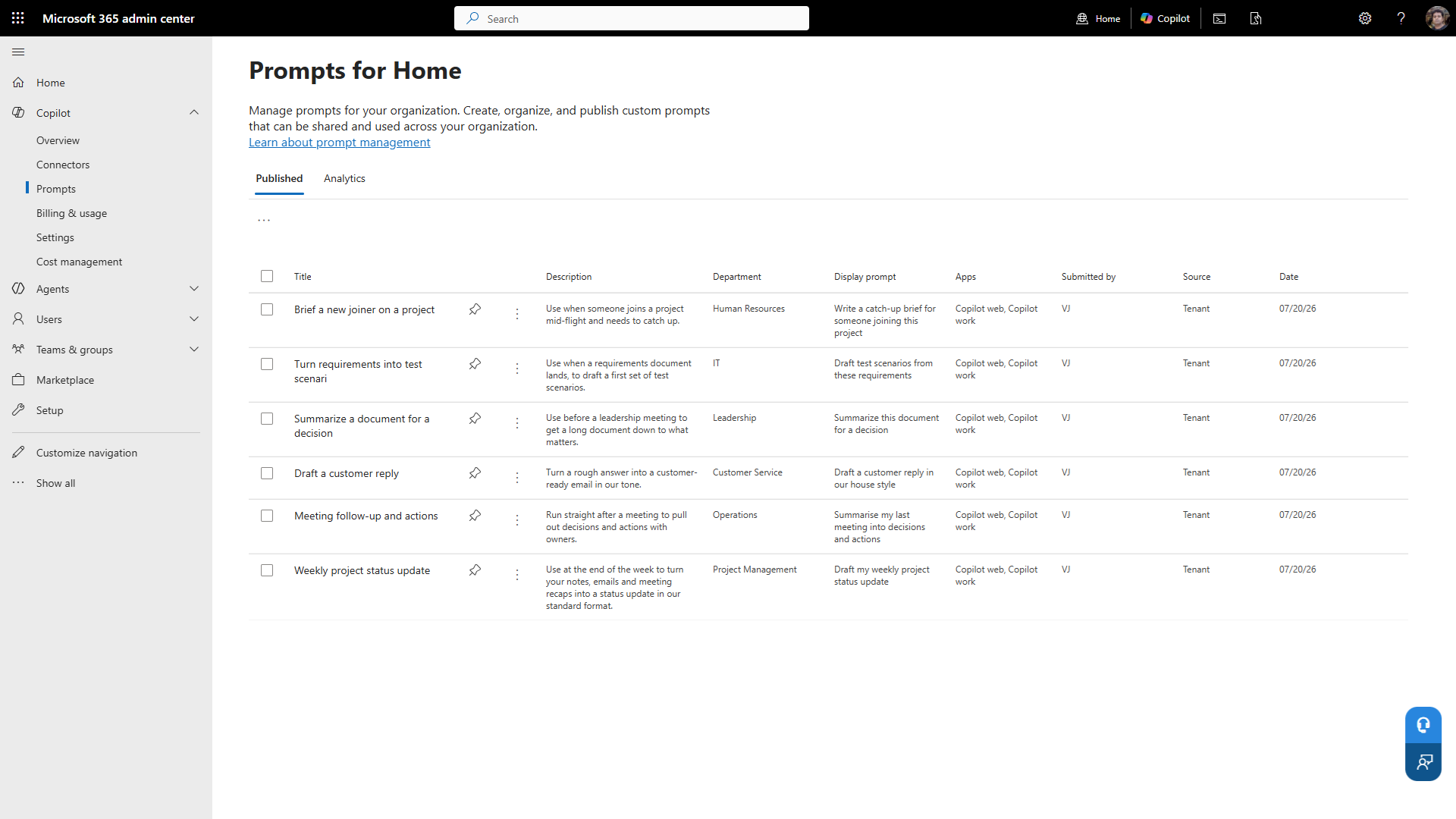
In the Microsoft 365 admin center, go to Copilot and click Prompts. When you open the page for the first time, there will be no prompts, only a message saying No prompts have been added.
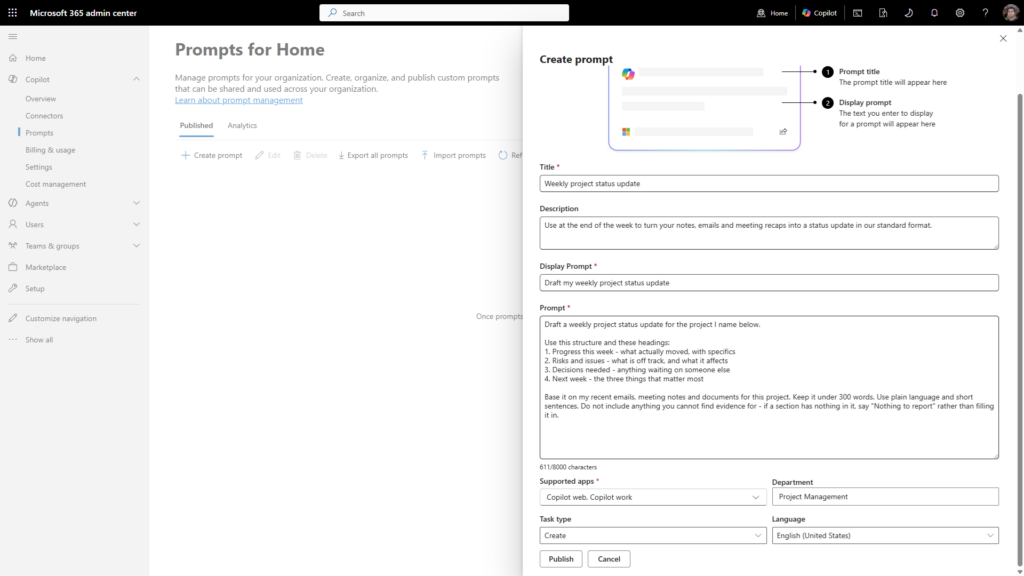
Click Create prompt and a panel will appear to the right with the following fields:
- Title: what people see in the prompt gallery
- Description: when and how to use it
- Display Prompt: the display text
- Prompt: the actual prompt, up to 8,000 characters
- Supported apps: Copilot web, Copilot work
- Department, Task type and Language
Then Publish.
Four are mandatory: Title, Display Prompt, Prompt, and Supported apps. Still fill in Department and Task type, even though they’re not mandatory. It’s how users will filter your gallery if there are more than a few items in there, and it’s an unexciting day when you realize you should’ve done that earlier.
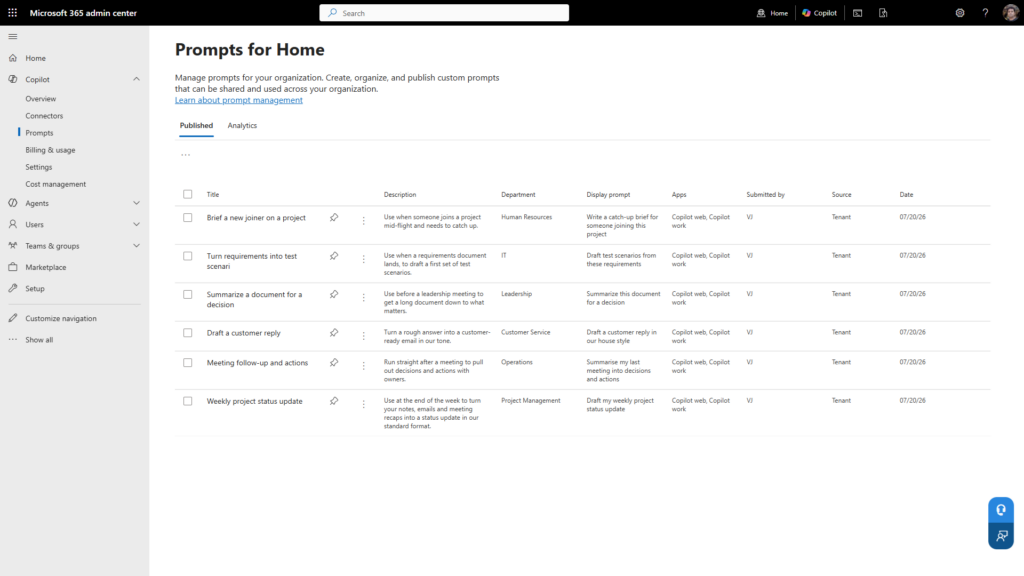
According to the official documentation from Microsoft, it takes around three hours before a published prompt becomes visible to the users. In my tenant, they became available almost immediately, so no worries if you check right after publishing. However, if it is not the case for your tenant, wait for the three hours before starting to troubleshoot.
Navigate to Copilot Chat and see the suggested chips below the message box (Summarize content, Draft something, etc.). These are the prompts from Microsoft, and the ones you created are not included.
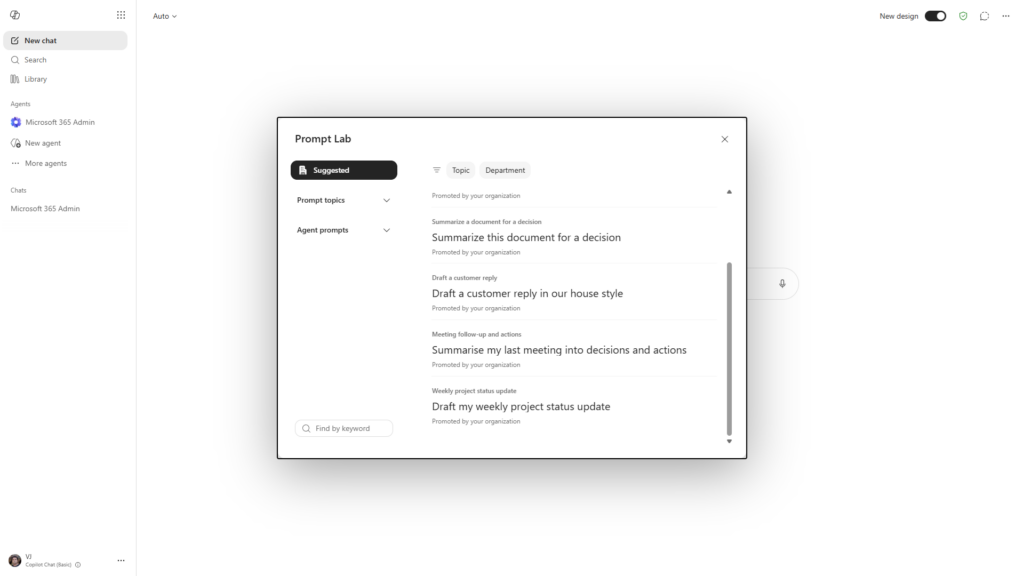
Now click the button next to that row. It will open Prompt Lab, and there you will find your prompts in the Suggested section with the label Promoted by your organization.
Important information to know since the phrase “I have published them, but users cannot see them” will be the very first thing they will ask you for help. They are not lost. They are just one click deeper than expected.
Two unexpected, but useful, facts:
They work for the users in Copilot Chat (Basic) too. I thought the organization prompts would require a full license for Microsoft 365 Copilot to be shown. Not true. They showed up in Prompt Lab in an unlicensed account.
There are filters for Topic and Department in Prompt Lab at the top of the page. This is why the Department field is worth filling out even though it is optional; it is actually working here. Leaving it empty on twenty prompts gives your users a list they cannot filter.
If you have already written prompts down (and most companies that had any Copilot training have), there is an Import prompts button on the toolbar, saving the effort of typing in each prompt individually. There is an Export all prompts right next to it, and this feature should be run occasionally just in case.
The restrictions are 100 prompts per file during import, and 1,000 prompts published per tenant.
However, the limit that is going to really affect your actions is located to the right of the toolbar and it is easy to overlook: Pinned 0/4.
You can pin only four. That’s all. The rest just reside in the gallery available to those who bother to look, but most people aren’t going to bother to look.
The question here is not what should be published, but which four.
The configuration takes only ten minutes. The choice of prompts to publish is where the effort lies, and this is where these are wasted.
Make the prompt as specific to your organization as possible. “Summarize this document” isn’t worth being published. Copilot comes up with such prompts on its own, and everyone figured out about this in the first week. “Draft a project status update in our standard format, describing progress, risks and next steps” is worth being published, since it contains your methodology.
Shoot for repeatable tasks. Weekly reports, the typical client email, meeting summaries that always require those four components. Any task that is done differently each time by many different people.
Publish little and well. Twenty great prompts that are used frequently beat out two hundred others that clog up the list of suggestions and just get forgotten. More can always be added later on, and it’s much easier to do that than remove items.
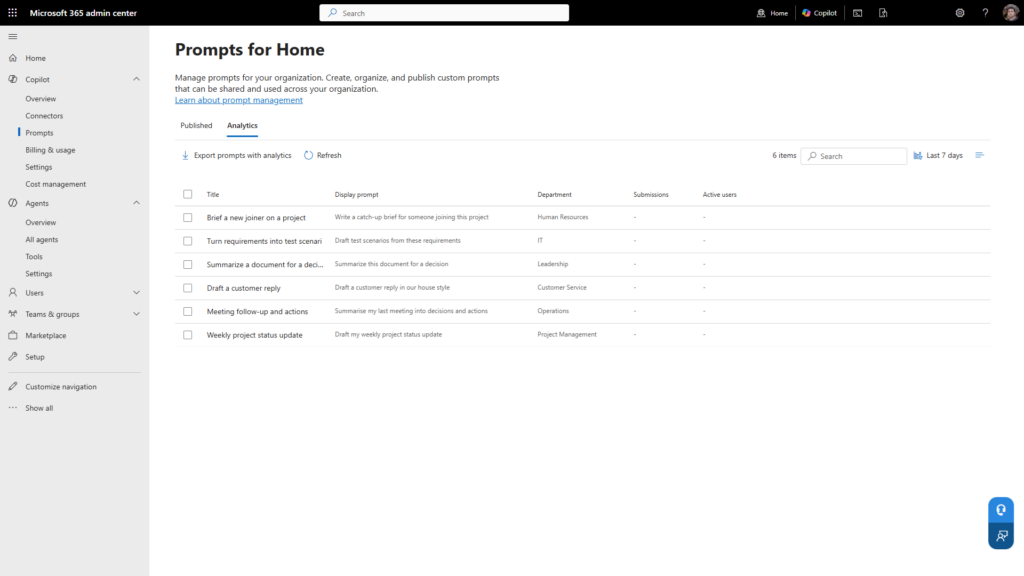
Keep track of what’s being used. There is an Analytics button next to the Published button on the same page, and it proves to be a more useful tool than expected.
It breaks down every prompt with its respective numbers of Submissions and Active users according to a date range, Last 7 days being the default one. It even has an option to Export prompts with analytics.
On day one it is all dashes, which is as expected. After a month you’ll get some actionable information. Two with numbers and four prompts that no one ever bothered about is a usual outcome and the solution would be to remove those four. A list of prompts that no one ever edits can no longer be trusted and will not even be opened anymore.
The important part is the difference between the two columns. Lots of submissions with few active users is a case of a single person relying on the prompt. Few submissions from many active users is an indication that they have used it once and never returned, which usually means the prompt itself is good while the content is not.
One Comment
Comments are closed.