Build your first Graph connector for Microsoft Search and Copilot
Some of the content your users need does not live in Microsoft 365. It sits on a website, a wiki, a support portal, somewhere outside the tenant. A Microsoft Graph connector pulls that outside content into Microsoft Search and Copilot, so people find it in the same search box they already use, with permissions respected.
In this post I am going to build one end to end, using the no-code Enterprise Websites connector. To keep it real I pointed it at my own blog. You will see the whole flow, including the one setting that trips up almost everyone the first time.
Where to start
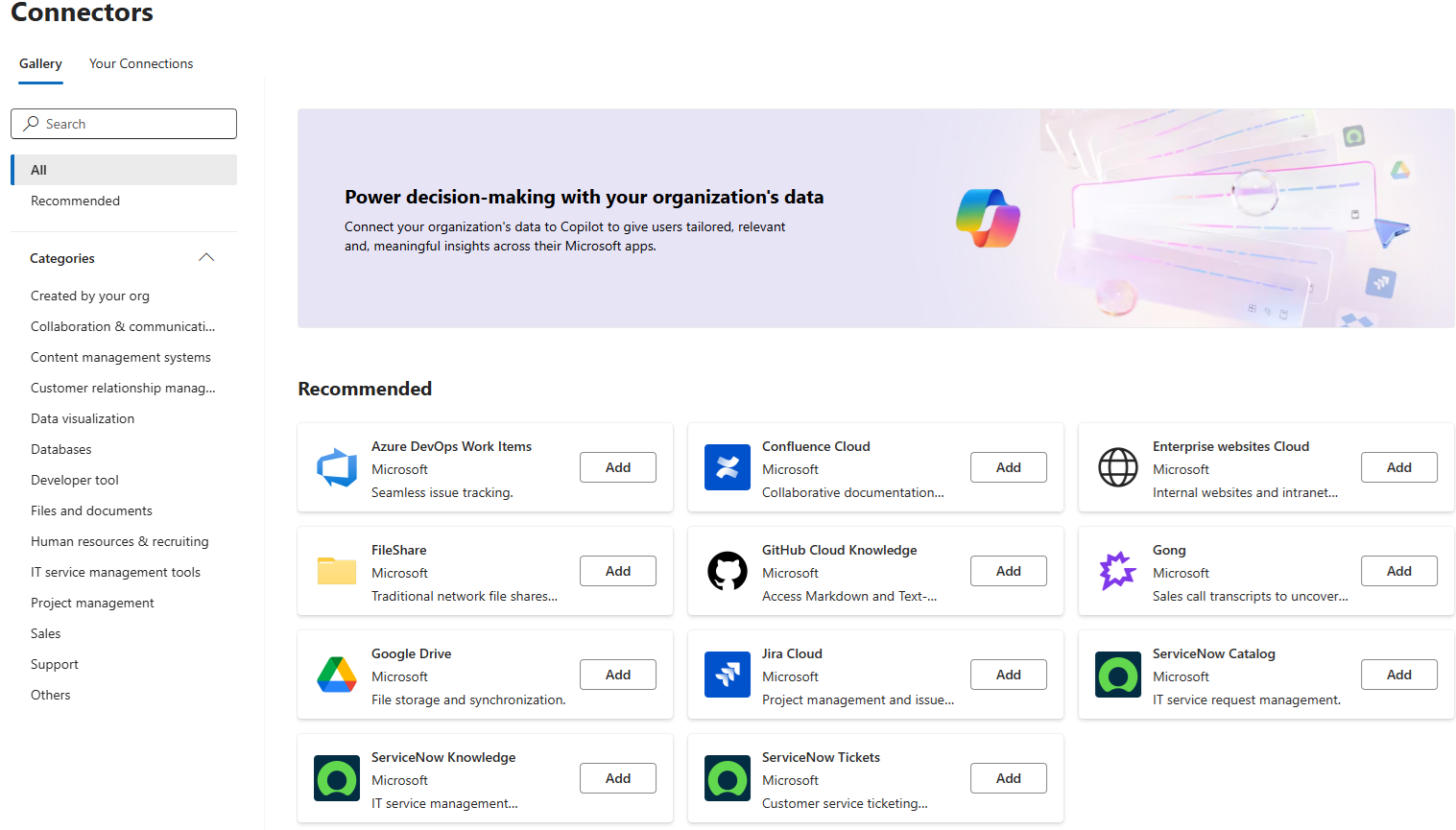
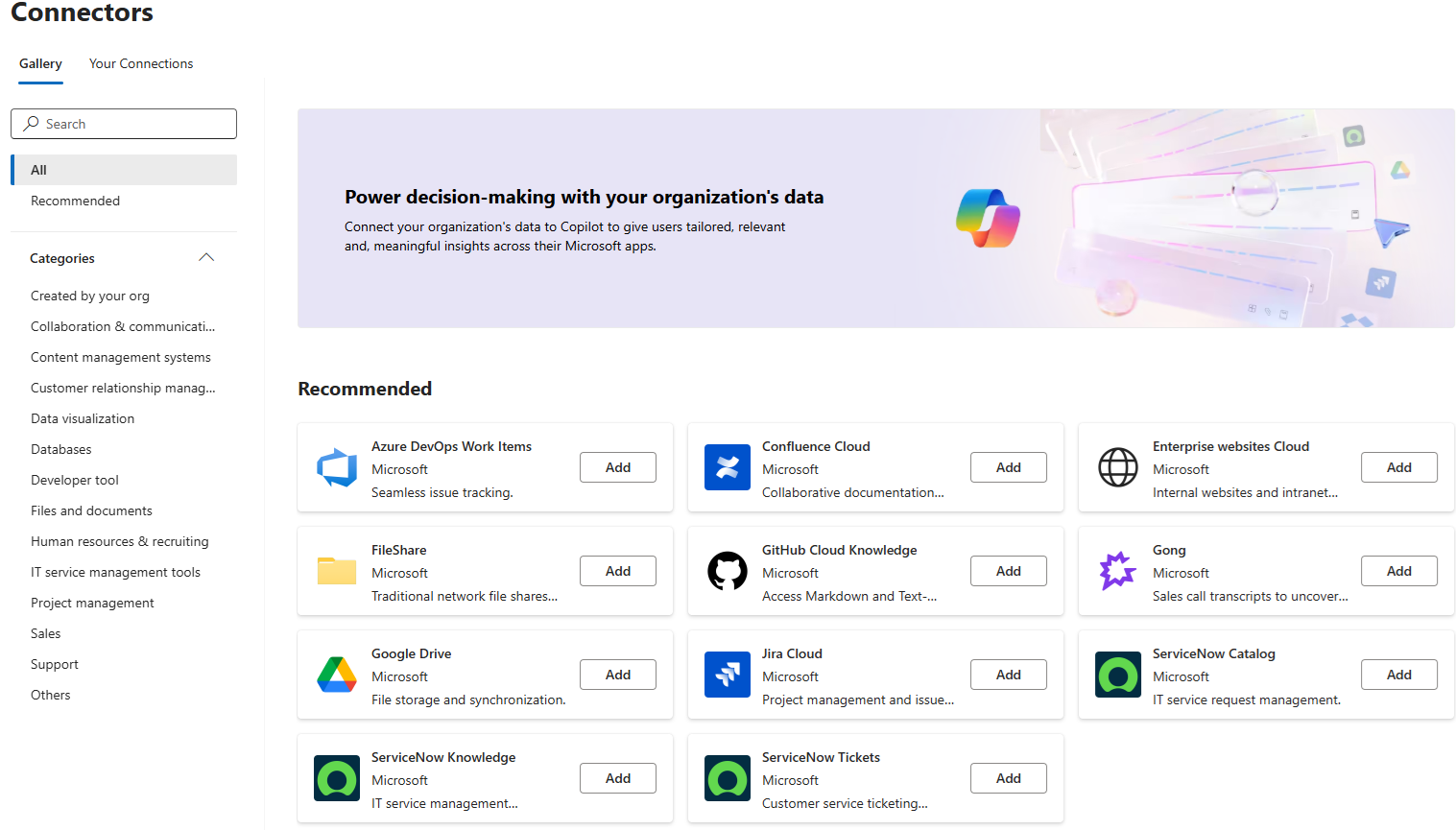
You do this in the Microsoft 365 admin center, under Copilot > Connectors. The Gallery tab lists every connector type, prebuilt by Microsoft or by a partner. The Your Connections tab is where the ones you have added live.
You need to be a Search admin or a global admin to see this. Click Add Connection, find Enterprise Websites, and select it.
Point it at a site
The setup screen asks for three things.
- Display name. This is not just a label for you. It is the source name your users see next to every result from this connection, so give it a name that means something.
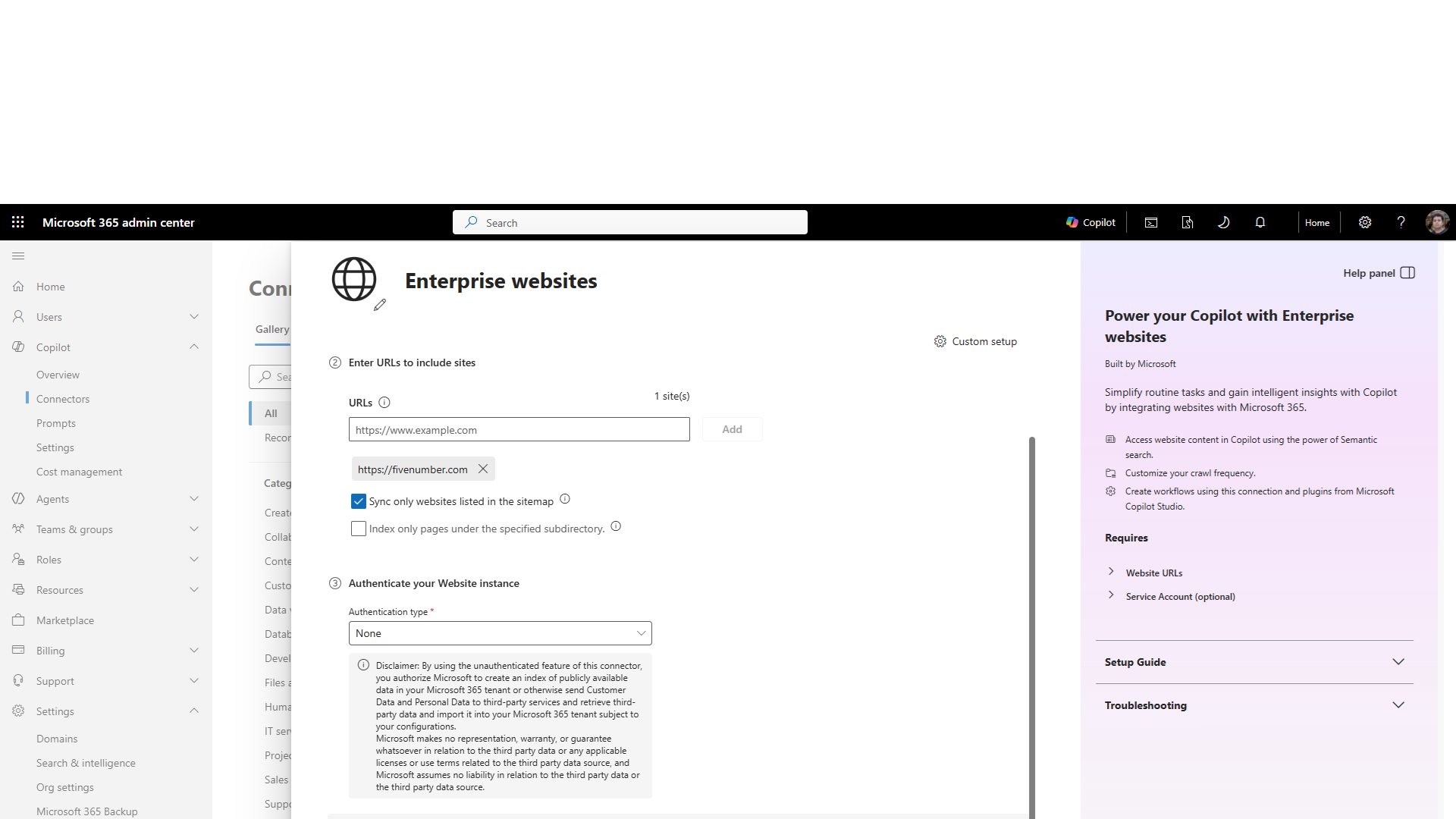
- URLs. Type the site address and, this part matters, click Add so it moves into the list. If you skip that click the box still shows “0 sites” and the connection has nothing to crawl. Tick Sync only websites listed in the sitemap if the site has a sitemap. It gives a cleaner, faster crawl and skips the junk pages.
- Authentication. For a public site leave this on None. You will see a disclaimer about indexing publicly available data, which is expected. For an internal site behind a login you would add a service account here instead, and the connector then respects who can see what.
Click Create.
The setting everyone misses
Here is the one that catches people. The moment the connection is created you get a red banner that says the data from this connection will not appear in Copilot Chat or Search results.
Read that again. You built the connector, it is crawling your content, and it still will not show anything. New connections default to not visible. This is the single most common reason someone says “I set up a connector and nothing shows up”.
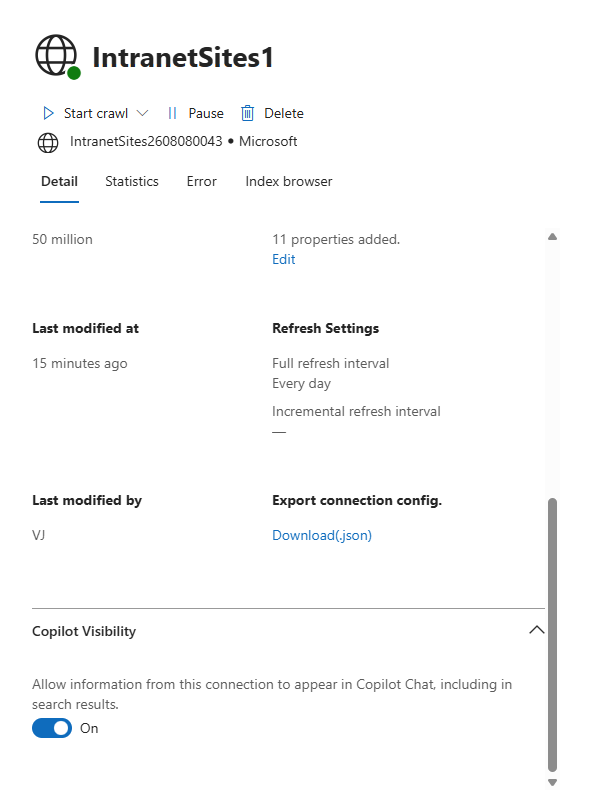
The fix is in the same panel. Scroll down to Copilot Visibility and turn it On, which allows the connection’s content to appear in Copilot Chat and search results. Without this the crawl runs, the index fills, and none of it surfaces.
Let it crawl
Now it needs time. The connection shows a crawling state while it indexes, then moves to Ready in the Your Connections list. A small site is quick. A larger one takes longer, and the default refresh is a full crawl once a day, so new pages show up the next day rather than the next minute.
While you are here, two details worth knowing. Permissions reads “Visible to everyone” for a public site, because there is no per-page access to honor. And there is an Export connection config link that downloads the whole setup as JSON, which is how you would move this connection to another tenant or rebuild it in code later.
Find it in search and Copilot
You do not even have to wait for a search to confirm it worked. The Index browser tab on the connection lists every item it has indexed, with a status against each one, so you can open a page and see it sitting in the index as Indexed. That is the fastest proof that the crawl did its job.
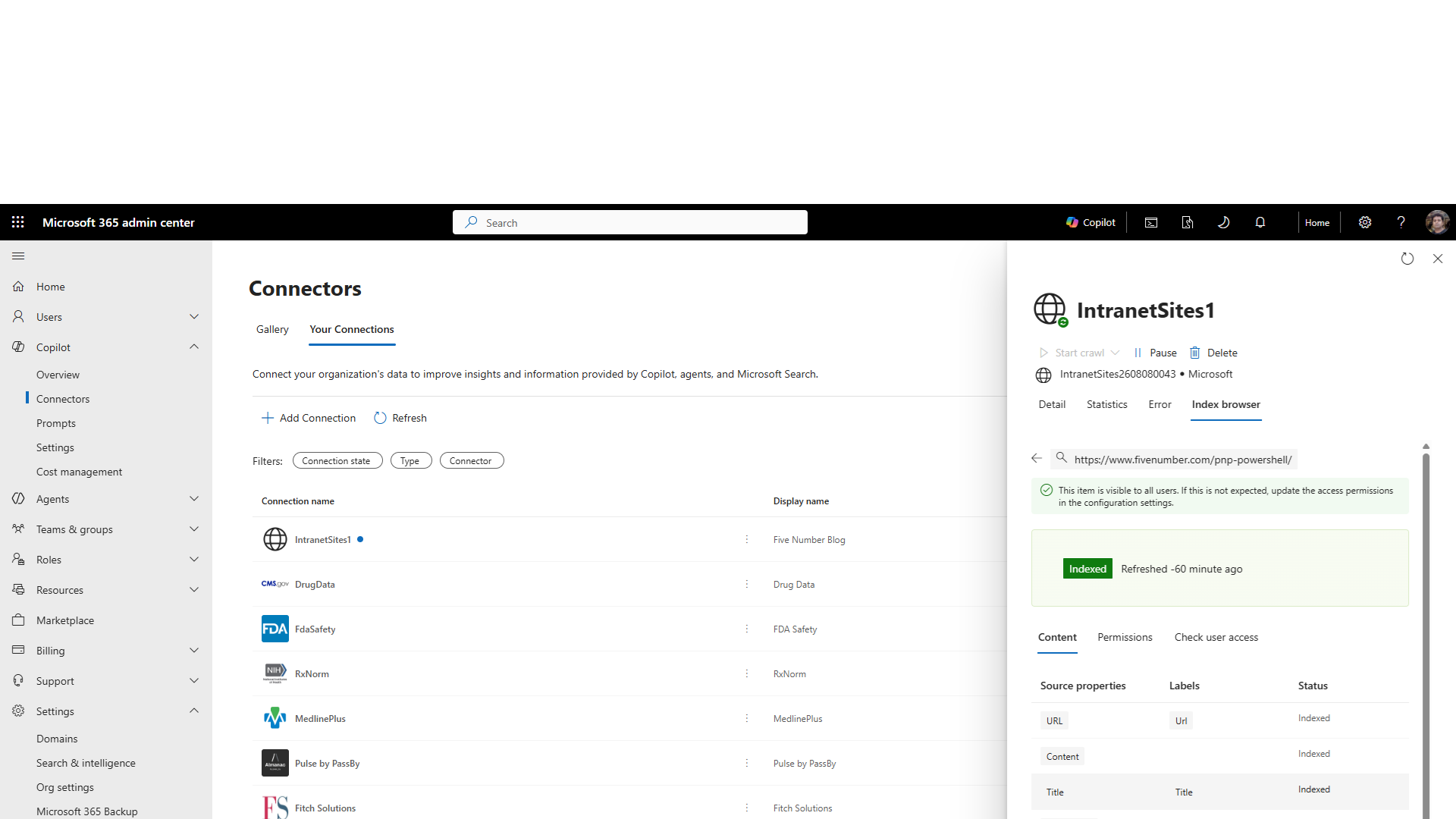
Then go to the Microsoft 365 search box and search a phrase you know is on the site. The page comes back as a normal result, with your connection’s display name shown as the source. The better test is Copilot itself. Ask it something the content answers, in my case I asked it to tell me about my blog, and it replied grounded on the connector content, with citations pointing straight back to the pages it used.
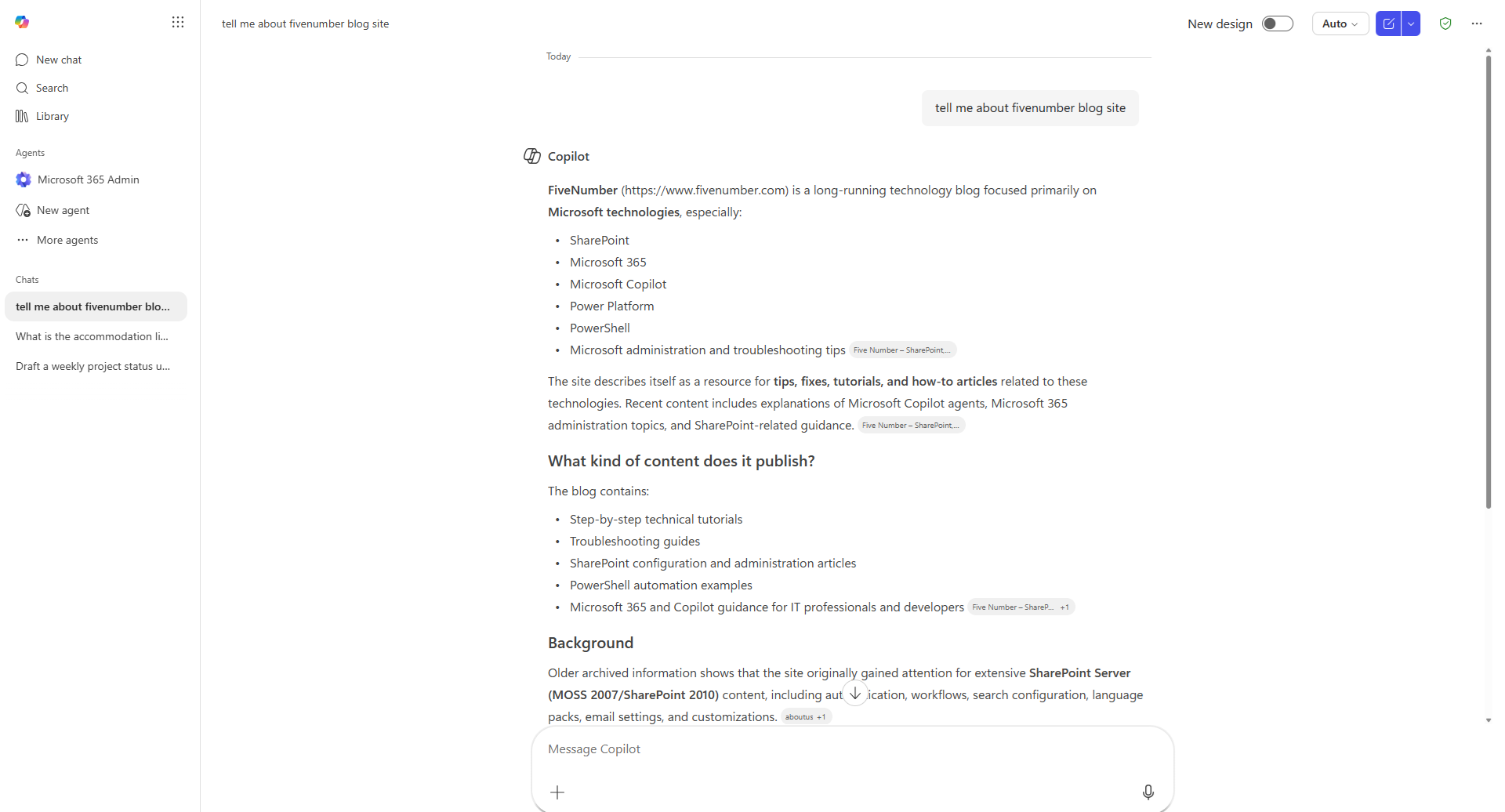
That is the whole point. The content lives outside Microsoft 365, and Copilot now answers from it and shows its working.
That is a working Graph connector, no code involved. It also rides the same index and the same ranking as everything else, so if you want to understand why a given result lands where it does, that is a separate topic on its own.
The no-code connectors cover a lot, but they only crawl what the connector already knows how to read. When your content lives somewhere with no prebuilt connector, or you need per-item permissions the crawler cannot infer, you build a custom one with the Graph connector API and push the items yourself.



One Comment
Comments are closed.