DLP for Copilot: the last lever for keeping content out of Copilot
Everything so far has been about sites and encryption. Restricted Content Discovery hides a whole site from Copilot. A sensitivity label with encryption locks a single file. But two things fall straight through those gaps. The Confidential document that is not encrypted, sitting on a site you never restricted, which Copilot folds into a summary without a second thought. And the user who pastes a customer’s card number into a Copilot prompt to “just check something”. Neither is a site problem, neither is an encryption problem, and this is the control that was built for both: Data Loss Prevention for Copilot.
What it is
It is a Microsoft Purview DLP policy with a location called Microsoft 365 Copilot and Copilot Chat. You will only find it under the Custom policy template, and the moment you switch that location on, every other DLP location in the policy switches off. This one stands on its own.
Keeping labelled content out of answers
The headline job is keeping labelled content out of Copilot’s responses. You add a rule with the condition Content contains > Sensitivity labels, pick your labels, say Highly Confidential and Personal, and set the action to Prevent Copilot from processing content. From then on, Copilot will not pull the contents of a file carrying those labels into a response.
Here is the part that makes it different from everything before it. The trigger is the label, not the encryption. So the unencrypted Confidential file, the one the EXTRACT usage right could never touch because there was no encryption to hang a right on, is now excluded all the same. And Copilot stays honest about it: the item can still appear in the response’s citations, so the user sees that something was deliberately held back rather than quietly missing.
Three more things the same location does
Blocking labelled files is what most people come for, but the Copilot location does three more jobs worth knowing.
It can stop a prompt in its tracks when the user types a sensitive information type into it, a credit card or a passport number, so Copilot simply refuses to answer. It can keep those same sensitive types from being sent out to external web search, while still answering from your internal data. And, in preview, it can drop emails from external senders out of Copilot’s grounding entirely, which is a quiet but real defence against a prompt injection arriving by email.
What will trip you
A few things bite if you do not know them. You cannot put a sensitive-information-type condition and a sensitivity-label condition in the same rule; make two rules in the one policy instead. The email coverage only reaches messages from 1 January 2025 onward, and calendar invites are not covered at all. Changes take up to four hours to show in Copilot, so do not test it in the first five minutes. And there is a simulation mode, which you should absolutely use before you turn any of this on for real.
Where it sits, and the one thing it still does not do
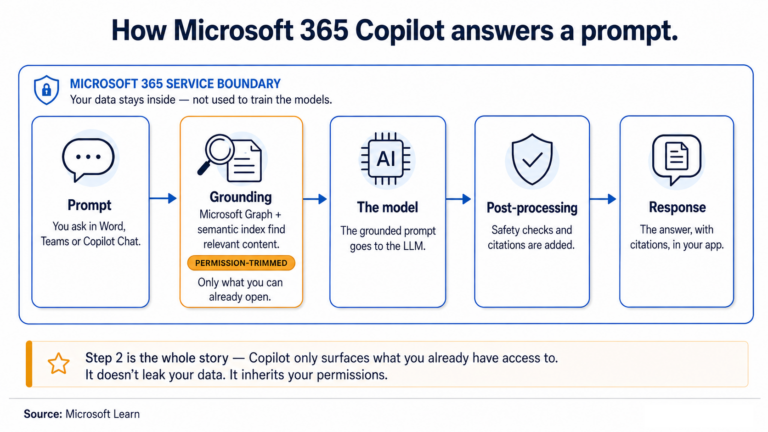
So now you have the whole set. A label with encryption stops Copilot reading a file. Restricted Content Discovery hides a site. Restricted Access Control locks a site to a group. DLP is the finest-grained of the four, the only one that works off the label without needing encryption, and the only one that acts on the prompt itself in real time.
One thing has been true of every single one of them, and it is worth saying plainly. None of these change who can open the file. A DLP rule stops Copilot summarising the document; the person it was overshared to can still open it and read every word. The controls decide what Copilot may do. They do not decide who has access. That question, the one sitting underneath all four of these posts, is still yours, and it is what I built User Access Explorer to answer.