Build a Custom Microsoft Graph Connector in .NET
In this post, I am going to show you how to build a custom Microsoft Graph connector that pushes your own content into Microsoft Search. No web app and no framework. Just an app registration, a token and three calls. Full program at the end.
Run on .NET 8 with one package, Azure.Identity.
What a connector actually is
You will see a lot of ASP.NET Core samples for this, and in production that is how I host mine. But the connector itself is not a web app. It is three Graph calls.
- Create an external connection.
- Register a schema.
- Push items.
A console app does all three, so that is what we will build. Create a project and add the one package you need.
dotnet new console
dotnet add package Azure.Identity
The app registration
The connector runs with no user signed in, so it needs its own app registration in Entra. Six short steps.
1. Register the app. In the Entra admin center go to App registrations > New registration. Name it Graph Connector Demo, leave it on Single tenant only, and skip the redirect URI because this is app-only. Click Register.
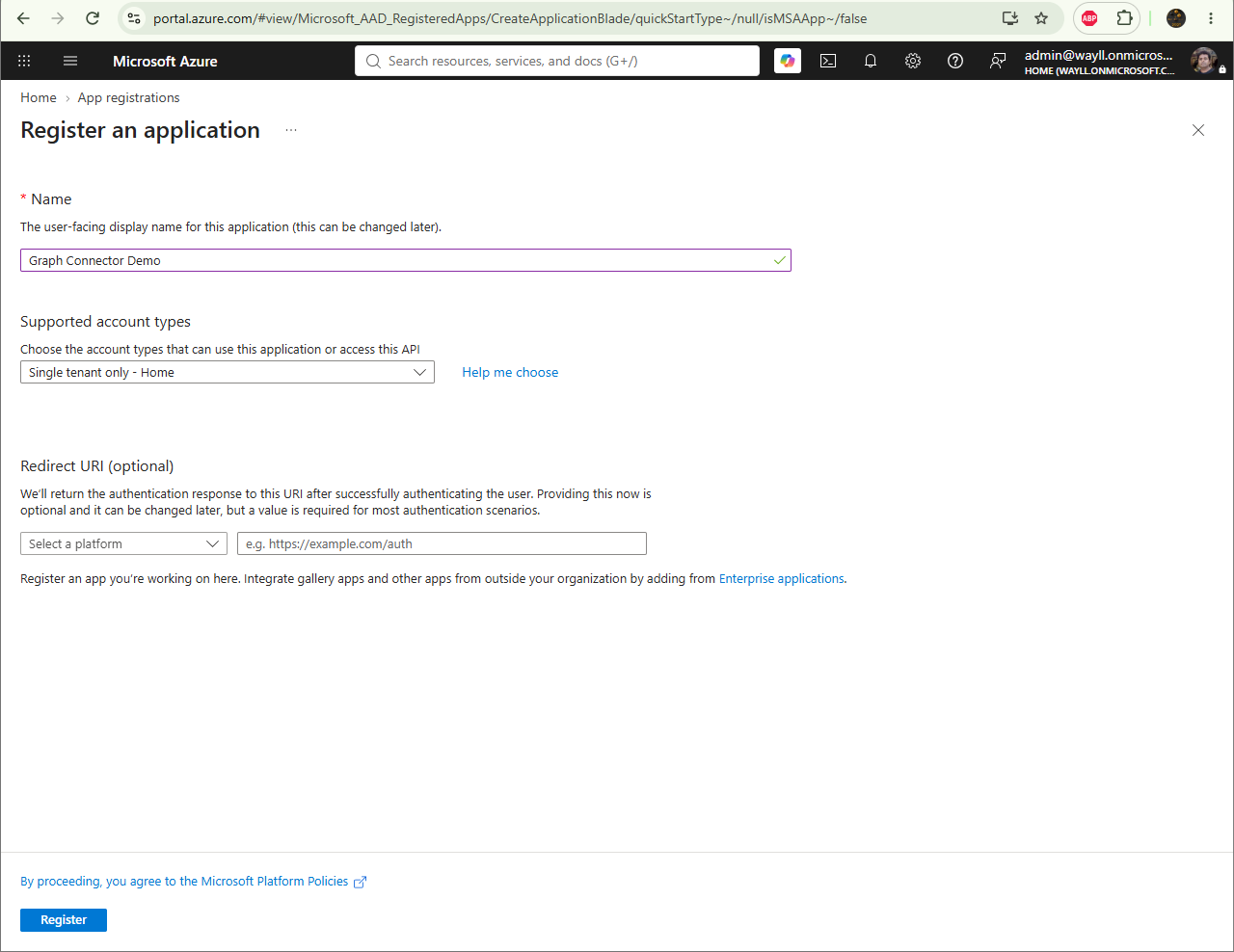
Demo, Single tenant only selected]
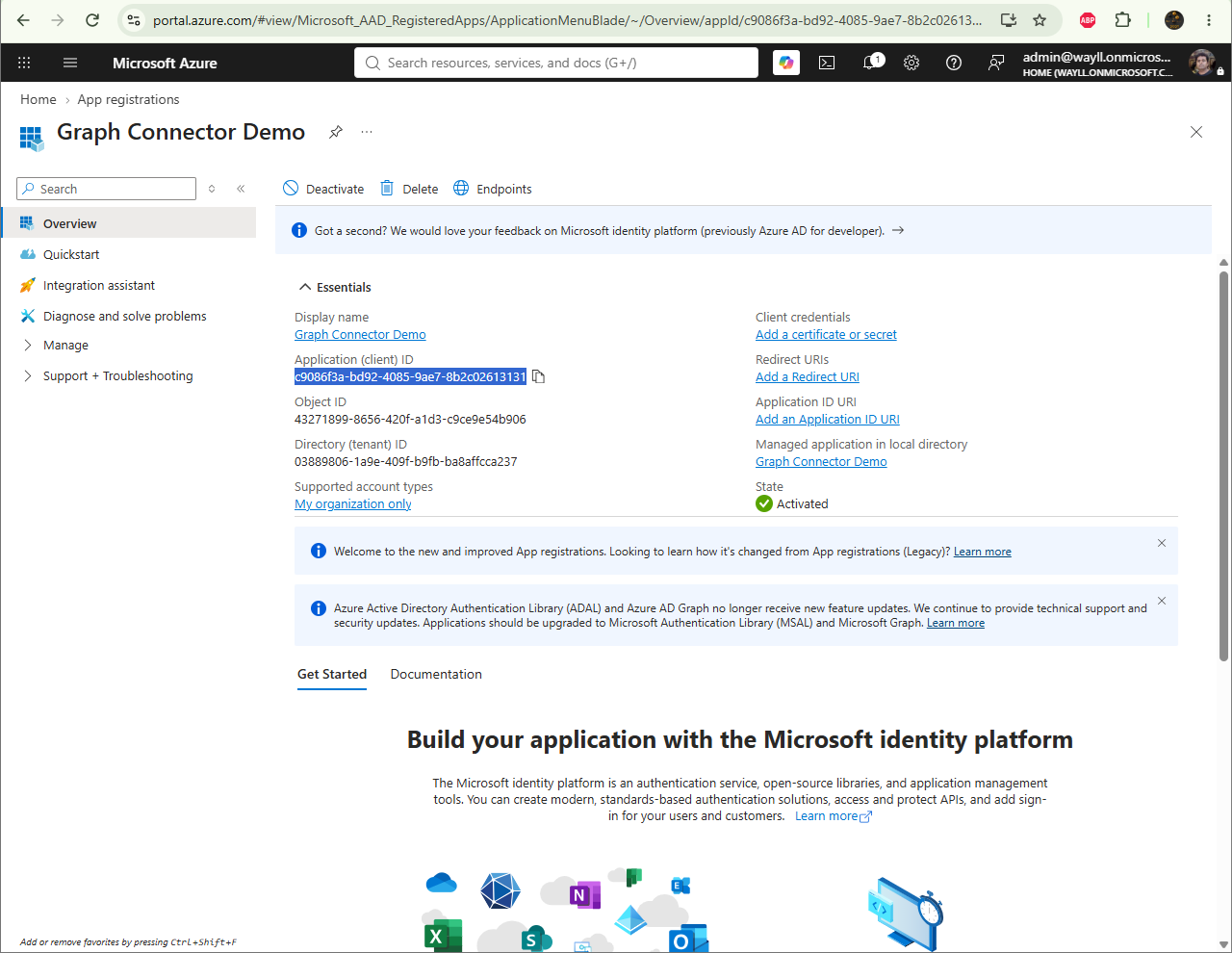
2. Copy the ids. On the app Overview page copy the Application (client) ID and the Directory (tenant) ID. Those two go into the program.
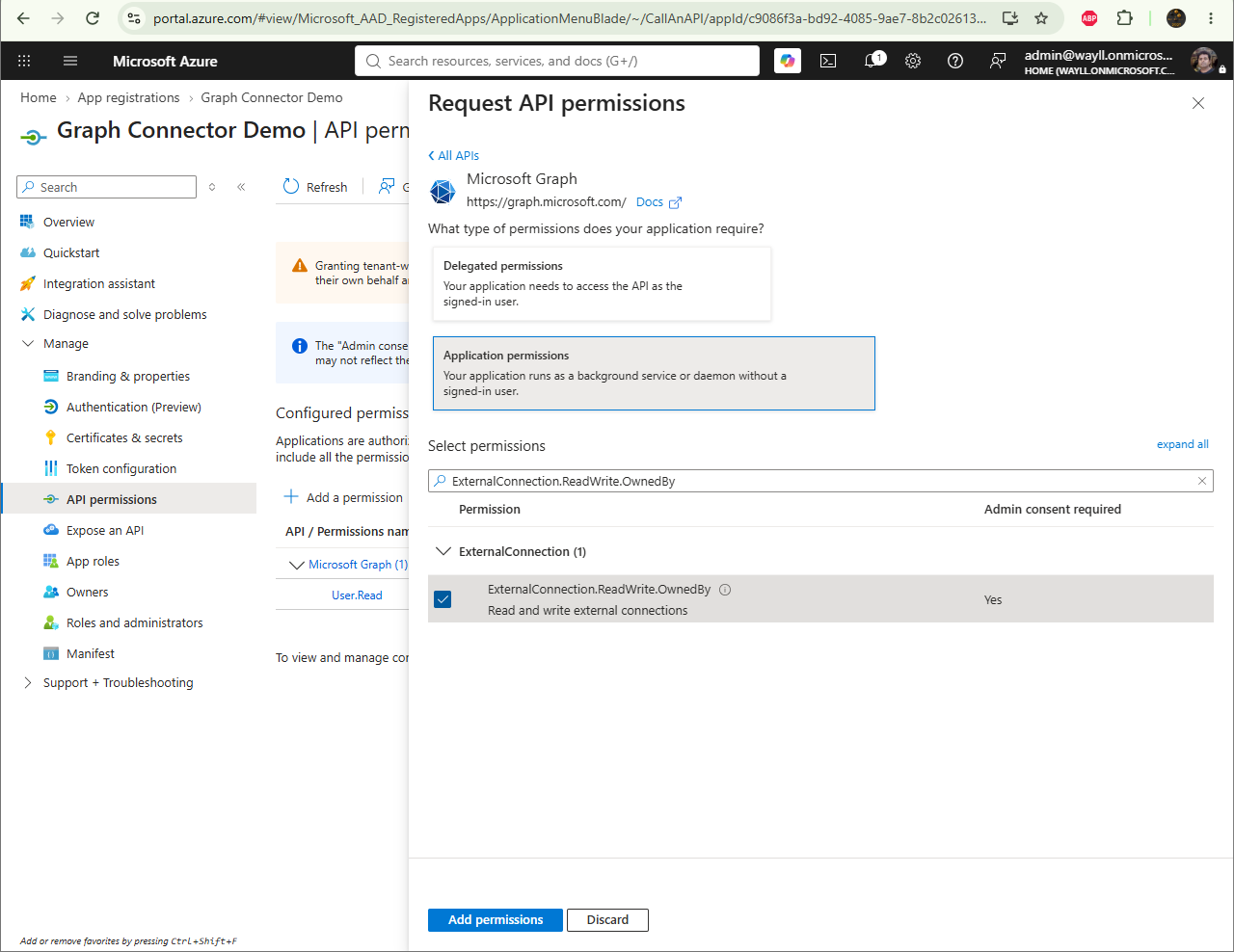
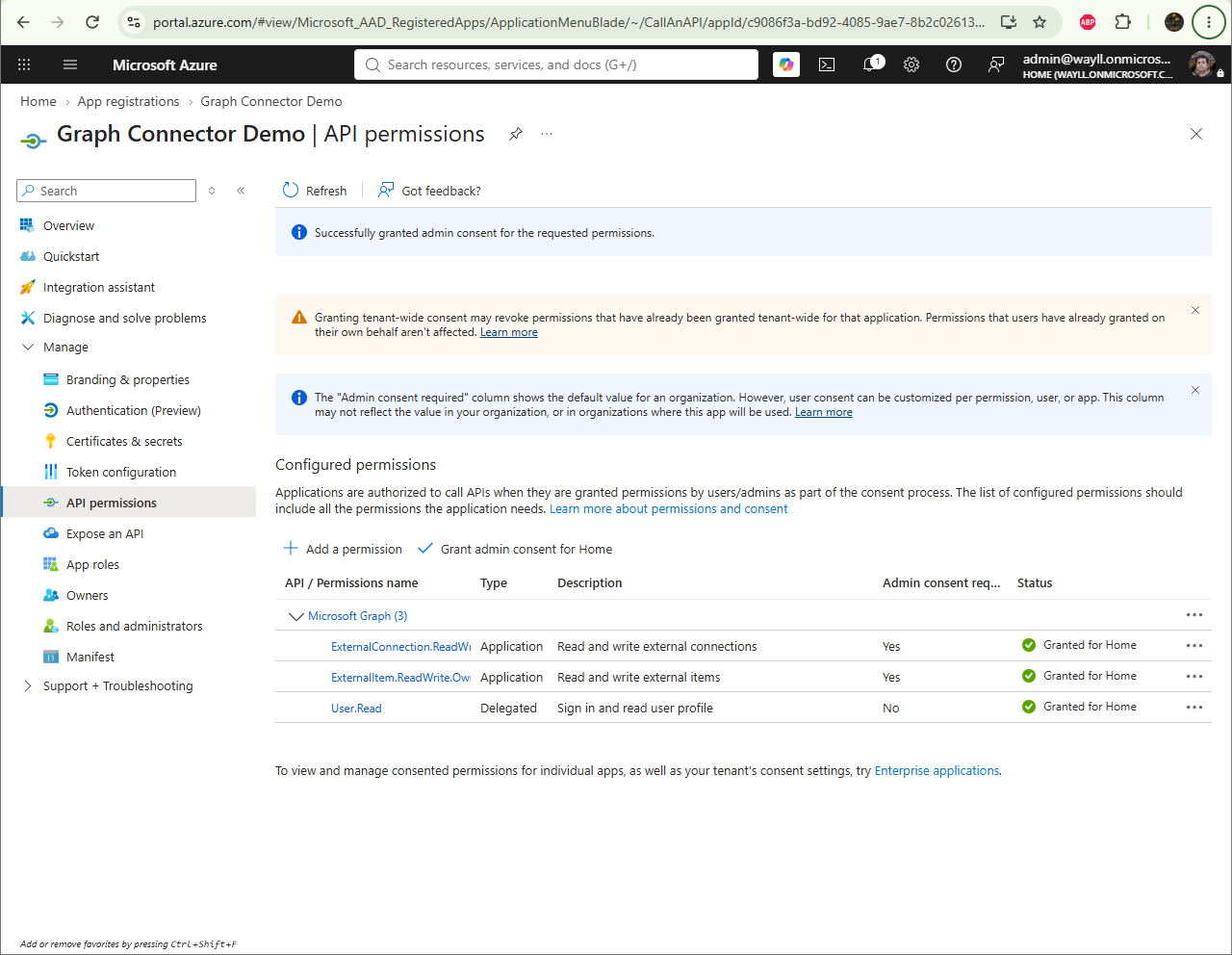
3. Add the first permission. Go to API permissions > Add a permission > Microsoft Graph > Application permissions, search for ExternalConnection.ReadWrite.OwnedBy and tick it.
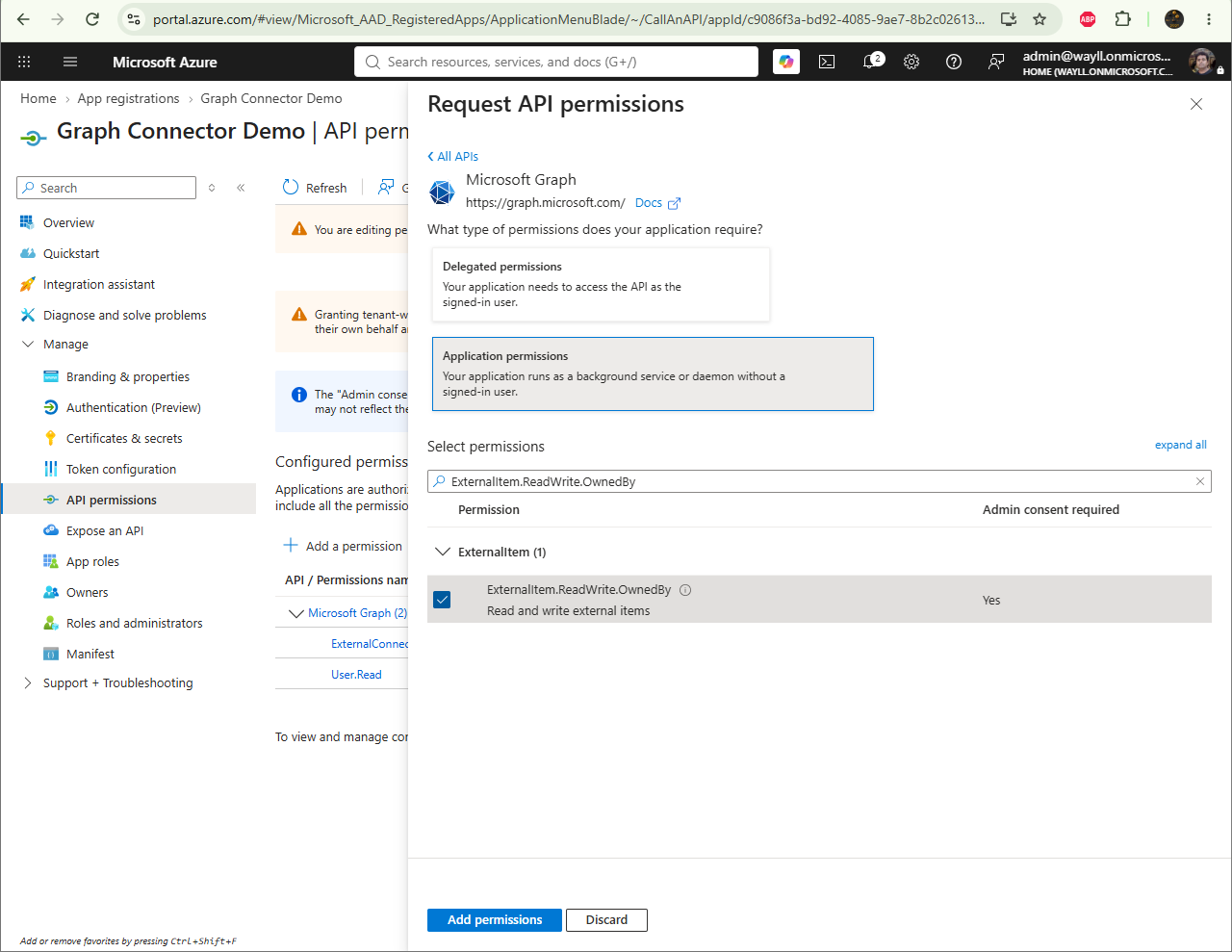
4. Add the second permission. The same way, add ExternalItem.ReadWrite.OwnedBy.
5. Grant admin consent. Back on the API permissions page click Grant admin consent. Both permissions should turn green and say Granted. This is the step people skip, and it fails in a confusing way that I come back to at the end.
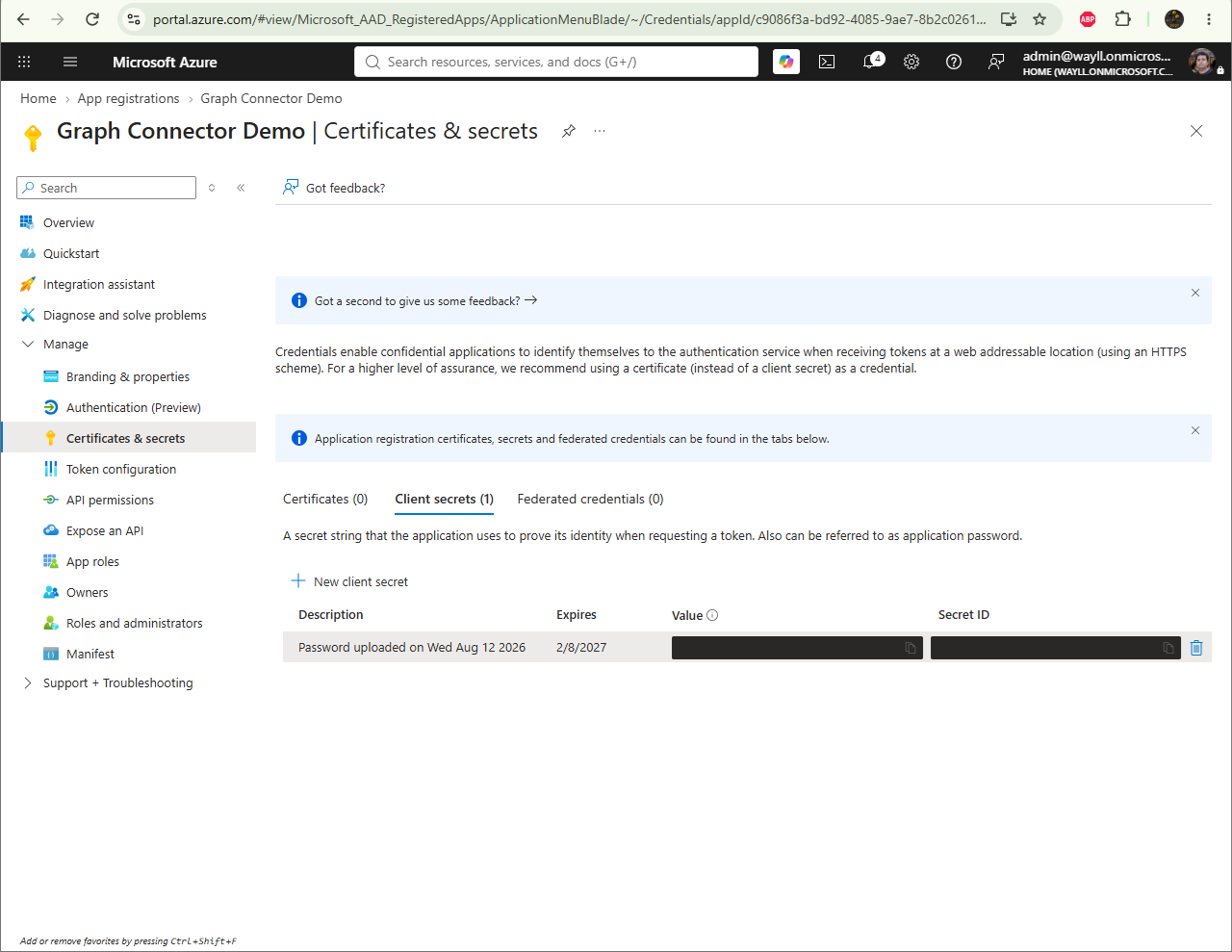
6. Make a client secret. Go to Certificates & secrets > New client secret, add one, and copy the Value straight away because it only shows once.
Getting a token
App-only with client credentials. The scope is the Graph default.
var credential = new ClientSecretCredential(tenantId, clientId, clientSecret);
var token = (await credential.GetTokenAsync(
    new TokenRequestContext(new[] { "https://graph.microsoft.com/.default" }))).Token;

var http = new HttpClient { BaseAddress = new Uri("https://graph.microsoft.com/v1.0/") };
http.DefaultRequestHeaders.Authorization = new AuthenticationHeaderValue("Bearer", token);
1. Create the connection
A connection is the container your items live in. It needs an id, a name and a description.
POST external/connections
{
  "id": "fndemo01",
  "name": "Five Number Demo",
  "description": "A minimal demo connector"
}
201 Connection created.The id has to be letters and numbers only, three to thirty two characters, and it cannot start with the word Microsoft.
2. Register the schema
The schema is the list of properties your items will have. Each property can be searchable and retrievable, and can carry a semantic label like title or url so Search knows what it is.
POST external/connections/fndemo01/schema
{
  "baseType": "microsoft.graph.externalItem",
  "properties": [
    { "name": "title", "type": "String", "isSearchable": true, "isRetrievable": true, "labels": ["title"] },
    { "name": "url",   "type": "String", "isRetrievable": true, "labels": ["url"] }
  ]
}
The important thing to note is that this call is asynchronous. It does not register the schema and return. It returns 202 straight away with a Location header, and you poll that URL until the status is completed.
202 schema call returned.
  schema status: inprogress
  schema status: inprogress
  schema status: inprogress
  schema status: completed
On my tenant that took about two minutes. It can be longer. So do not write a script that pushes items right after the schema call without waiting, because the schema will not be ready and the items will fail.
3. Push an item
Now the content. An item has three parts. The acl says who is allowed to see it, the properties match the schema, and the content is the body text that gets indexed.
PUT external/connections/fndemo01/items/item1
{
  "acl": [
    { "type": "everyone", "value": "everyone", "accessType": "grant" }
  ],
  "properties": {
    "title": "Welcome to Five Number",
    "url": "https://contoso.example/welcome"
  },
  "content": {
    "value": "This is the body text Microsoft Search will index.",
    "type": "text"
  }
}
200 Item pushed.The acl is not optional. Leave it out and the item goes in but nobody can find it, because nothing is allowed to see it. For a demo, everyone is fine. In real life you put Entra group ids here instead.
See it in the admin center
Open the Microsoft 365 admin center and go to Copilot > Connectors. Your connection is right there, with the data source as Custom, the permission as Visible to everyone, and the schema showing 2 properties added.
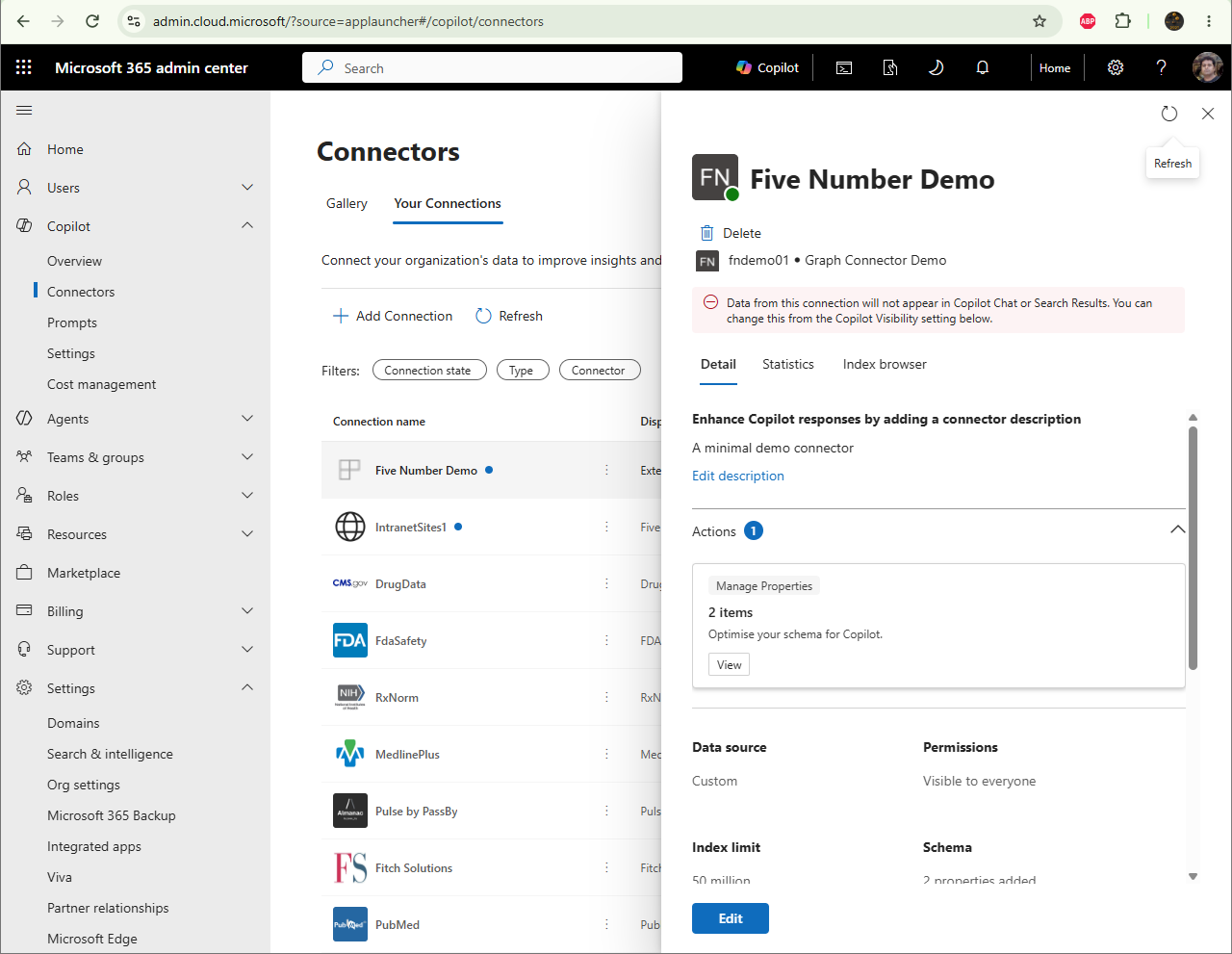
Read the line at the top of the connection though. It tells you the data will not appear in Copilot Chat or Search Results until you change the Copilot visibility setting. So the item is indexed, but it is not searchable yet.
The 401 that is really a consent problem
This one is worth calling out because it wastes people a lot of time. If you forget to grant admin consent, the connection call does not fail the way you expect. You get a token without any trouble, and then Graph rejects it like this.
401 {"error":{"code":"Unauthenticated","message":"The request has not been applied
because it lacks valid authentication credentials for the target resource.",
"innerError":{"code":"InvalidToken","message":"Token is invalid"}}}
Token is invalid. So you go and check your token code, your client id and your secret, and all of them are fine. The real problem is that the app has no permissions granted, so the token has no roles in it, and Graph will not accept it. A permission problem is usually a 403 that says access denied. Here it is a 401 that says the token is bad, which points you at completely the wrong thing. Grant admin consent, wait a couple of minutes for it to take, and the same code works.
The whole program
The full project, including the project file, is on GitHub at gvijaikumar9/graph-connector-demo.
using Azure.Core;
using Azure.Identity;
using System.Net.Http.Headers;
using System.Text;
using System.Text.Json;

const string tenantId     = "YOUR_TENANT_ID";
const string clientId     = "YOUR_CLIENT_ID";
const string clientSecret = "YOUR_CLIENT_SECRET";

const string connectionId = "fndemo01";

var credential = new ClientSecretCredential(tenantId, clientId, clientSecret);
var token = (await credential.GetTokenAsync(
    new TokenRequestContext(new[] { "https://graph.microsoft.com/.default" }))).Token;

var http = new HttpClient { BaseAddress = new Uri("https://graph.microsoft.com/v1.0/") };
http.DefaultRequestHeaders.Authorization = new AuthenticationHeaderValue("Bearer", token);
Console.WriteLine("Got a token.");

// 1. create the connection
await Send(HttpMethod.Post, "external/connections", new
{
    id          = connectionId,
    name        = "Five Number Demo",
    description = "A minimal demo connector"
}, "Connection created.");

// 2. register the schema (asynchronous)
var schemaResponse = await http.PostAsync($"external/connections/{connectionId}/schema", Json(new
{
    baseType = "microsoft.graph.externalItem",
    properties = new object[]
    {
        new { name = "title", type = "String", isSearchable = true, isRetrievable = true, labels = new[] { "title" } },
        new { name = "url",   type = "String", isRetrievable = true, labels = new[] { "url" } }
    }
}));
Console.WriteLine($"{(int)schemaResponse.StatusCode} schema call returned.");
if (schemaResponse.Headers.Location is null)
{
    Console.WriteLine(await schemaResponse.Content.ReadAsStringAsync());
    return;
}

var operationUrl = schemaResponse.Headers.Location.ToString();
while (true)
{
    await Task.Delay(TimeSpan.FromSeconds(30));
    var body   = await http.GetStringAsync(operationUrl);
    var status = JsonDocument.Parse(body).RootElement.GetProperty("status").GetString();
    Console.WriteLine($"  schema status: {status}");
    if (status is "completed" or "failed") break;
}

// 3. push one item
await Send(HttpMethod.Put, $"external/connections/{connectionId}/items/item1", new
{
    acl = new[] { new { type = "everyone", value = "everyone", accessType = "grant" } },
    properties = new { title = "Welcome to Five Number", url = "https://contoso.example/welcome" },
    content = new { value = "This is the body text Microsoft Search will index.", type = "text" }
}, "Item pushed.");

Console.WriteLine("Done. Give it a few minutes, then search for the item.");

StringContent Json(object body) =>
    new(JsonSerializer.Serialize(body), Encoding.UTF8, "application/json");

async Task Send(HttpMethod method, string path, object body, string ok)
{
    var request  = new HttpRequestMessage(method, path) { Content = Json(body) };
    var response = await http.SendAsync(request);
    Console.WriteLine(response.IsSuccessStatusCode
        ? $"{(int)response.StatusCode} {ok}"
        : $"{(int)response.StatusCode} {await response.Content.ReadAsStringAsync()}");
}
Fill in your tenant, client and secret at the top, then run it with dotnet run. That is the whole connector. Turning on the Copilot visibility so the item actually shows up in Search is the next post.

One Comment
Comments are closed.