Your Microsoft Graph Connector Data Is Not Showing in Search
In this post, I am going to show you why your custom Microsoft Graph connector data does not show up in Search, and the one setting that turns it on. This follows on from building the connector, where we pushed an item but it did not appear anywhere yet.
The symptom
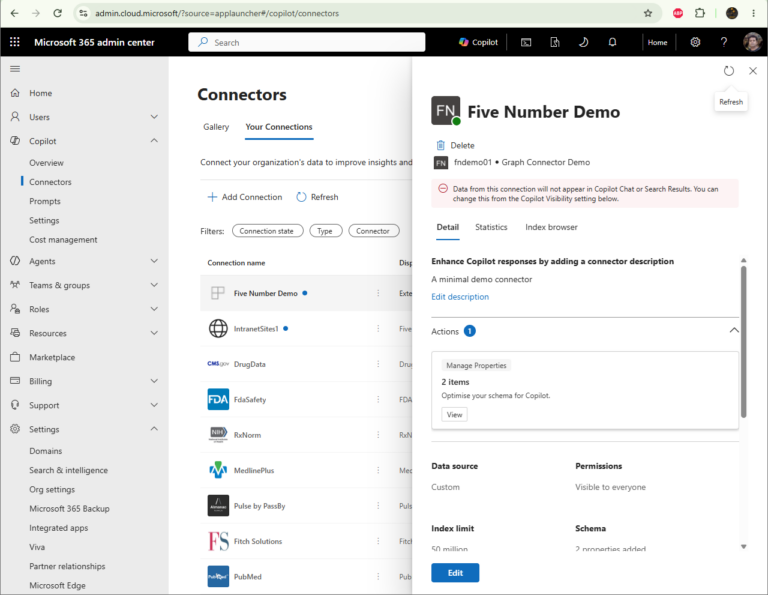
You built a connector, the schema registered, and your item pushed without any error. But when you open the Microsoft 365 admin center and go to Copilot > Connectors > Your Connections, the connection sits there with a State of Draft, and nothing you push shows up in Search.
Open the connection and there is a line at the top that tells you the real reason. It says the data will not appear in Copilot Chat or Search Results until you change the Copilot visibility setting.
The switch
Open your connection, and in the detail panel on the right scroll down to Copilot Visibility. Turn the toggle On.
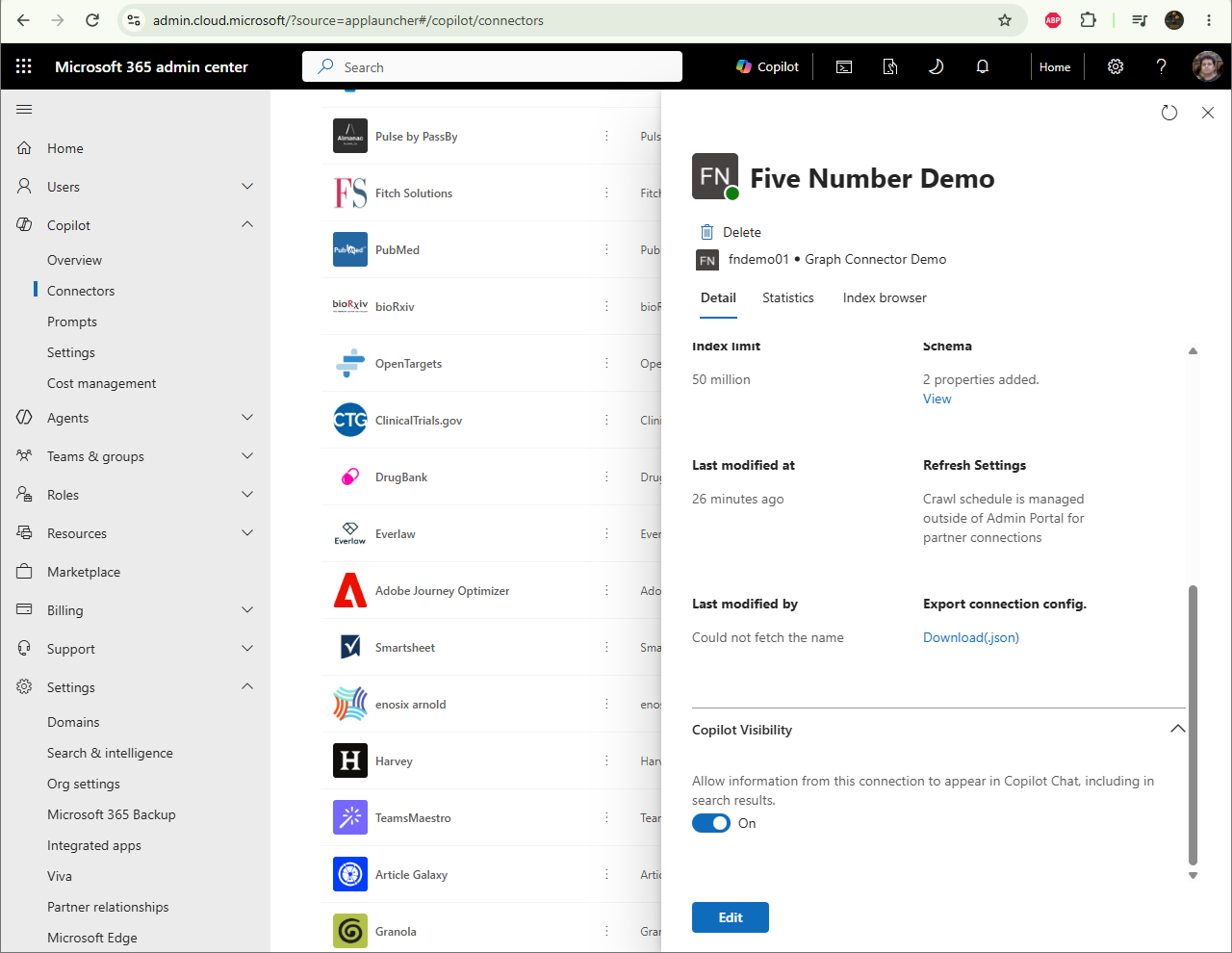
That is the whole fix. The setting reads “Allow information from this connection to appear in Copilot Chat, including in search results”, and until it is on, the connection just sits there indexed but hidden.
It does not flip straight away
Here is the part that made me think I had broken something. After I turned the toggle on, the connection still showed Draft. I refreshed the list a couple of times and it stayed Draft for a few minutes. Then on its own it moved to Ready.
So give it a few minutes after you turn on visibility. If it is still Draft, it is propagating, not broken.
Test it in the right place
This is the other thing that trips people up. Do not test in Copilot Chat on the free tier. Copilot Chat Basic cannot read any of your work data, so it will never find a connector item. It only answers from the web. I tried it there first and it just read back the text I typed.
Test in Microsoft Search instead, which does read connector content and does not need a Copilot licence. Go to Office.com or any SharePoint site, use the search box at the top, and search for a word from your item.
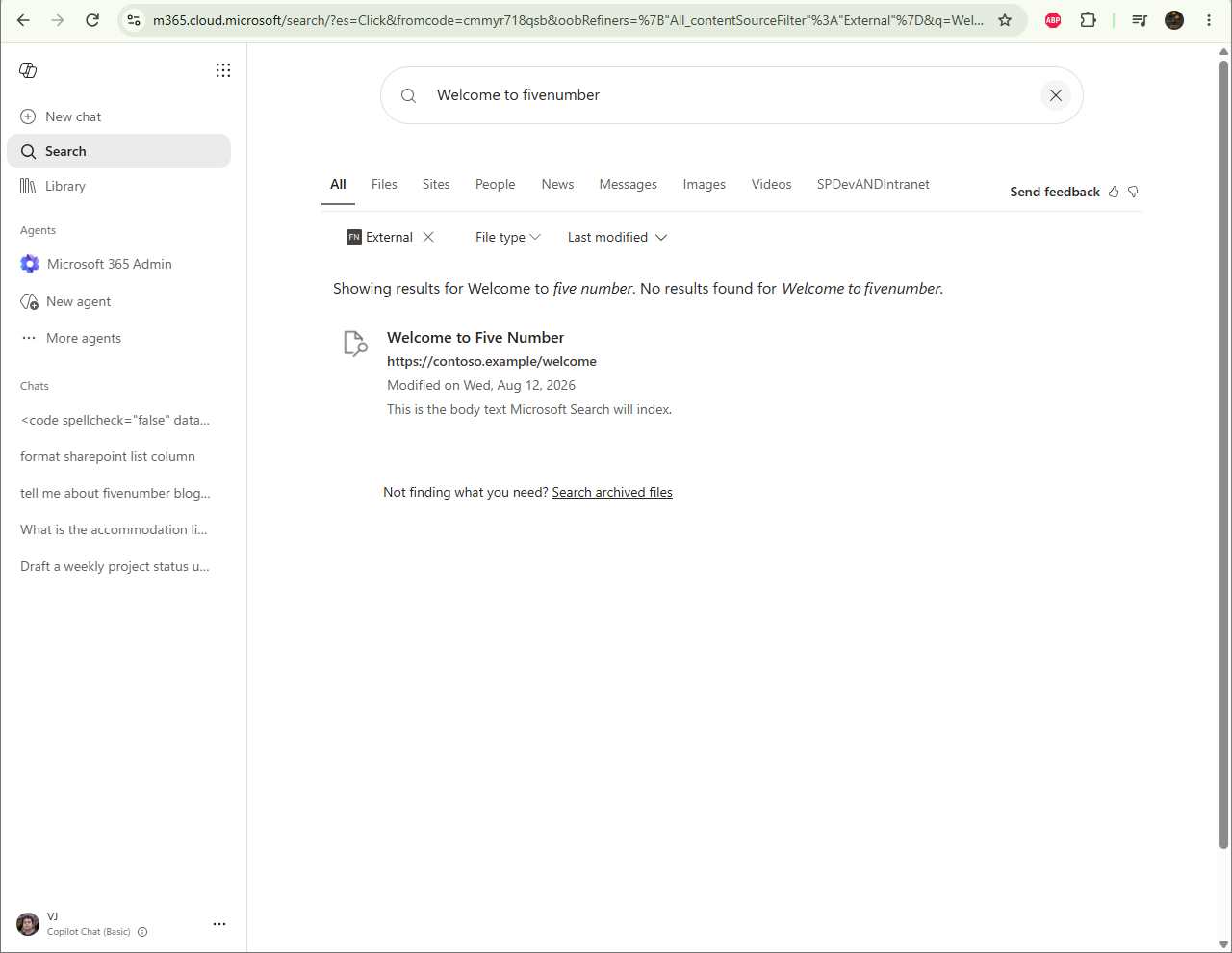
There it is, with the title, the url and the body text exactly as they were pushed. It shows under the All tab, and you can narrow to just your connector content with the source filter, which shows as External. Until you set up a result type it does not get its own tab, but it is in the index and it is findable.
So the connector was working the whole time. It just needed the visibility switch turned on, a few minutes to settle, and to be searched in Microsoft Search rather than the free Copilot.


3 Comments
Comments are closed.