Restricted Content Discovery vs Restricted SharePoint Search: what actually hides content from Copilot
The admin enables the Restricted SharePoint Search feature to make sure that Copilot does not go to the dirty sites that have not been cleaned up yet, informs the boss that everything is done, and in just one week, the helpdesk has a dozen tickets with the subject of “I cannot find anything using search.” Two features seem to provide the same functionality, and choosing the wrong one is the perfect recipe for spending an entire week in that kind of situation.
Thus, there are two tools: Restricted SharePoint Search and Restricted Content Discovery. Both prevent the content from being included in the organization’s search experience and Microsoft 365 Copilot search. However, those are different features serving different purposes, and one of them will be deprecated very soon.
Restricted SharePoint Search: a blanket over the whole tenant
Once you activate it, restricted search and Copilot will only see the sites on your permitted list (limited to 100), OneDrive of individual users, the frequently visited sites, and the documents that were shared or recently accessed by each user. Anything else is excluded from tenant-wide search results. No need for deletion and locking down – it simply becomes invisible to any type of search.
Microsoft always saw it as a temporary measure, and now they are doing away with it. Effective 31 July 2026, you won’t be able to activate Restricted SharePoint Search at all, and the official recommendation is to switch to the Restricted Content Discovery. In case you already have it activated, the approach stays the same as before – to take advantage of it temporarily while fixing the problem of oversharing and then deactivating it.
So, it was never intended to last long. An organization where the search returns only 100 sites is an organization where search is quietly ignored.
Set-SPOTenant -EnableRestrictedSharePointSearch $true
The allowed list, up to 100 sites, you curate with Add-SPOTenantRestrictedSearchAllowedList, Remove-SPOTenantRestrictedSearchAllowedList and Get-SPOTenantRestrictedSearchAllowedList, passing a site URL or a CSV of them.
Restricted Content Discovery: a switch on one site
This is the feature that Microsoft is telling people to use now. This one is “per-site”. Enable it for a site, and that site alone goes out of search and Copilot for the entire organization. Everything else remains the same. No whitelist; nothing tenant-wide, just a toggle on the necessary sites.
Set-SPOSite -Identity "https://contoso.sharepoint.com/sites/Finance" `
    -RestrictContentOrgWideSearch $true

# read it back
Get-SPOSite -Identity "https://contoso.sharepoint.com/sites/Finance" |
    Select-Object Url, RestrictContentOrgWideSearch
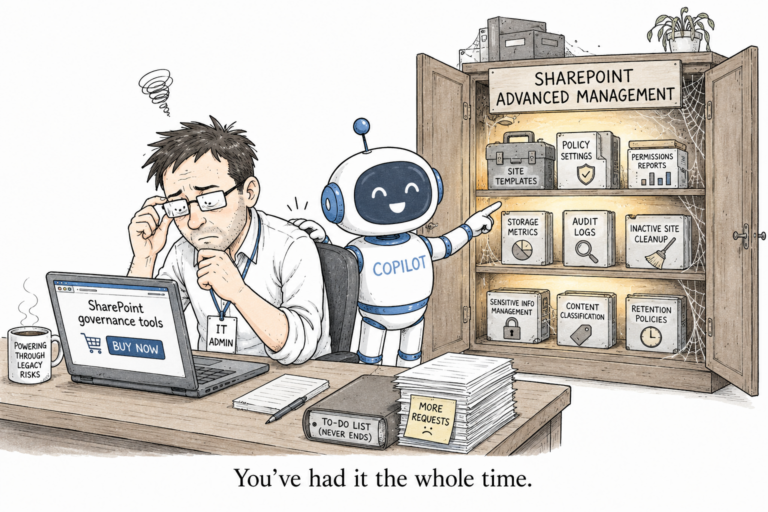
It should be noted that there is a licensing trap. The Restricted Content Discovery is an Advanced Management capability in SharePoint, which means that to utilize it, you will need to have the SharePoint Advanced Management, which is available via licensing the Microsoft 365 Copilot (regardless of whether it is a single user or not) or by purchasing the add-on. The Restricted SharePoint Search did not require anything like that, and this was the reason why it became the default choice of the majority of tenants.
The difference that actually matters
Here it all is in a nutshell. Restricted SharePoint Search tells what should be discoverable and blocks everything else. Restricted Content Discovery tells what should not be discoverable and lets everything else be as it is. One is opt-in for the whole tenant; the other is opt-out for several sites.
Blanket mode is meant for the panic moment – when Copilot is to go live tomorrow and no audits have been performed yet. Per-site mode comes in handy after that: when you have figured out which three sites contain sensitive data, and would like them to be removed from Copilot without screwing up the search experience for others. Well, Microsoft has done this work for you, taking off the blanket and leaving the switch.
What neither of them does
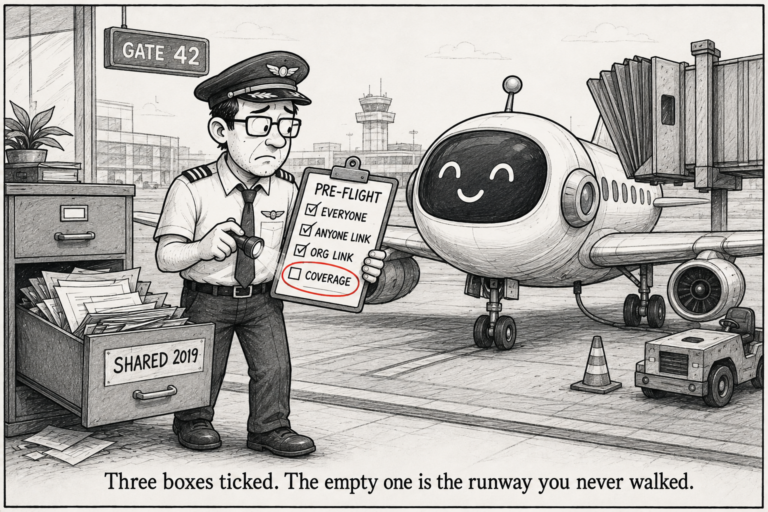
Then the thing that no one seems to get: Neither of these is actually a security boundary, and none of this changes access to the content. That “everyone except external” note on the finance website remains right where it is. The link that enables everyone in your organization to share files within minutes is not broken. Access to anything anyone has ever been able to access remains untouched, and even while your blanket is covering it, Copilot will continue to show a site that the user had seen recently. You have done nothing about the oversharing whatsoever. You have just prevented Copilot from highlighting it in front of everyone in your company.
It is totally fine to do as a temporary measure while cleaning the mess. It is totally wrong to think that this actually helps to clean the mess. Access is the problem; discovery is just the manifestation of it that Copilot made more apparent than ever before.
The sequence is straightforward, and it is exactly the one that Microsoft recommends to follow. Discover oversharing, determine what sites need to be kept private, and then use “Restricted Content Discovery”. These settings give you the time to do that. They do not do it for you.
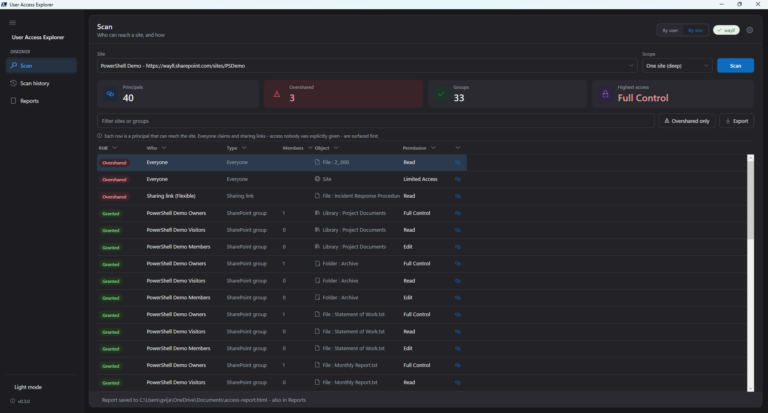
I developed a free tool to help with discovering the oversharing problem, if that is what holds you back User Access Explorer.
2 Comments
Comments are closed.