How to take a full page screenshot of a SharePoint page
When you try to take a full page screenshot of a SharePoint page, you get only the part you can see on the screen. The rest is cut off. Even the built in Capture full size screenshot in Chrome DevTools gives you just the first screen.
The reason is simple. A modern SharePoint page does not scroll the window. The content scrolls inside a container. So any tool that scrolls the window captures nothing below the first screen, and DevTools measures the page as one screen tall.
I hit this every time I needed to share an intranet home page or a long list. So I built a small Chrome extension to fix it, and I am giving it away free.
Full Page Capture takes the whole page from top to bottom in one click. It works on normal web pages and on SharePoint pages that scroll inside a container.
How to use it
- Install Full Page Capture from the Chrome Web Store.
- Open the page you want. If it is a SharePoint page, come out of edit mode first.
- Click the extension icon in the toolbar. A small badge counts the frames.
- When it finishes, a new tab opens with the full image. Pick a format and download it, or copy it to the clipboard.
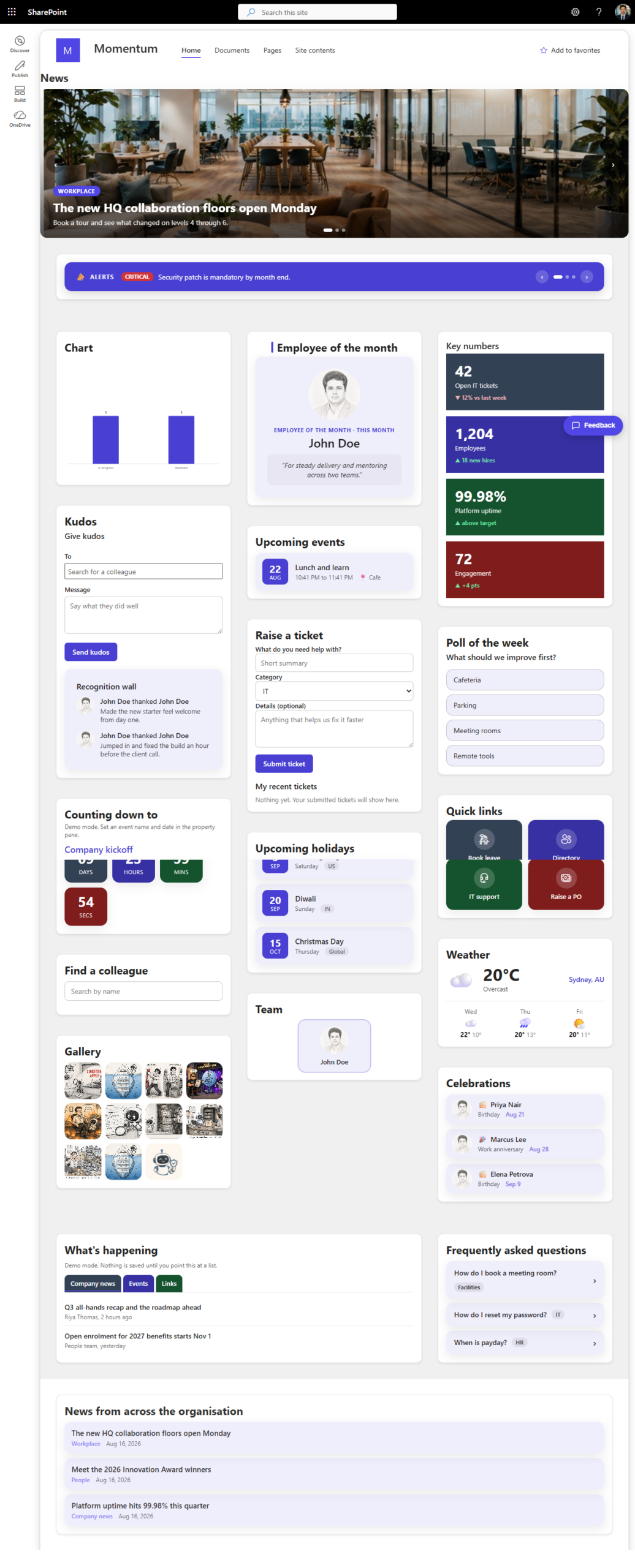
That is it. You get the header, the navigation, and everything below the fold in one image.
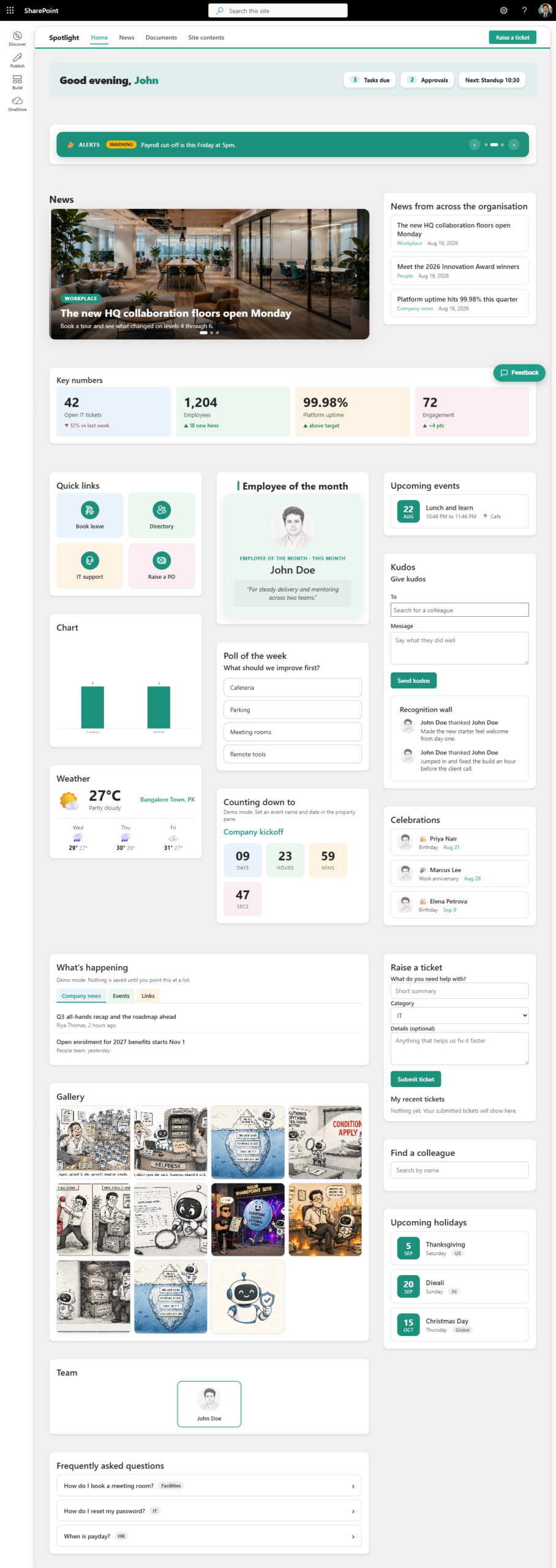
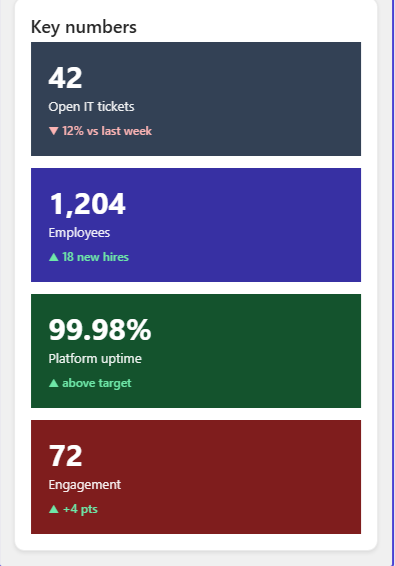
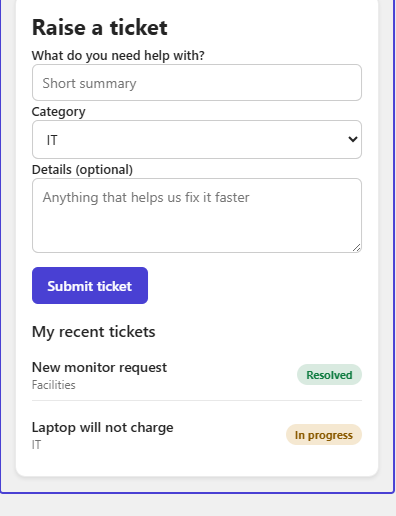
The nice part is you get the whole page, not just the first screen. The top bar and the site header sit at the top where they belong, and the content flows below them all the way down to the footer. No stitched lines, no header repeated ten times down the page.
You can save it as PNG, JPG, WebP or PDF, and pick High, Medium or Low if you want a smaller file. PNG keeps the text sharp. PDF gives you the whole page as one document, which is handy for sharing or printing.
It is private too. The screenshot is made on your own machine and nothing is uploaded. It uses only the activeTab permission, so it touches the tab you click on and nothing else. No tracking, no accounts.
You can get it here: Full Page Capture on the Chrome Web Store
If something does not capture right, tell me on the contact page and I will look at it.

One Comment
Comments are closed.