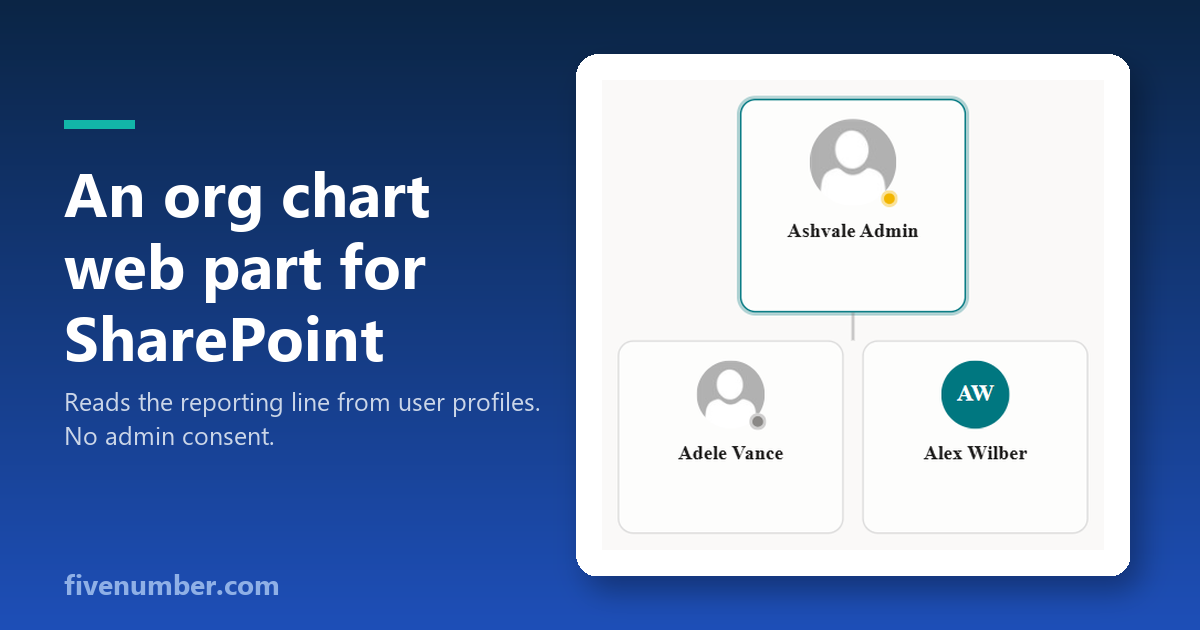
An org chart web part for SharePoint
Each Org Chart web part that I tested out asked me either of two things. One was that I maintain a SharePoint list of people reporting to each other and manually synchronize it. Or else I register an application and get Graph permissions approved by an administrator before even one box pops up. The reporting hierarchy already exists somewhere. It is stored within the user profiles that you maintain in your tenant for each of your users.
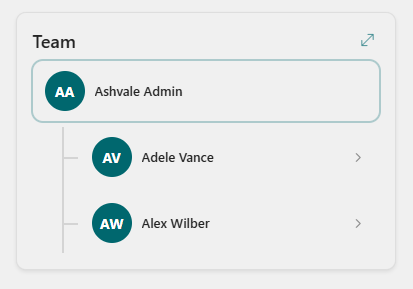
It starts out showing the logged-in user by default, with the manager above and direct reports below. Tap any individual in the hierarchy and it updates to show the new root, allowing you to navigate both up and down the hierarchy as needed. A breadcrumb at the top keeps track of the location in the hierarchy, enabling a single tap to go back to the starting point.
The hierarchy is based on data retrieved via the User Profile service, specifically the Manager field for the person from their profile cards, accessed using the PeopleManager API. No admin consent is needed, no application registration, no list management. If the HR department maintains the Manager field up to date, the hierarchy will be as well.
It is not necessary to begin the search from the currently logged-in user. In the property pane, there is a Start from field with type-ahead functionality. Just begin typing the name or e-mail address of the person whose team you want to view, select them from the drop-down list, and their team is displayed. When the field is left empty, the currently logged-in person is selected, as desired for personal sites or My Sites.
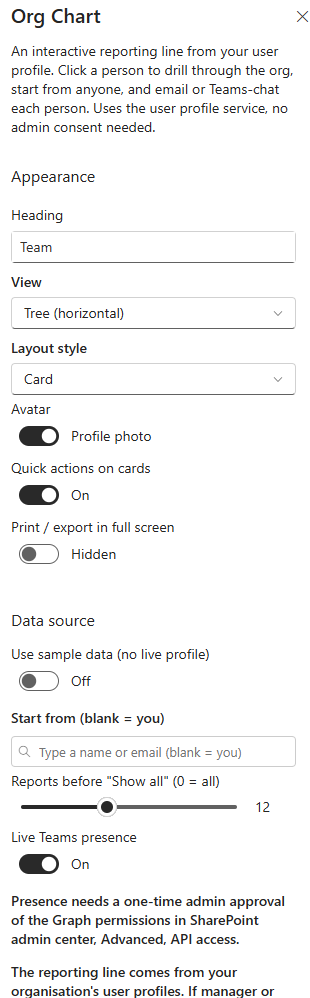
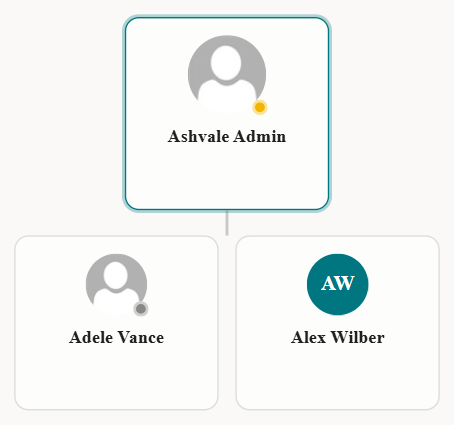
There are two layout types available. A compact card-based Team layout, which fits neatly into a column on a page, with each team member being one tap away. And the classic box and lines representation in case of the horizontal layout. The expand icon on a card retrieves a person’s team hierarchy only upon opening the card, thus avoiding loading an entire organization’s hierarchy on the page when starting from someone high enough in the hierarchy.
Each card can initiate e-mail communication, start Teams chat or call, or display a person’s profile in detail.
If the column width on the page is too narrow, then there is a full-screen explorer. This appears above the page and includes Search, Zoom, and Print functions (which save to PDF). The print and export features remain disabled until enabled in the property pane, as most pages do not want a print icon floating on top of their web part.
An additional feature, but not mandatory, is the Teams presence. Select the Show presence option and every card will receive its green/yellow/red/grey status symbol based on Microsoft Graph. This feature starts disabled, as presence requires both Graph permissions (Presence.Read.All and User.ReadBasic.All) approved only once at the SharePoint admin center under Advanced > API access. Do not activate this, and your entire web part will run on the user profile only.
The Org Chart is part of my open source SPFx Intranet Suite, a set of web parts for a modern SharePoint intranet. Install the package once and it shows up in the toolbox under Intranet Suite.