How to check an SPFx package before you approve it
I put that PnP react-list-search sample into my own little tester, and it showed the package asking for Directory.ReadWrite.All and User.ReadWrite.All. Directory write access across the board, for a list search web part. That’s only something you see once you open that package, before you install it.
And that’s why SPFx approval of packages can be dangerous. The .sppkg file is just a zip file with all sorts of XML and minified JavaScript code inside, and most of us just upload it to our app catalog, approve the permission request and forget about it.
There are two things which surprise people about that process. First, approved permissions are added to the SharePoint Online Client Extensibility app, which makes it tenant-wide, not package-specific. Second, even after you uninstall the package, those permissions are still there. Microsoft says both in the SPFx docs on Entra ID secured APIs, but who reads that before clicking Approve.
The tool
So I built SPFx Package Inspector.
Just drop the .sppkg file onto the website and get a summary of what is contained within. It does not require any sign-in because it runs from the browser and the package will never be uploaded anywhere.
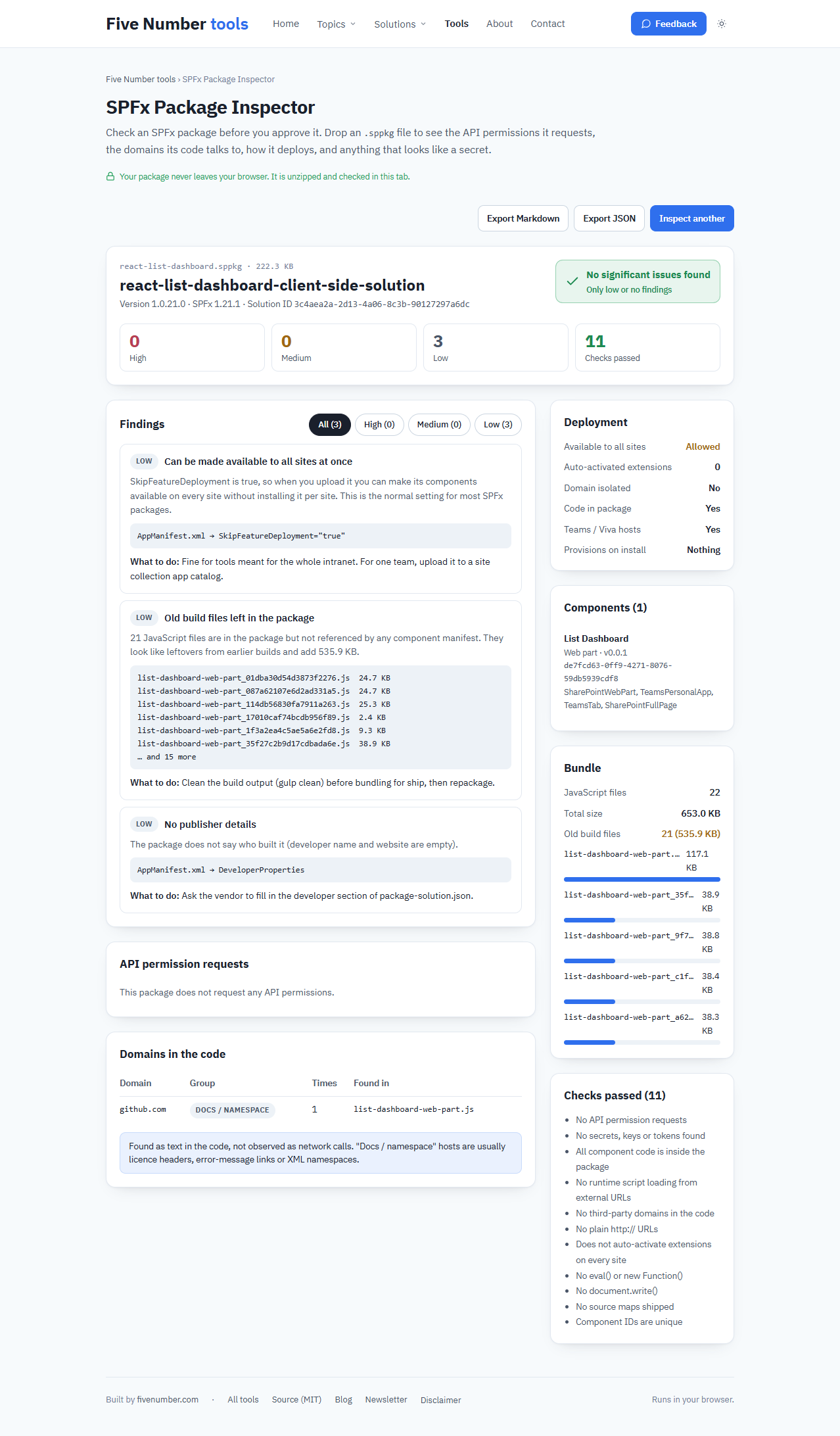
This will show:
- Permissions requested by the package to access the API – High, Medium, or Low
- Domains the package communicates with – Microsoft domains, third party domains, and documentation
- Deployment to all web sites or enables extensions to all sites
- Any client secret, storage key, SAS token, or private key in the package
- Components in the package, bundle size, and unused build files
How to use it
- Get the package. If you build it, it is in sharepoint > solution. If it is already uploaded, download it from the Apps for SharePoint library in your app catalog site.
- Open tools.fivenumber.com/spfx-package-inspector and drop the file on the page.
- Read the findings. Each one shows the evidence (the file, line and the masked value) and what to ask the vendor.
- Click Export Markdown if you want to attach the report to a change request.
What it found in my own package
I ran it on my own SPFx intranet suite before writing this. Great, nothing regarding permission requests and no secrets either. However, the tool detected 108 JavaScript files that have never been referenced by any component, amounting to 5.13 MB of outdated builds stored in the package. The solution is quite simple, first run gulp clean, then gulp bundle --ship and gulp package-solution --ship. Finally, the tool has correctly identified the weather web part’s calls to open-meteo.com, which is right, that web part does call a third-party API.
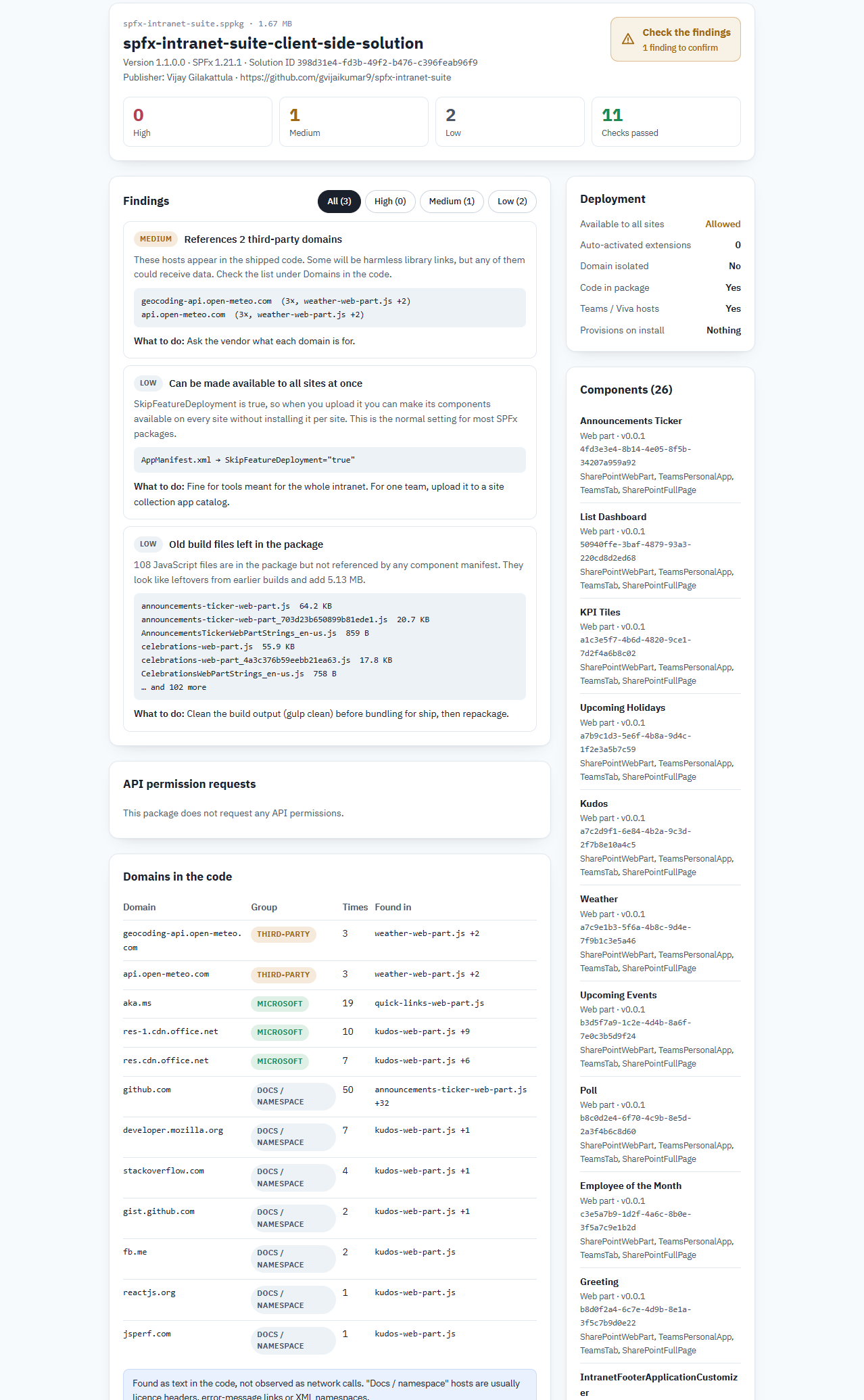
Something to remember is that it is static analysis. The report being clean doesn’t mean the package is secure; it simply tells us what to inquire about. Domains are detected in plain text in the code and not observed via actual network calls.
The tool is open source (MIT), the code is on GitHub. If it flags something wrongly, open an issue there.