A free local dashboard for your Microsoft 365 admin numbers
Some months back an app registration secret expired and the service that was depending on it just stopped. The expiry date was sitting right there in Entra the whole time. It lives in one blade that nobody opens more than twice a year, so of course nobody saw it coming.
This is the annoying thing about Microsoft 365. The numbers that warn you something is about to go wrong are all real and all available. They are just spread across five different admin portals. Secure Score is in one place, your licenses in another, app secrets in Entra, SharePoint storage in the SharePoint admin center, service health somewhere else again. Nobody opens all five every morning. So you learn that a secret expired only when the thing it was holding up falls over.
I wanted one screen. Just the numbers I care about, in front of me, once a day, without clicking through five portals. I could not find a free one that runs on my own machine and does not ship my tenant data off to somebody else’s server. So I wrote one. It is called M365 Metrics Monitor.
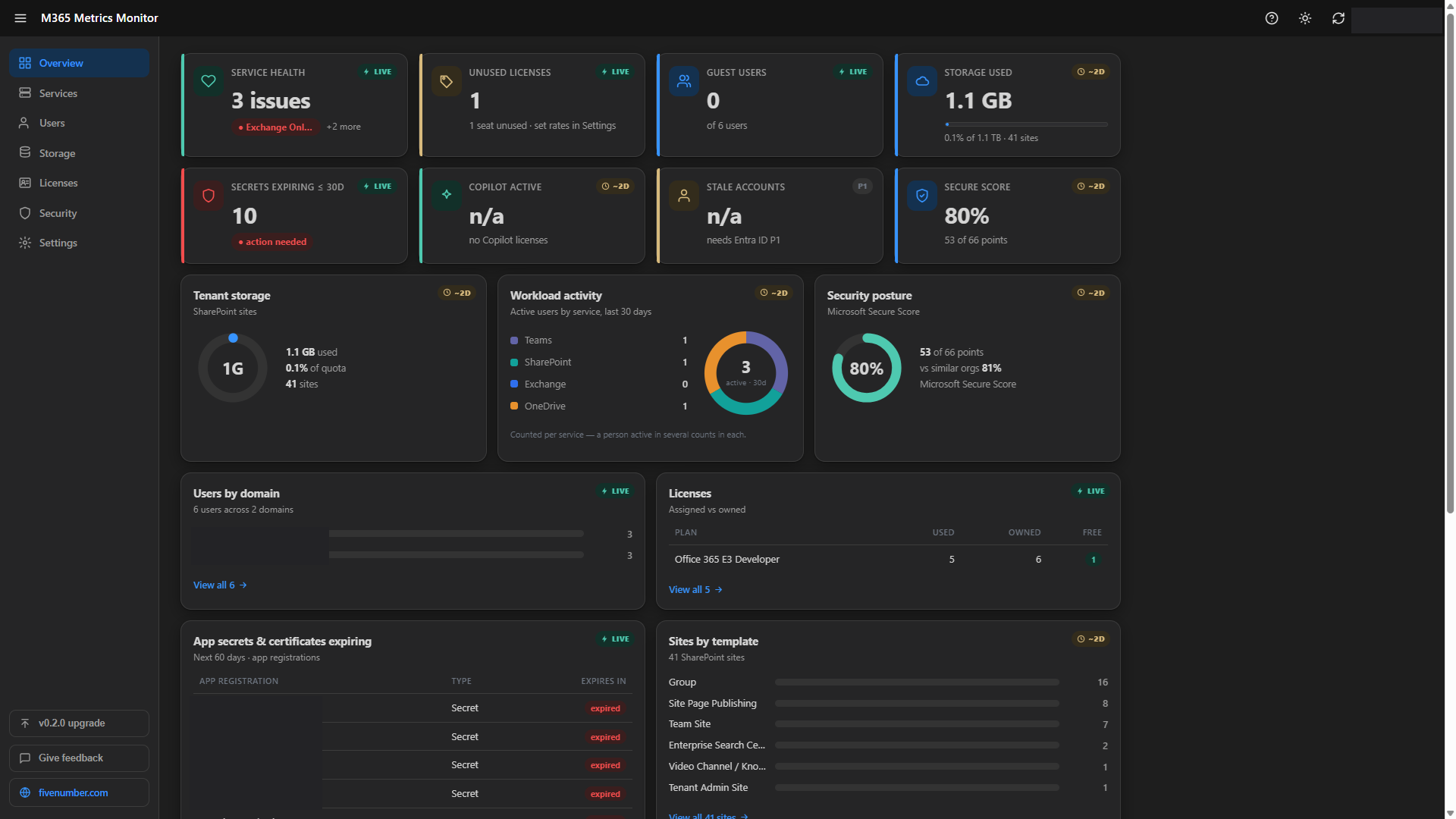
It runs on your own PC. It starts a small web server on localhost and opens a dashboard in your browser. It reads your tenant through Microsoft Graph and it only ever reads, it never changes anything. Nothing leaves the machine except the read calls to Graph. There is no account, no sign up, no cloud.
What it puts on the screen
One tile each for the things I check. Service health with the actual named issues. Unused licenses, and if you tell it your per licence cost, the money you are wasting every month. Guest users. Storage used with a quota bar. App secrets and certificates that are about to expire, which is the tile that started this whole thing. Copilot adoption. Secure Score. Ownerless and empty groups.
Each tile is marked LIVE or ~2D so you know if the number is current or coming from a usage report that runs a day or two behind. Once the tool has run on more than one day it shows a small up or down arrow under each number, so you can see which way things are moving over time.
Setting it up once
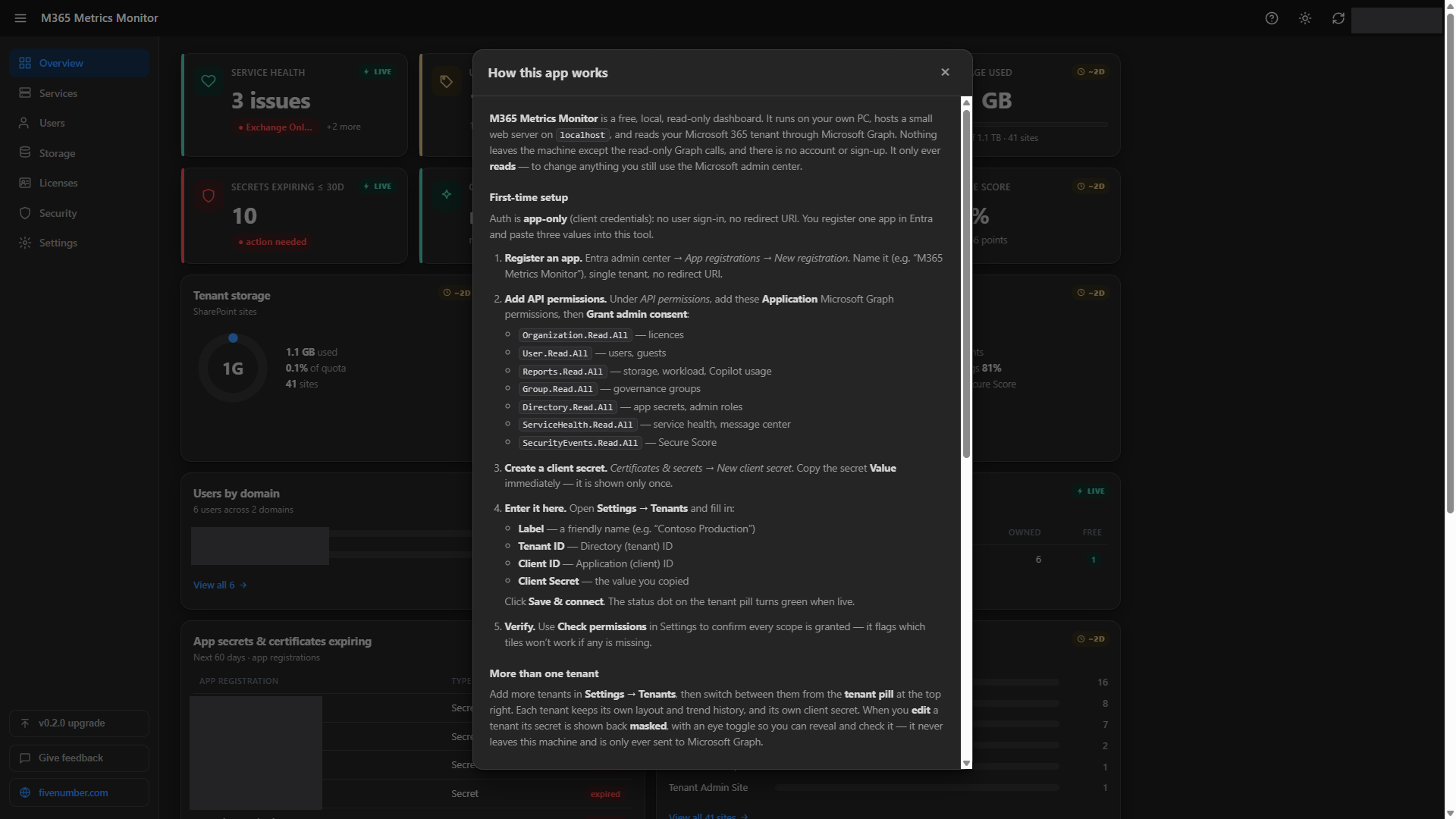
The tool signs in as itself, app only, so there is no user login and no redirect URL to worry about. You register one app in Entra and give it read permissions. In the Entra admin center go to App registrations, then New registration, give it a name and keep it single tenant.
Then open API permissions and add these Application permissions from Microsoft Graph. Organization.Read.All, User.Read.All, Reports.Read.All, Group.Read.All, Directory.Read.All, ServiceHealth.Read.All and SecurityEvents.Read.All. Every one of them is read only. After adding them, click Grant admin consent.
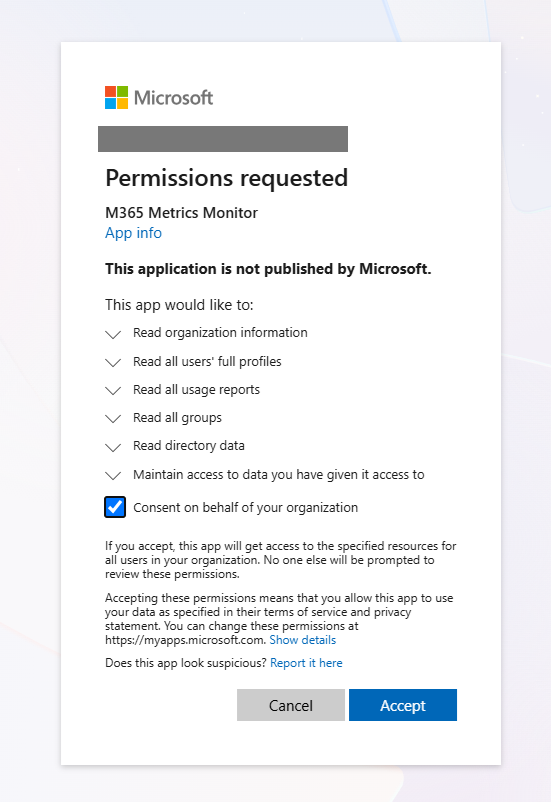
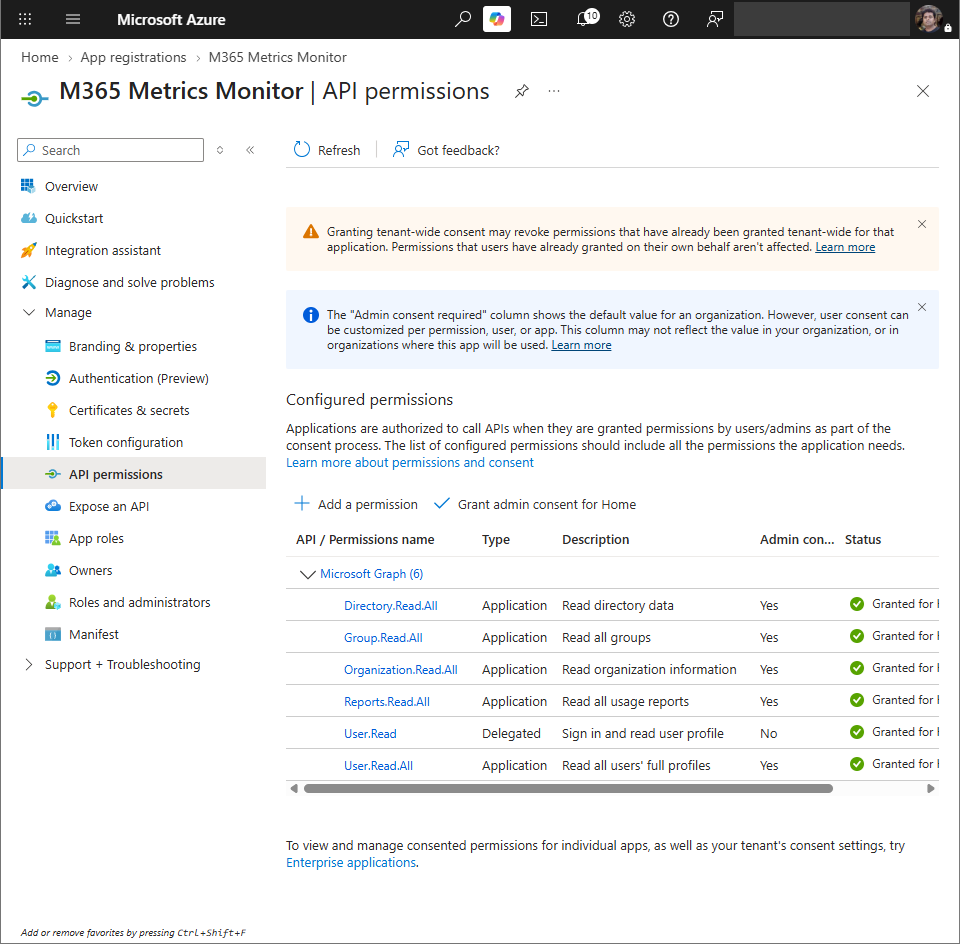
Last step in Entra, go to Certificates & secrets, make a New client secret and copy the value straight away. It is shown only once.
Putting your IDs in
Now run the app and open Settings. There is no config file to edit. You paste three things into the page, your Tenant ID, your Client ID and the Client Secret you just copied, give the tenant a friendly label and click Save & connect. The dot on the tenant pill turns green when it is live. There is a Check permissions button that tells you if any scope is missing, so you are not left hunting for why a tile is blank.
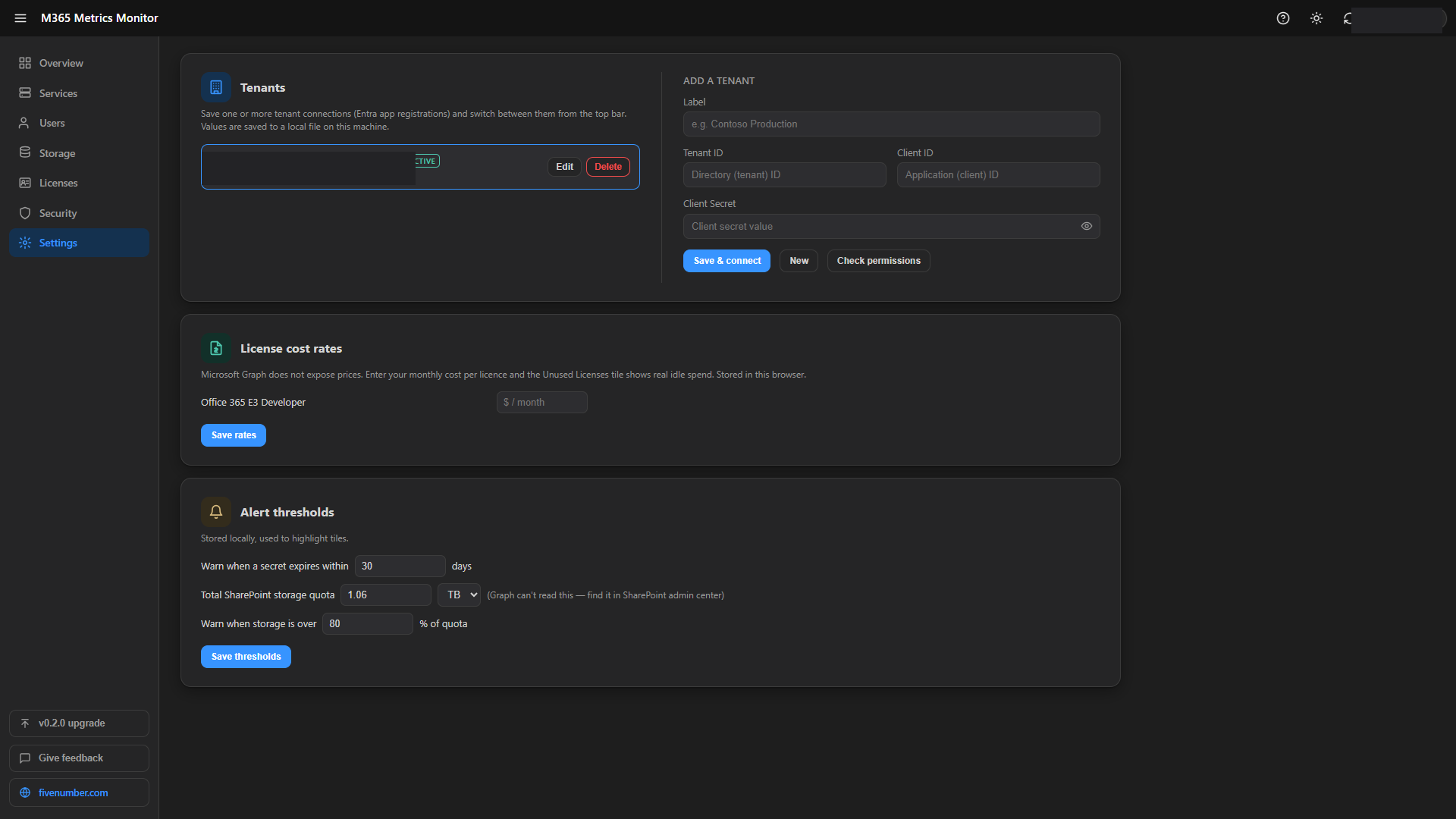
The same Settings page is where you enter the two things Graph will not tell you. Your per licence monthly cost, so the unused licenses tile can show real money. And your total SharePoint storage quota, which you can set in GB, TB or PB, because Graph does not expose the tenant quota to an app only sign in. You find that number in the SharePoint admin center.
The part I use the most
Click the storage tile and you get the full SharePoint picture. Every site by template, a bar showing how much space each template is eating, and how much free space is left against the quota you set. If your tenant hides site URLs in reports, the tool spots it and tells you which setting to turn off, with a link straight to it.
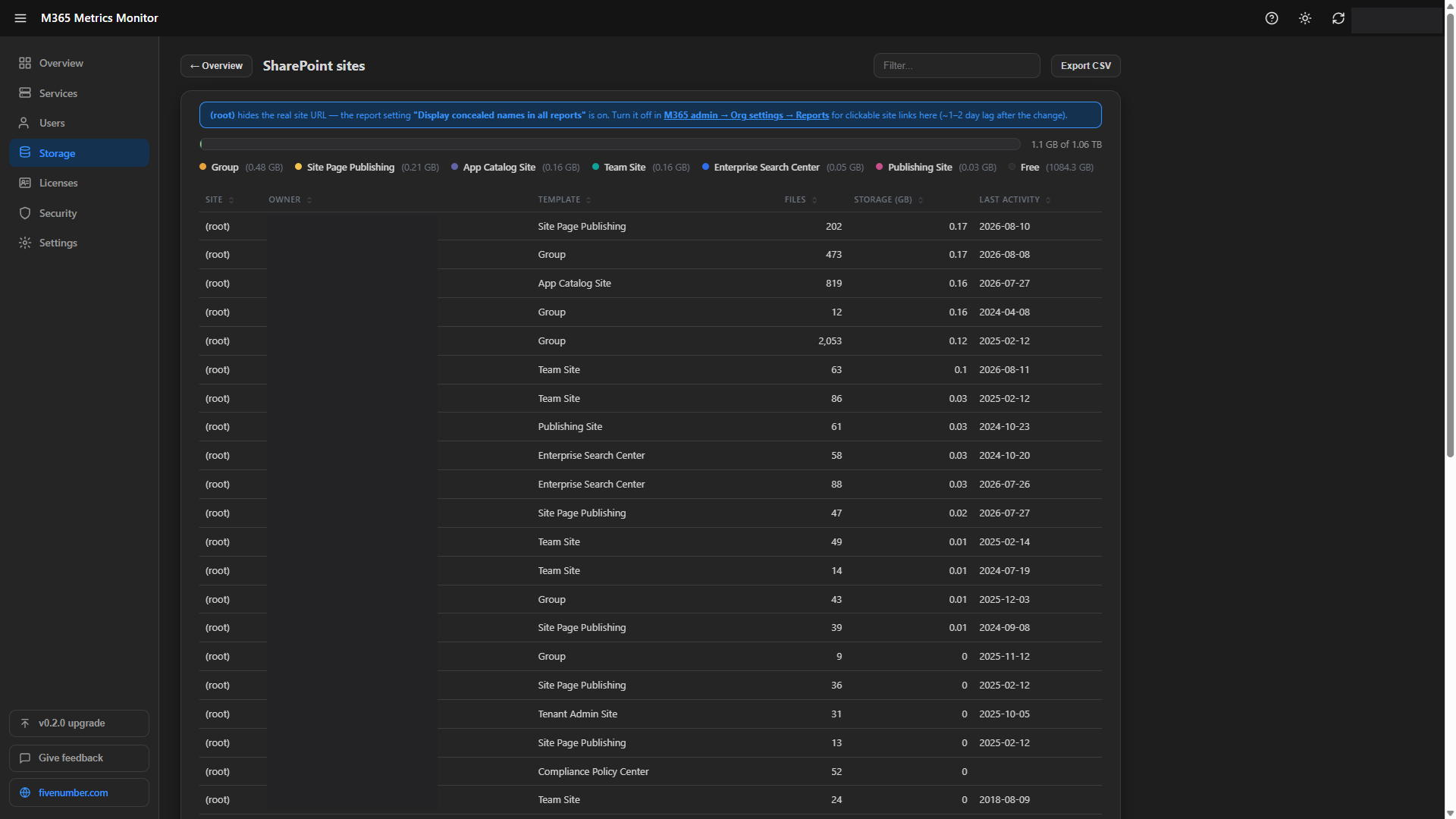
Every list like this one is sortable, has a filter box and an Export CSV button, so when somebody asks you for the numbers you are one click away from handing them a spreadsheet.
If you get stuck anywhere, the Help icon at the top has the whole setup written out inside the app.
Where to get it
It is free and open source. Download the ready to run version from the releases page, unzip it and run the exe. It needs nothing installed on the machine, the .NET runtime is baked in. The source is on GitHub if you want to read it before you trust it with your tenant, which for a tool that reads your directory is a fair thing to want.
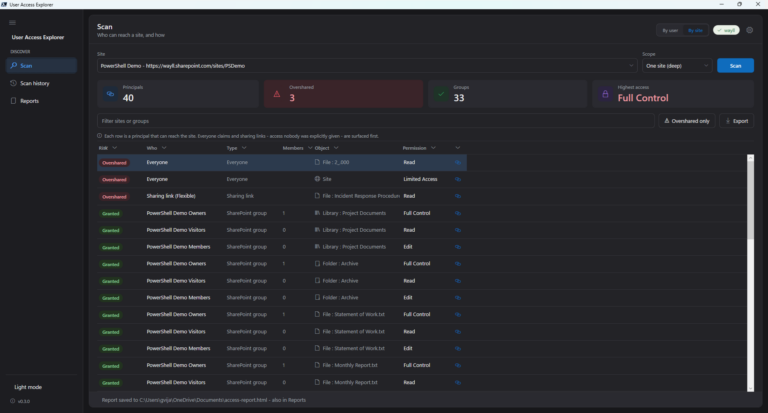
This is one more in the same set of free local tools I keep writing, like the User Access Explorer. If it misses a number you check every morning, the GitHub repo is the place to tell me and I will add it ?