Keep SharePoint page view history beyond 90 days
The Popular content list for a SharePoint site’s usage report is for the last seven days. The Unique viewers number refers to a period of 7 or 30 days, daily trends for 90 days and the CSV file export as well (Microsoft’s own page on viewing usage data for a SharePoint site lists these limits). So, how can you have an answer to the simplest question such as how was this January compared with last year’s January?
For this, I developed HitCounter. It is one SPFx package: the tracker that keeps track of all page visits, and the dashboard web part that sums them up. The data is stored in the lists within the SharePoint site of your choice, and nothing leaves the tenant. There is no Azure and no scheduled job.
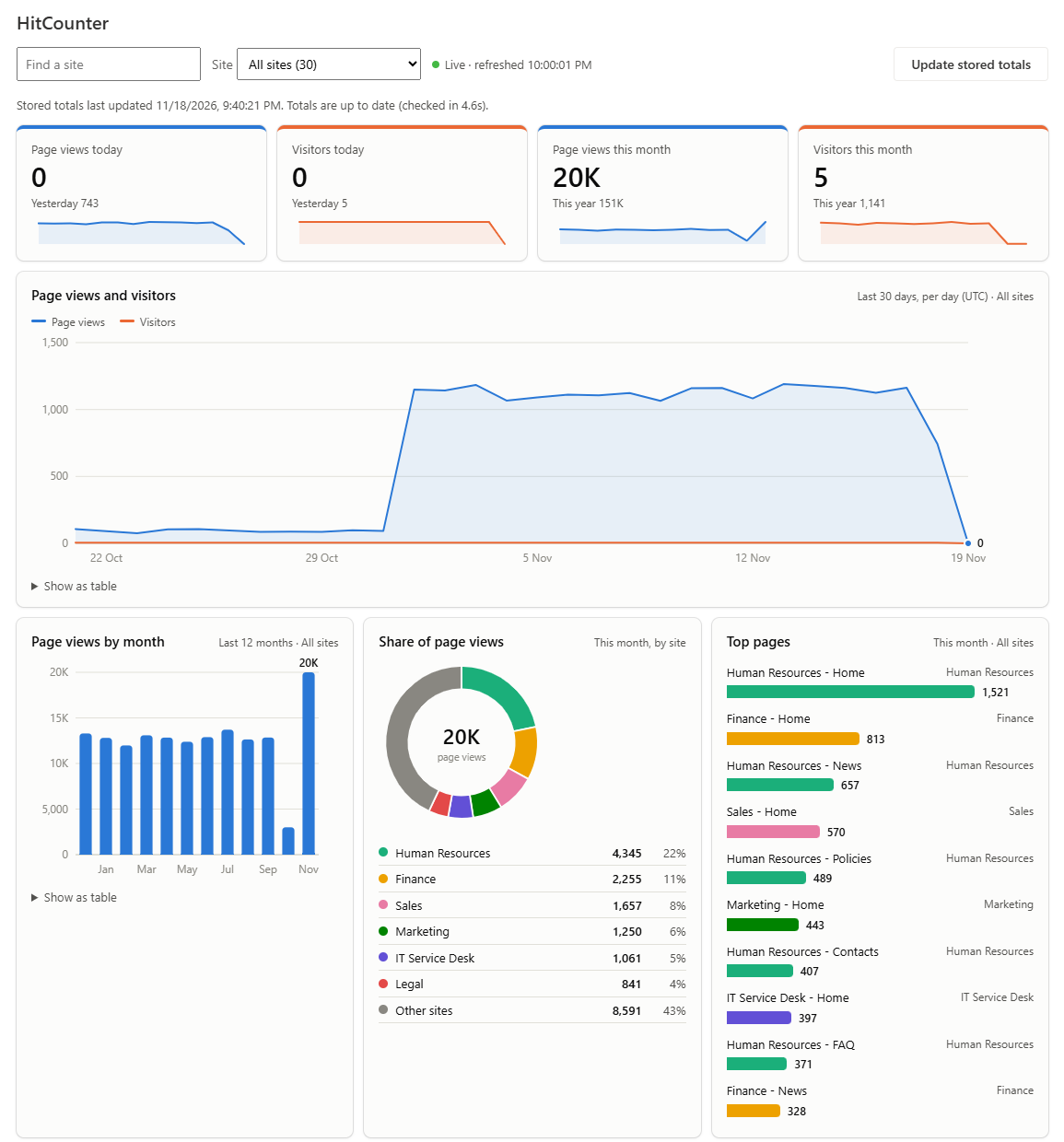
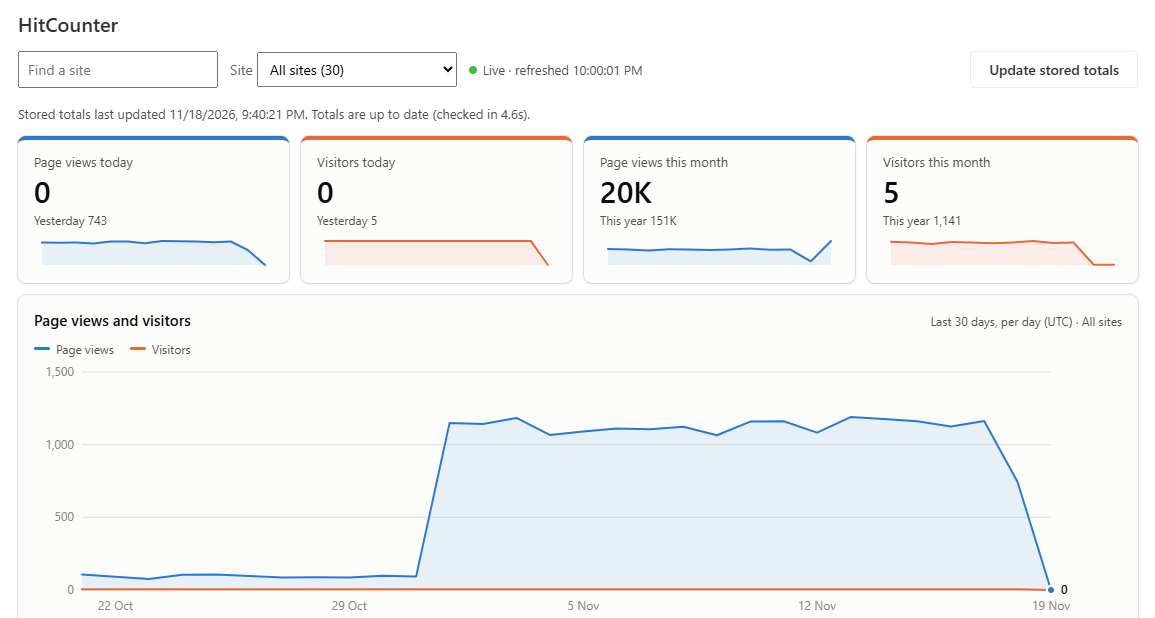
It registers all views of the page, even the clicks from one page to another without refreshing the page. Should the same individual visit the same page within a span of 30 seconds, then it will register just once. The unique visitors’ statistics are calculated by day, by month and by year on a per site and across all sites basis, and these figures persist as long as the list persists. It can be compared with the previous November or exported in CSV form.
Where the numbers are stored
Each hit becomes a single row in one of twelve monthly lists on a central site, named hitcounter_01 to hitcounter_12. The lists are invisible, do not show up in search, and have a specific permission level set: all users can create a row, but only read their own rows. The dashboard creates daily, monthly and yearly hit counts from the rows, in a different list, and the charts get data from that count.
Page view counter does not require Azure subscription and function app with its own secret key to rotate. Thus, there is no timer job in the system. The data in the dashboard is updated by a central administrator through their browser, once they open the dashboard or navigate around SharePoint, not more than once per 15 minutes. All other users load only the tracker, which is just 17 KB.
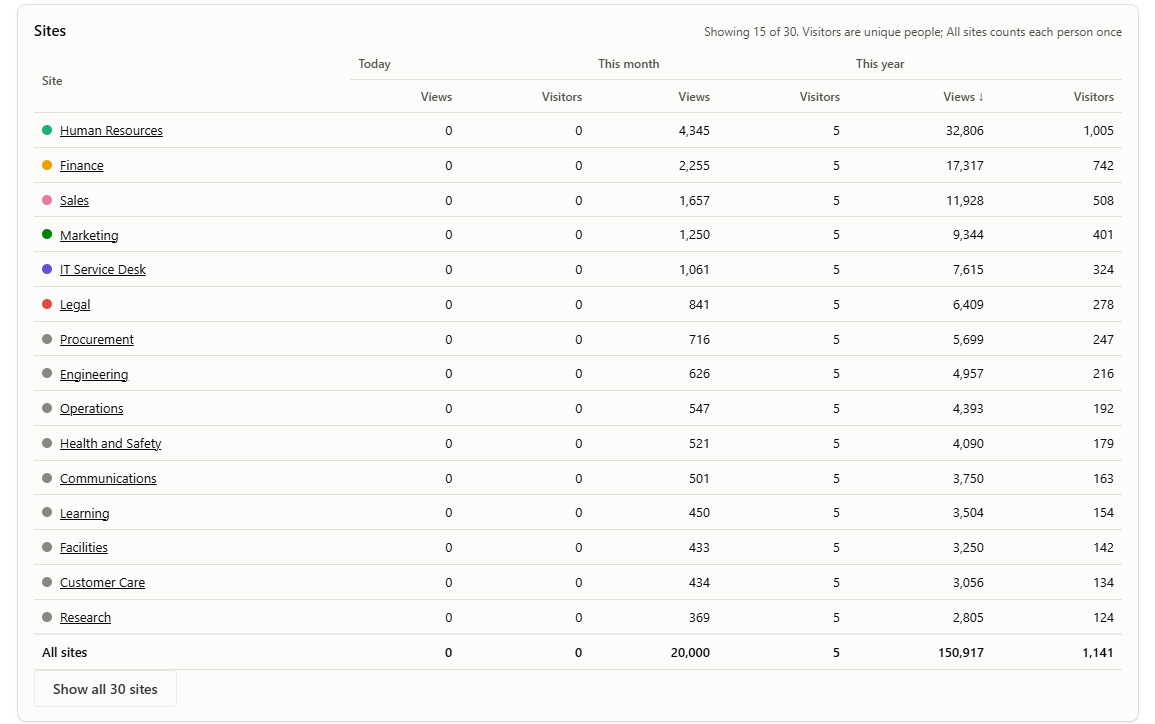
The raw rows accumulate each year in the exact same twelve lists, which is why the dashboard alerts you if one gets too big, and then you can archive the month once it’s done. Archiving just pushes that month’s raw rows to the side, without altering the totals. Site owners who open the dashboard see only the sites they own.
One site, a few sites or the whole tenant
- One site: add the app to that site, put the HitCounter web part on a page and select Set up HitCounter. That’s it.
- A few sites: do the same on a central site, select Make this the central site under Setup and checks, then add the app to each site you want counted.
- Every site: after the central site, select Add to all sites for the app in the app catalog, and check the Tenant Wide Extensions list has the tracker entry.
The install guide has every step with screenshots.
The parts that tripped me up
I did a clean installation in a tenant by using only the package file as an admin and noted down every point where it got stuck.
Access is denied while uploading the package as SharePoint administrator. The upload process requires that you be a site admin of the app catalog site. In the admin center that is Active sites > Apps > Membership > Site admins.
So then the traditional library says The documents cannot be uploaded because different permissions are needed, even for the site admin. Custom scripts are blocked in an app catalog within a new tenant, thus the permission Add and Customize Pages is revoked from everybody, including admins. Enable custom scripts in app catalog from Settings > Custom scripts. SharePoint switches it back to Blocked automatically within 24 hours, which is precisely what you need here.
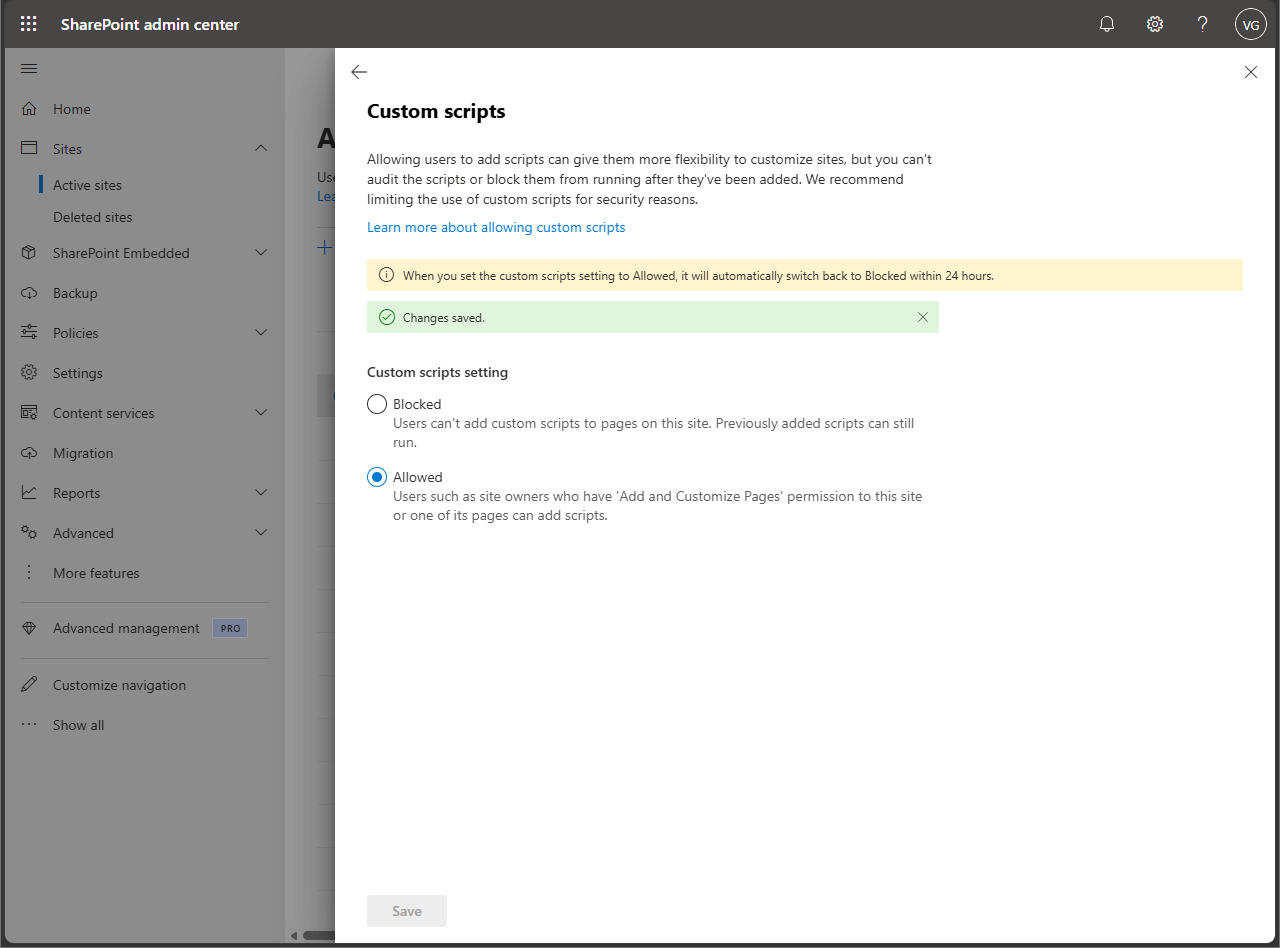
The central site setting is an object in a tenant which can be located in the application catalog, and it fails to save due to the same issue. Hence, the central site should be configured within this 24-hour timeframe.
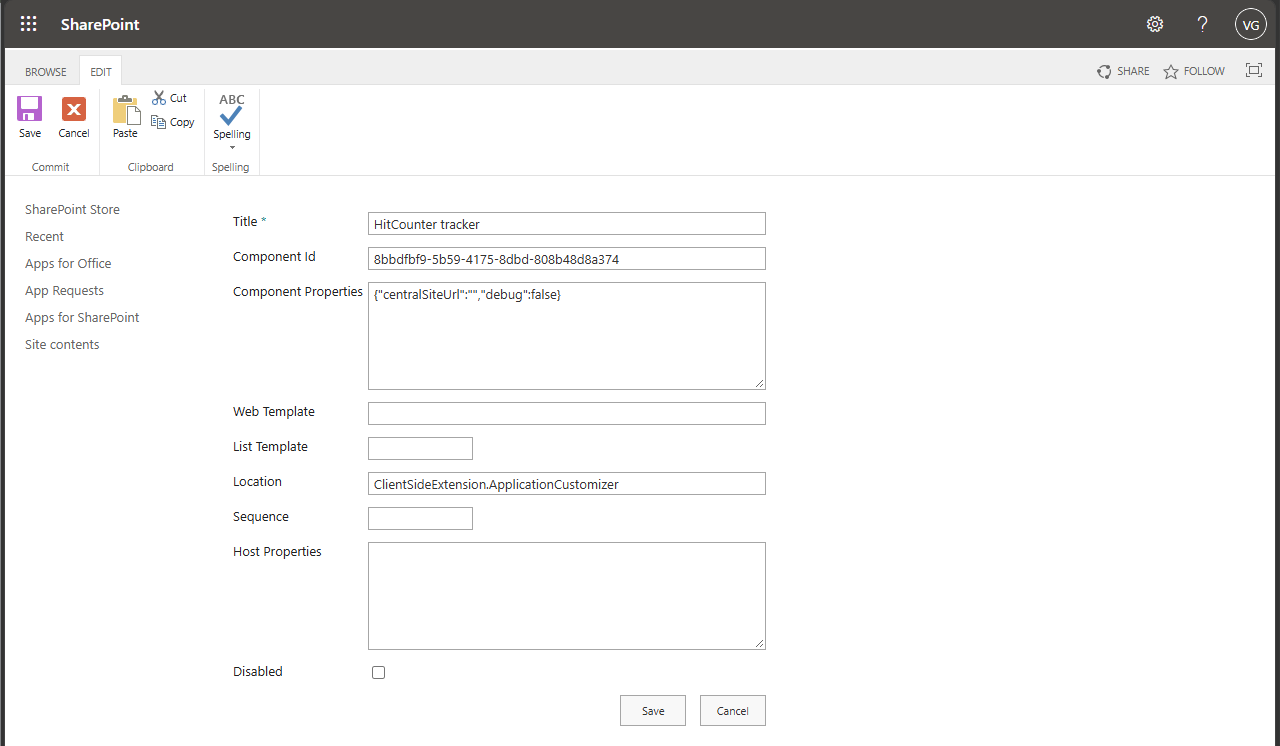
Add to all sites in Manage apps marked the application as added to all sites; however, Tenant Wide Extensions were not displayed in the list, despite ClientSideInstance.xml being included in the package. Without that entry no site loads the tracker. Adding the entry by hand worked: component ID 8bbdfbf9-5b59-4175-8dbd-808b48d8a374, location ClientSideExtension.ApplicationCustomizer.
Uploading the update with another file name does not mean that you updated your app. You have added another invalid file: A solution with the same product ID already exists. Please upload the file with the same name and replace the existing solution. Keep the same file name for every release.
After installing an update, the old tracker script continued to load on my main browsing window for over 40 minutes, while the InPrivate window had the updated version of it. The file name of the script, which is indicated beside each line of code that is written to the browser console, is unique for each build, and that is the quickest way to see which version a page is running.
The last one belongs to me. The home page of the website appeared twice in Top pages section, when accessed from the website URL and from SitePages/Home.aspx. The tracker script now queries the home page of the site and treats both as one.
If you approve SPFx packages for other people, it’s worth looking inside one before you select Deploy. I wrote about how to check an SPFx package before you approve it.
What it doesn’t count
Only modern pages are counted; therefore, opening a document or a view will not count as a view. External views are not recorded. Since the process is browser based, any internal user can simply add rows to the list by hand, and as such, each and every row is verified before counting it, and the same 30-second rule is applied.
HitCounter is open source under the MIT licence on GitHub, and I have submitted it to the Microsoft 365 PnP sample gallery, where it is waiting for review.