See what is using your SharePoint storage, down to the file
One of the sites I was testing had an app package that took up 36MB of space although the file itself was 2MB. The file wasn’t corrupted. I uploaded the same file 20 times during web part testing and SharePoint kept all the copies; moreover, the site counted the whole amount of copies into quota without providing any notification on the reason.
This file is easily accessible via the built-in Storage Metrics page (/_layouts/15/storman.aspx), if you know where to find it. It provides you with the totals of folders of one site at a time. However, this page does not provide you with the split between old versions and currently used files, and that split is what you need if the site reaches its quota.
The most straightforward method is to subtract the currently used size from the total file size. However, this method provided me with incorrect results. The same test site had an image library with 38MB of pictures that used 98MB of storage. None of these pictures had any old versions. The remaining 60MB of space is the result of previews and renditions that SharePoint automatically creates for images. And there is no way to recover it with a limit on versions. Any script, that provides you with “total – current” as a version history, will tell you to reduce versions, which aren’t even there.
So I built a scanner that does the split properly, and a treemap to look at the result.
Install-PSResource SPStorageTree
Get-SPStorageTree -Site https://contoso.sharepoint.com/sites/ProjectHub -ClientId <your-app-id> -Open
If you would rather click than type, there is a Windows app as well, shown further down.
Since it reads all document libraries available on the site, even the system ones such as Site Pages and the galleries, the total number displayed matches the one indicated in the admin center. It then opens the report in a single HTML file in your browser. The process does not require any uploading to a server and the viewer runs off-line.
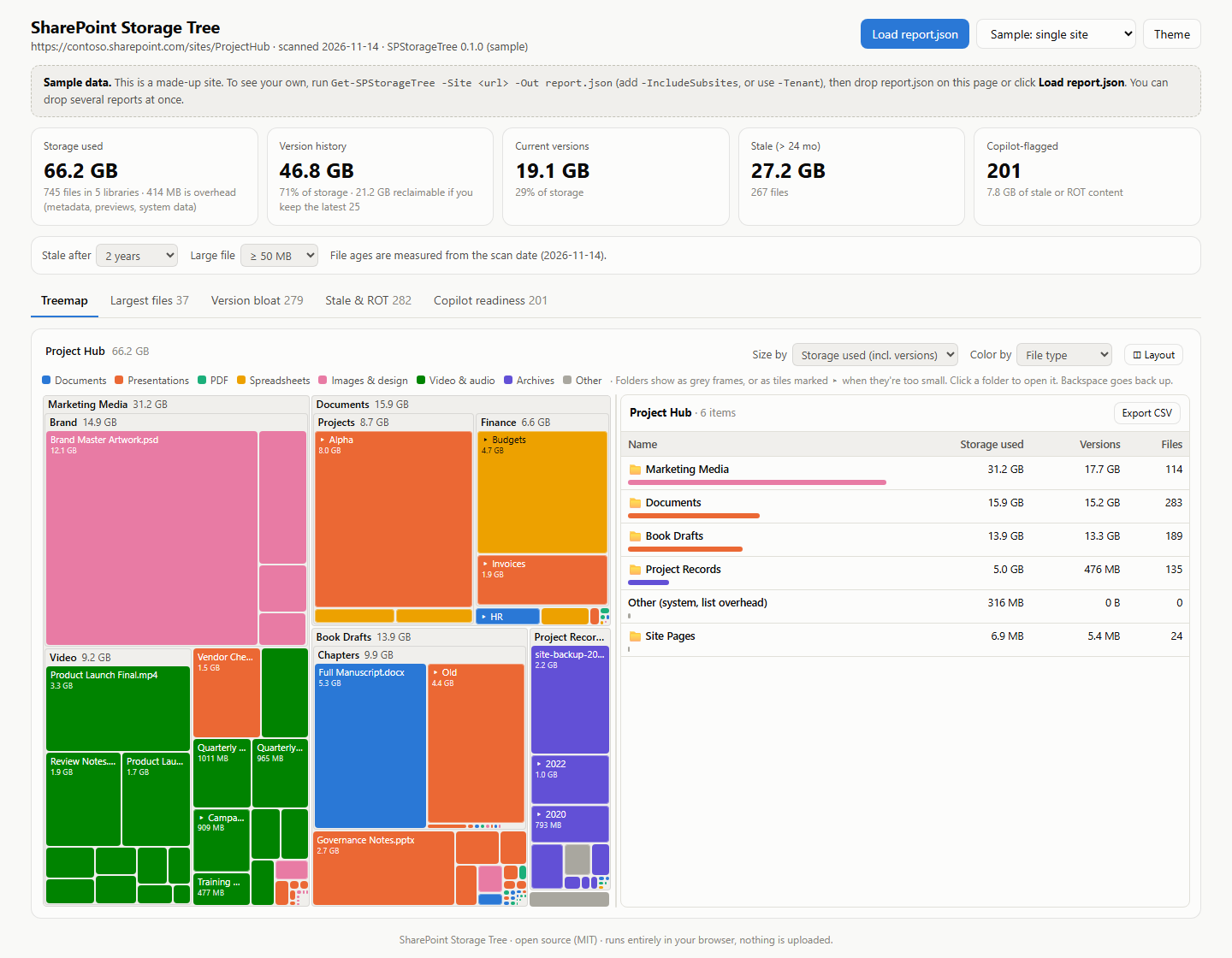
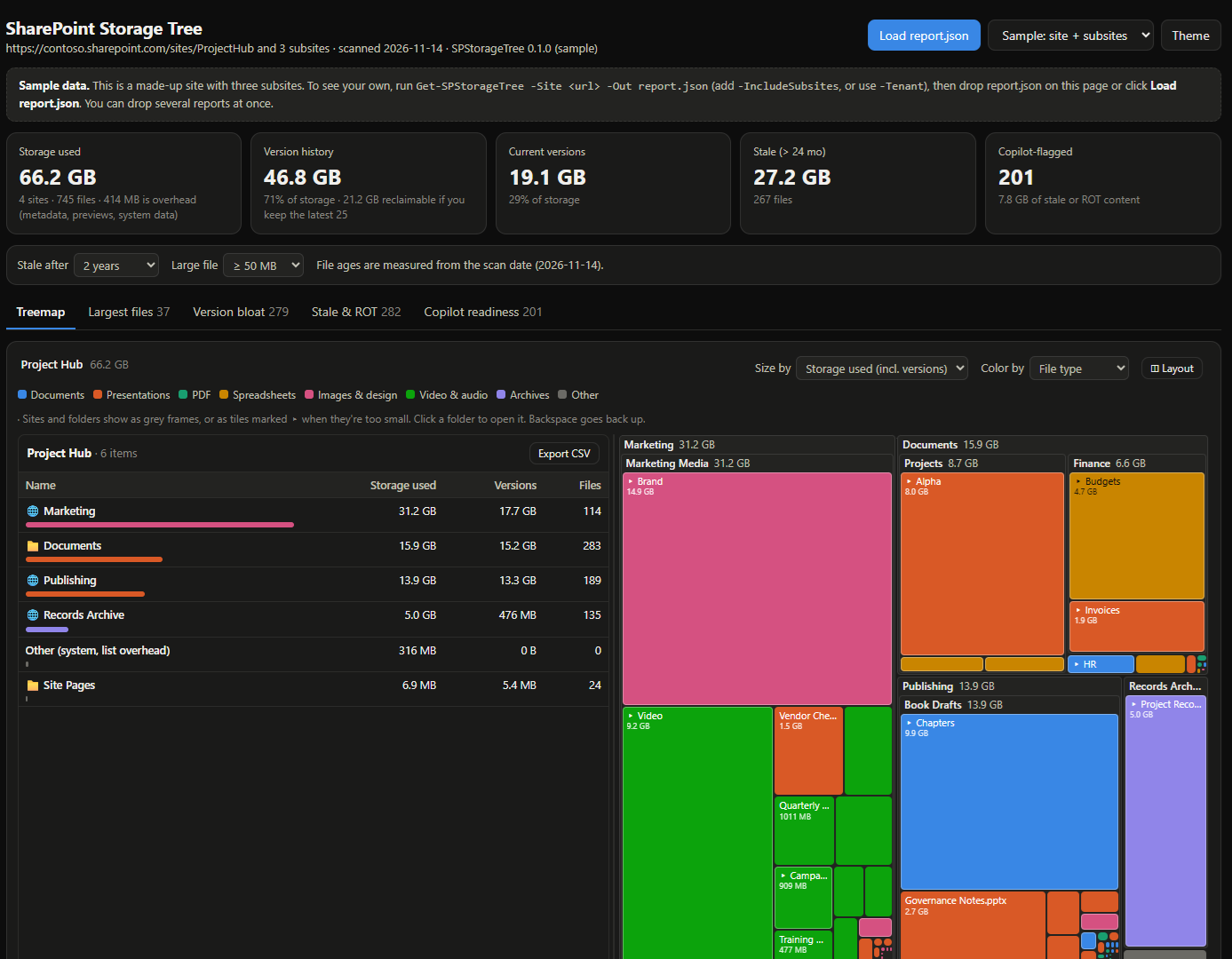
Each of the tiles represents a library, folder or file sized by its storage. As you go inside a folder, the contents table alongside follows you. You can size your tiles based on the current version only, version history only or on what you will get back, which is when it becomes handy.
How much would trimming versions really save
This is the Version bloat tab that responds to the real question that gets asked: if we put a limit on versions, how much do we get back? Choose either Keep latest or Delete older than, and then select a number, and it will display the amount of space that gets cleared and which libraries and files gain the most.
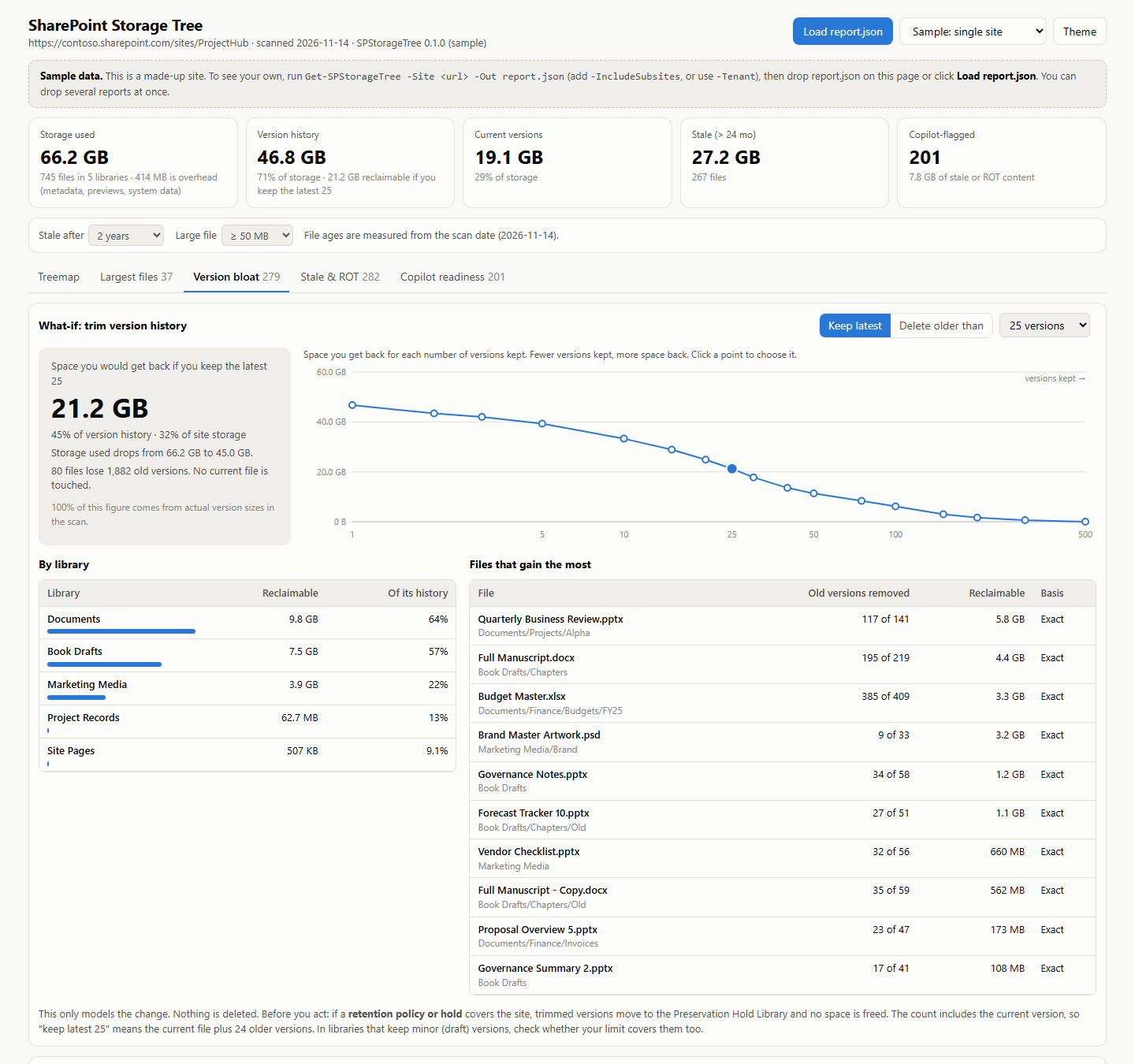
In the case of files with a significant revision history, the scanner retrieves the true size of each previous version. Thus, the numbers provided for them are precise. In all other cases, estimates are performed, and the screen informs about the percentage of estimation in the figure. An unedited file (version 1.0) will always have zero to reclaim no matter how large the total appears. This is the image library problem mentioned above, resolved.
One note regarding these figures prior to taking action on them. In case there is a retention policy or hold in effect for the site, the trimmed versions will end up in the Preservation Hold Library and no space is freed. Check that first.
One site, a site with subsites, or the whole tenant
Get-SPStorageTree -Site https://contoso.sharepoint.com/sites/ProjectHub -ClientId <your-app-id> -IncludeSubsites -Open
Get-SPStorageTree -Tenant contoso -ClientId <your-app-id> -Top 5 -Open
The tenant mode will retrieve all the sites along with their storage totals in one single request and then it will scan the top five in detail. The rest will be displayed as striped tiles showing only the total storage size.
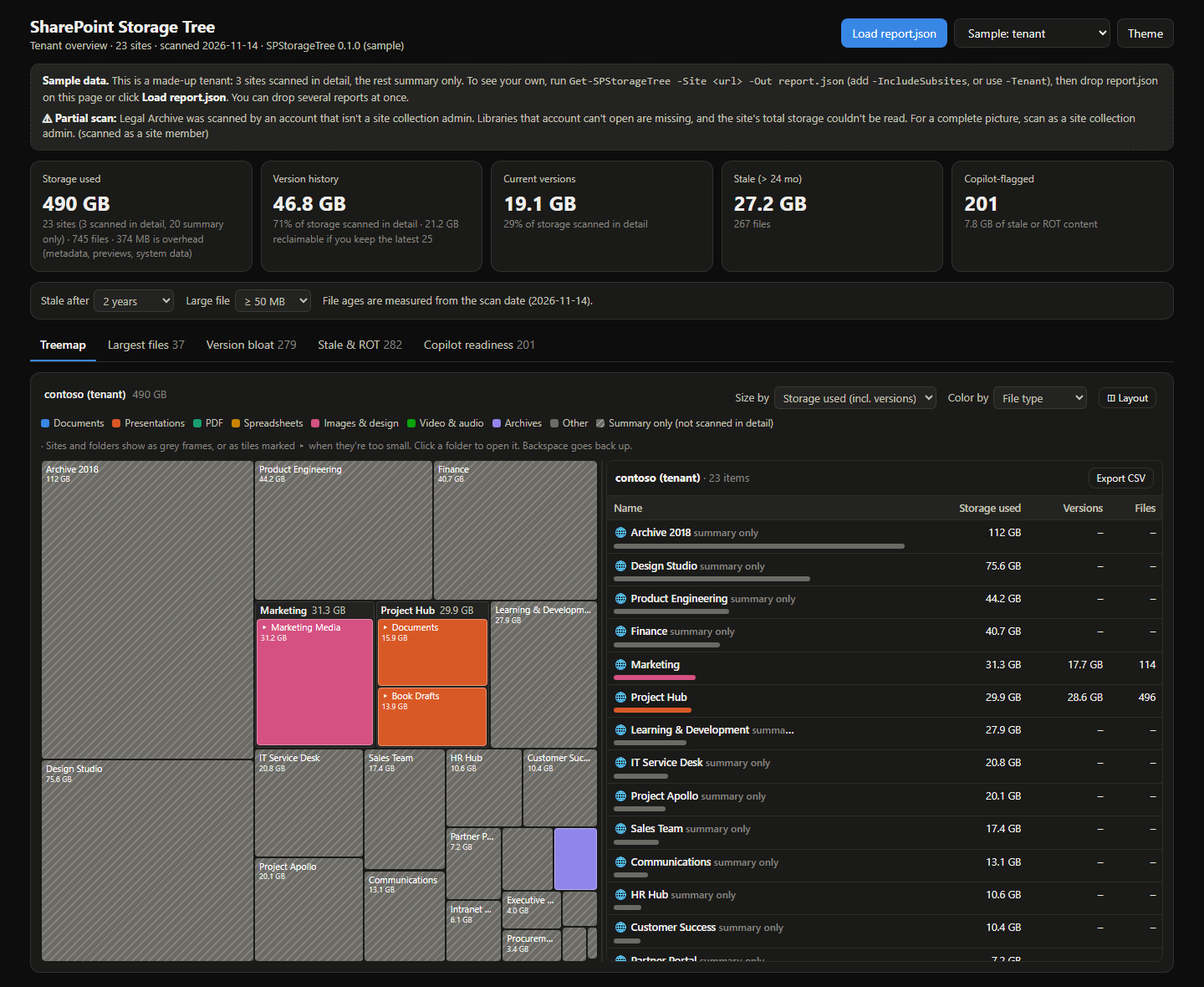
Prefer clicking? There is a Windows app
If you would rather not type commands, run Start-SPStorageTree or double-click SPStorageTree.exe in the module folder. Sign in, select the sites from the list, click Scan, and the viewer opens with all of them together. SharePoint admins get every site in the tenant with its size to pick from. Everyone else pastes the URLs of the sites they own.
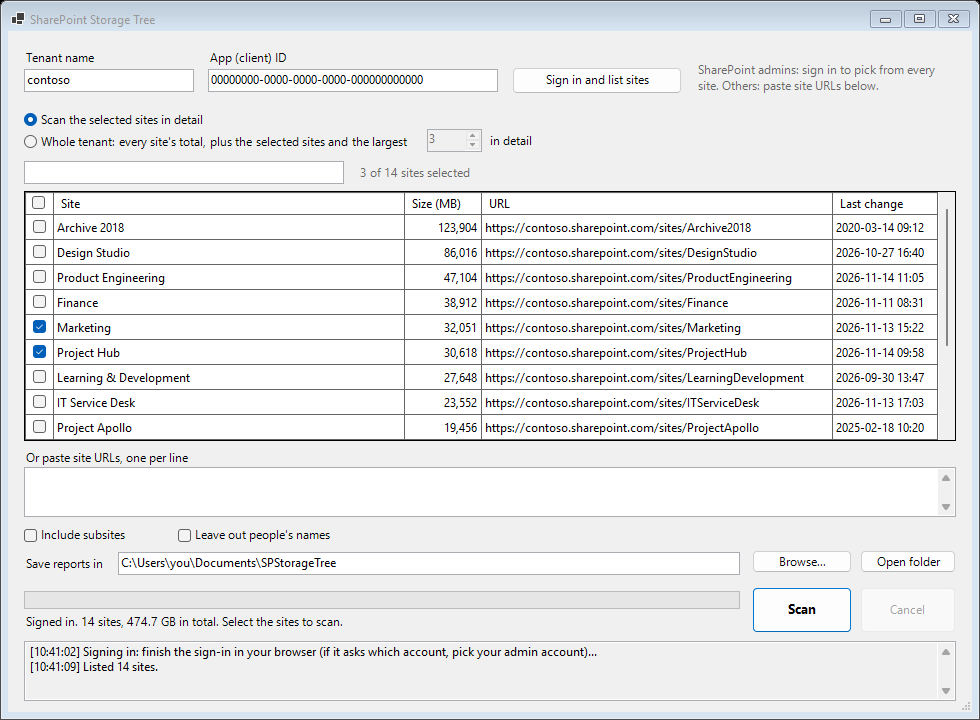
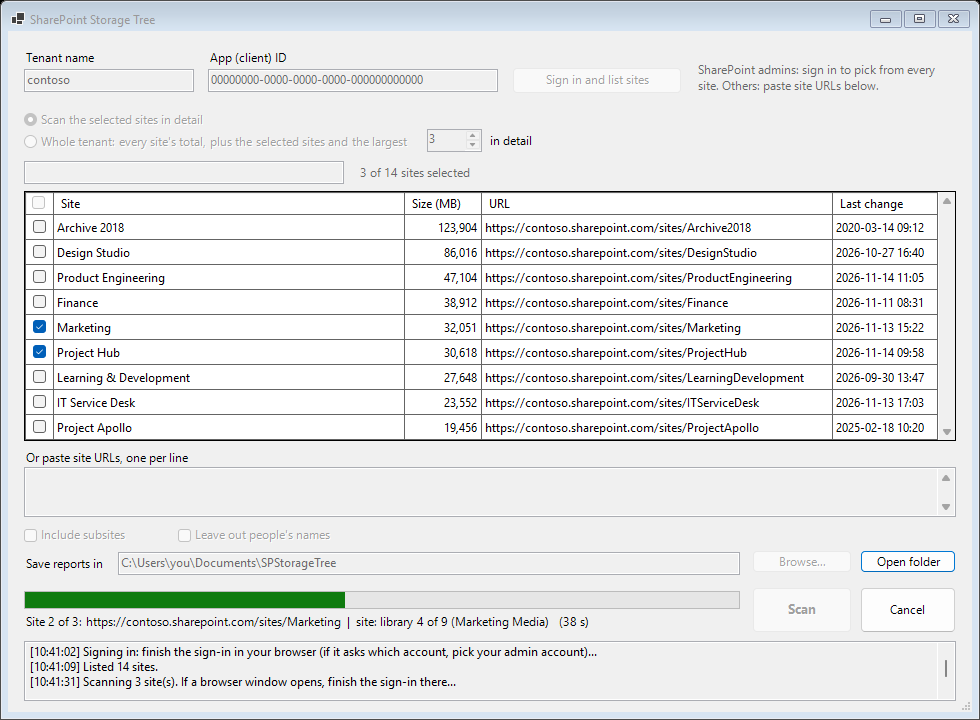
While it runs you can see which site and library it is reading. A site it can’t open is listed with the reason, and the rest still finish.
The exe is a small launcher, so it still needs PowerShell 7.4 and PnP.PowerShell, and it tells you the command to run if either one is missing. It is not code-signed yet, so the first time Windows may show Windows protected your PC. Choose More info and then Run anyway.
The parts that tripped me up
Most of the time spent was dedicated to investigating what SharePoint returns, so here’s what it returns, tested in a lab tenant.
- The property
SMTotalSize, that should contain the file’s actual total, is returned by PnP in the form of a lookup value. The bytes are stored in.LookupId, but not in the value itself. - Files from the galleries (master pages, themes, web parts) have the value of
SMTotalFileStreamSizeas 0 andFile_x0020_Sizewith the actual size. Look only at the former and those files appear empty. - It’s enough to have a read-only application registration with AllSites.Read permission to scan a site, and you get file-by-file exactly the same result as having Full Control permissions. Tenant sites list works differently:
Get-PnPTenantSiterefuses AllSites.Read and AllSites.Manage and worked only with AllSites.FullControl. - Being a SharePoint or Global Administrator does not allow you to read the files from a site. In order to scan the site fully you will need to have site collection admin permissions of the particular site. The tool will continue even if it fails to read a site, marking it in the report.
- Device code sign-in is blocked in tenants with Security Defaults (
AADSTS530035error), so the tool logs in via a browser.
The Copilot angle
Since the scan is aware of when the files were last modified and their names, it will also point out documents which haven’t been modified in years, duplicate files and temp files. Copilot will reply based on whatever the user has access to, and it is unaware that a budget from 2021 has become irrelevant. The list of outdated and duplicate documents which Copilot will be able to read and understand, complete with the explanation for the flagging, is included in the Copilot readiness tab, so you can archive or restrict them before you roll out Copilot. If you also want to check who can reach those files, I covered that in Find SharePoint oversharing before you switch on Copilot.
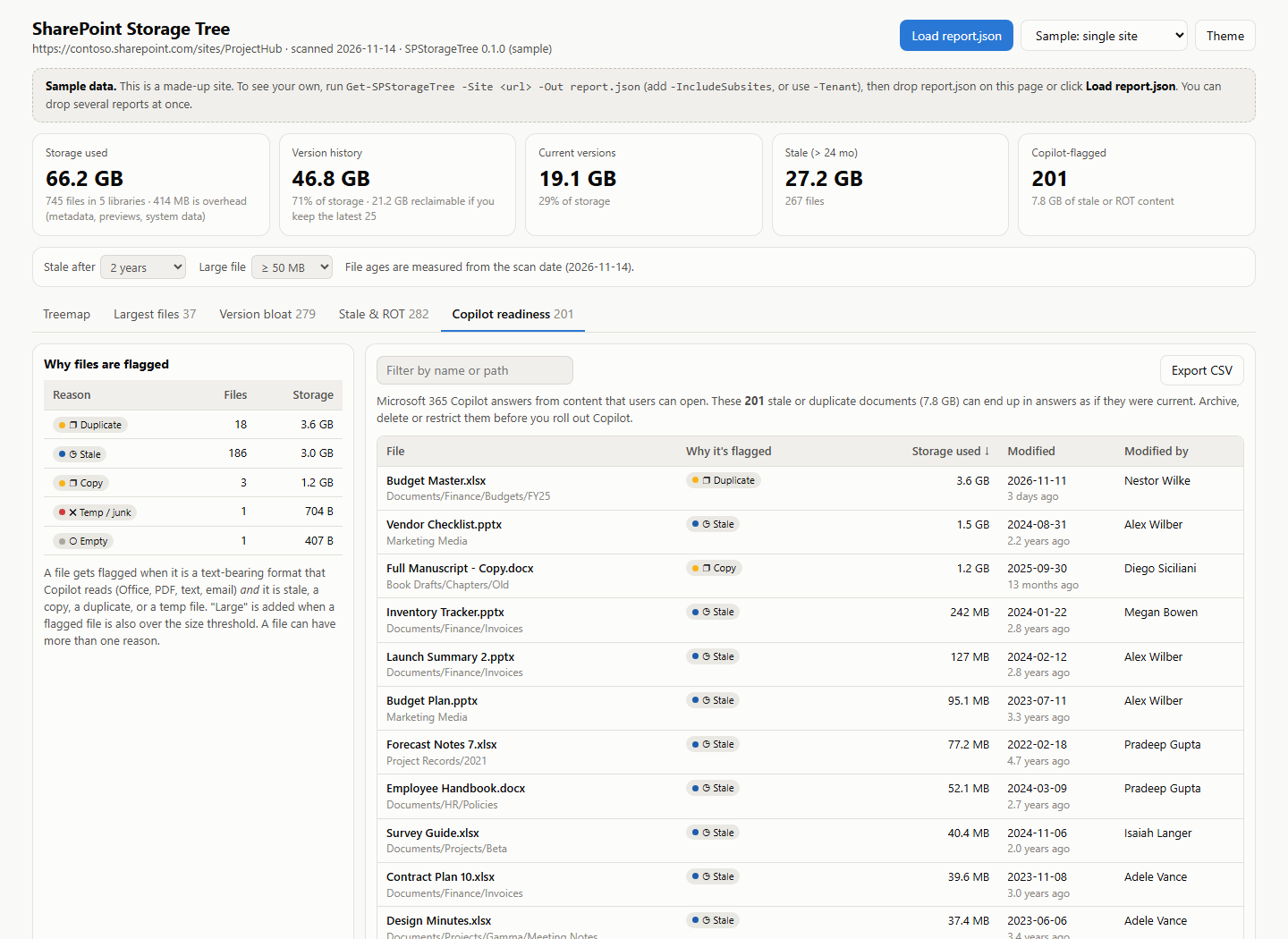
Every table exports to CSV. If you want to share a report outside the admin team, add -ExcludeUserNames and it leaves people’s names out.
It is read only and open source, on the PowerShell Gallery and GitHub. You need PowerShell 7.4 and your own app registration for PnP PowerShell, and the README has the one command that creates it.