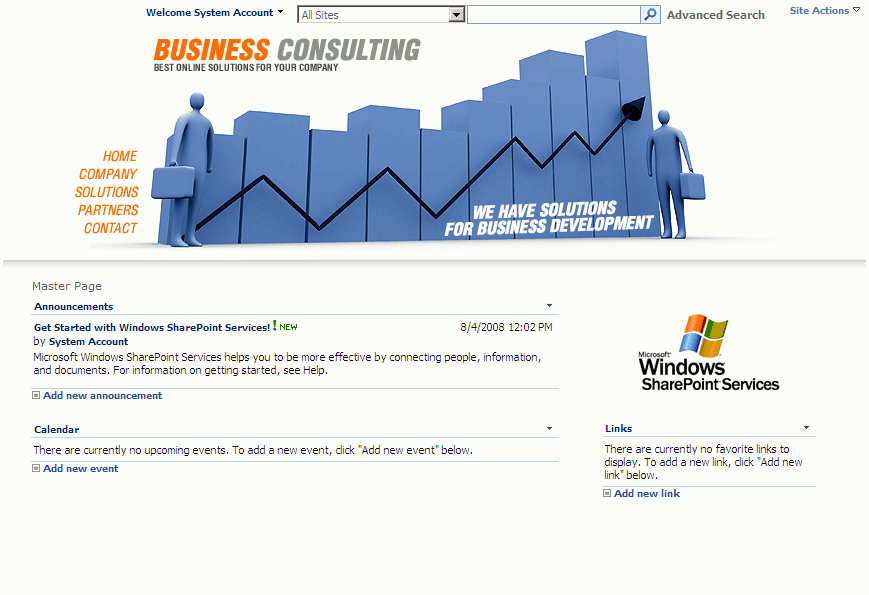
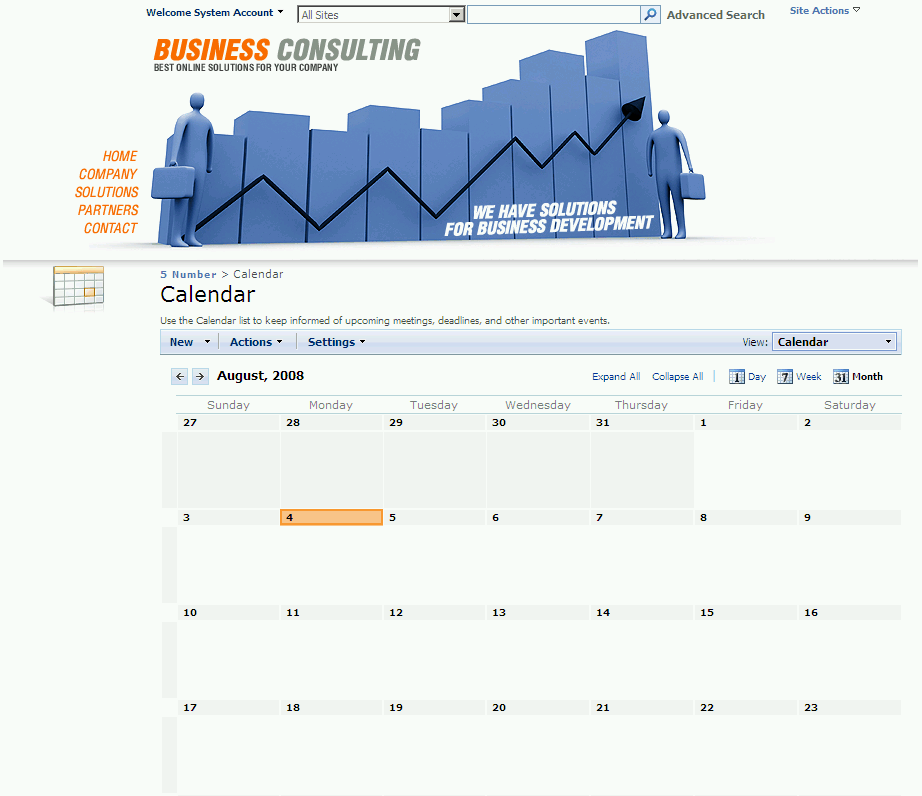
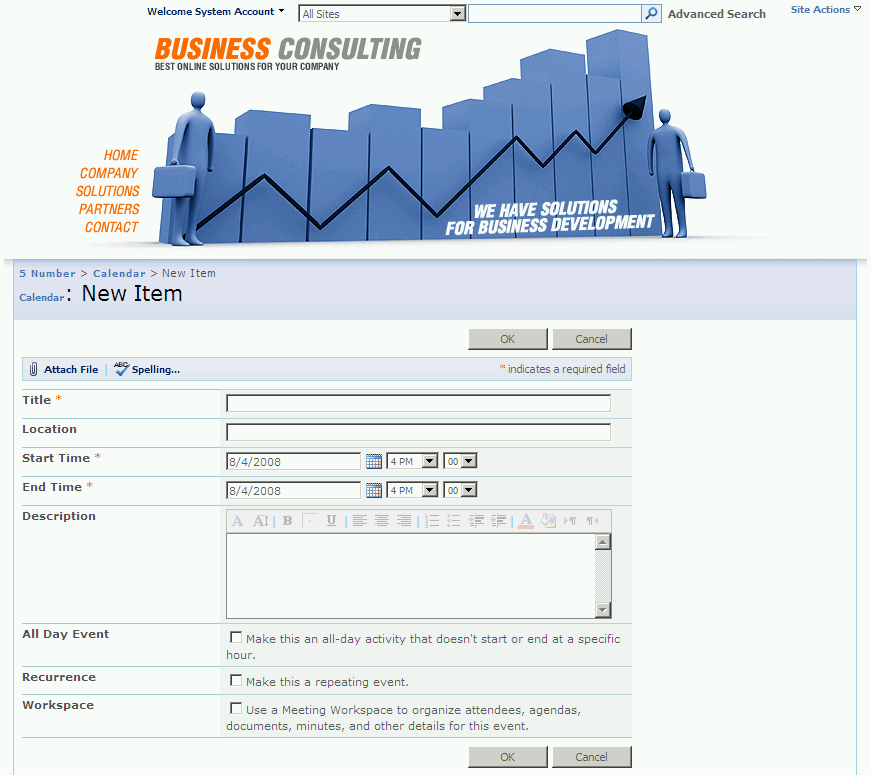
Sharepoint 2007 sample master page
Installation Steps:
- Extract the downloaded file 5Number-MasterPage
- Open your Sharepoint 2007 site in Microsoft Office SharePoint Designer 2007.
- On the File menu, click Open Site.
- In the Open Site dialog box, type the URL of the site that you want to open, and then click Open.
- On the File menu, select Import > File
- In the Import dialog box, select Add Folder
- Browse to location of the extracted master page files, and then browse to the master page
- Select the “_catalogs” folder and click open
- Repeat steps for the “images” folder “css” and _themes files.
- Click ok to finish importing the files.
Instructions of use:
- Browse to the location 5Number.master file (_catalogsMaster Page)
- In the master page folder, right-click on 5Number.master file and then click “Set as Default Master Page”
thanks a lot for your guidance.
I’ve heard a little bit about sharepoint, but can someone give me some details on the analytics solutions for the platform?
Hi dude, congratulations on the blog .. very, very good!
I am web developer in Brazil, I am deploying an intranet here in company with SharePoint 2010.
I found this very nice template, I am not able to integrate more with the SP2010, please could you help me .. follow the step perfectly.
Thank you.
@ Pessoa: Thanks for using the sample master page, the sample master page is created for MOSS not for SP 2010, you may face some problem if you try to integrate with SP 2010 (thought it is made for MOSS, but not sure, I have not tried it myself in SP 2010)
@ Pessoa: Thanks for looking into the template, The template supports for MOSS sites