Sharepoint: Apply background color to custom list column based on other column value
Today we are going to learn how to apply the background color to a custom list column based on other column value, firstly, I tried this scenario using calculated formula column type but some javascript code is needed to render the background color based on calculated formula value, so I did some research and come up with the best easy way…..
STEPS:
I have created a simple custom list and name it as ‘My List‘
Modified the ‘Title‘ column name as ‘Student Name‘
Created one more column ‘Subject‘ which is of type single line text
Also, created one column ‘Marks‘ which is of type Number min is 1 and max is 100
Open the AllItems.aspx page using Sharepoint Designer 2007
Select the list, right click and Convert into XSLT mode
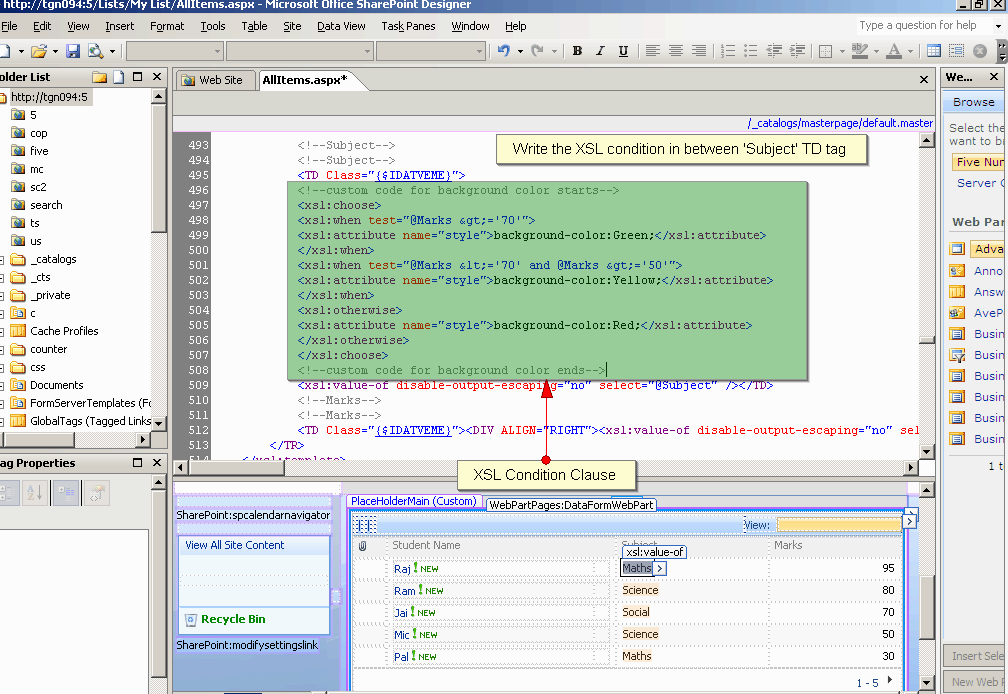
Write the XSL condition in between the ‘Subject‘ TD tag as show in the below image
Here goes the XSL code……
<!–custom code for background color starts–>
<xsl:choose>
<xsl:when test=”@Marks >=’70′”>
<xsl:attribute name=”style”>background-color:Green;</xsl:attribute>
</xsl:when>
<xsl:when test=”@Marks <=’70’ and @Marks >=’50′”>
<xsl:attribute name=”style”>background-color:Yellow;</xsl:attribute>
</xsl:when>
<xsl:otherwise>
<xsl:attribute name=”style”>background-color:Red;</xsl:attribute>
</xsl:otherwise>
</xsl:choose>
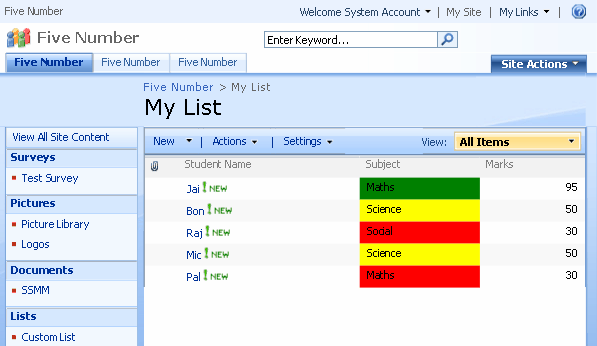
Output:
Thanks for posting this. Worked like a charm for my In-out board custom list.
instead of using @marks how can i use @Date >=today
i followed excactly the steps, but no luck
below is the code of my list
background-color: Green;
background-color: Yellow;
background-color: Red;
The code disappear, can you please give me your email, so i can email the code.
apprecitae your help. as im realy need this featuse on my list
Thanks – Works as described
Hi – I was wiennrodg if you know how to modify the people search results so that the manager name shows up. I have not been able to do that. Thanks, Abby
What if you do not have access to SP Designer? Is there an alternative way.