Change Date Format of Site Column

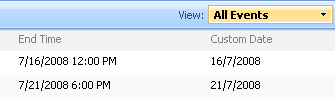
First of all create a column with column type, choose Date Only radio button under Date and Time Format provide the column name as ‘Date’
Then Create one more column with Calculated (calculation based on other columns) column type, provide the below said formulas in formula input fields and name the column as ‘Custom Date’
After creating the columns try to enter date from new item form and submit, then you can view the date formatted as shown in Output column below
| Formula (calculation based on other columns) | Output |
| =TEXT(Date,”dd Mmm, yyyy”) | 27 Mar, 2008 |
| =TEXT(Date,”d/m/yyyy”) | 21/7/2008 |
Nice post! I created a dataview years ago so START TIME column can be formated to not display the time.
I use:
=TEXT([Start Time],”d/m/yyyy”)
However, there is a problem. If the time is 12:00 PM it reads as previous day.
For example:
It returns 7/20/2008 if the START TIME is 7/21/2008 12:00PM. Do you know how this could be fixed?
Hi Michael,
Go to, Site Settings > Regional Settings
Set the time zone as per your standards
🙂
I have tried this and it does not work. I cannot create the custom date column it error out saying there are references to other fields.
@ Ameet: Did you mean to say that you are unable to create the column with name ‘Custom Date’ if so no problem you can give any name which is available, but make sure that you have to choose the calculated column type and provide formula as mentioned in the post. In formula (=TEXT(Date,”dd Mmm, yyyy”) Date indicates the column name which has to be there in your list
Tried this and it worked great! Thanks for posting this up, did a google search for help and this was it!
This is working.Thank you
When I try the formula above I am getting an error saying “The formula contains a syntax error or is not supported. “.
Hello
I am having one problem with this formula.
When i try to show only Month and Year a recive this message : “The formula contains a syntax error or is not supported.”
For example i have the Colum date only ([Start Date]) and a second colum called [TestCalc] when i tried to to save the following formula i receive the error message that i said earlier. The formula is =TEXT([TestCalc, “mmm-yyyy”])
i have to change the date format to sharepoint site
that format should be dd-mmm-yyyy when i select the date value from date picker how can i get this value in that column
This works fine but have the problem with Sorting and Filtering. So not a full proof solution.
The formula that worked for me is =TEXT([Start Date],”dd Mmm, yyyy”)
First formula does not worked for me… in place of , I have kept ; as my current site regional site was set to Germany.. Replacing , with ; worked out for me
=TEXT([Date Column Name];”dd.Mmm. yyyy”) instead of =TEXT([Start Date],”dd Mmm, yyyy”)