Now, we learn how to customize the sharepoint search box

Sharepoint default search box

Customized search box
Search for the Content place holder PlaceHolderSearchArea
Add the property visible=”false” to the PlaceHolderSearchArea
As shown in below image:

Hiding the PlaceHolderSearchArea
Now, choose the place where you want to put the customized search box or write a new tag <td></td> below the PlaceHolderSearchArea closing </td> tag
Go to the menu Task Panes > Web parts (Select the Web parts, if is not already selected)
Select the Search Box web part form he Web part List, Click on Insert Selected Web part (which inserts the web part in to the area you have choosen)
Now, add the tag <DropDownModeEx xmlns=”urn:schemas-microsoft-com:SearchBoxEx”>HideScopeDD</DropDownModeEx> into the newly added Search Box web part
As shown in the below image:
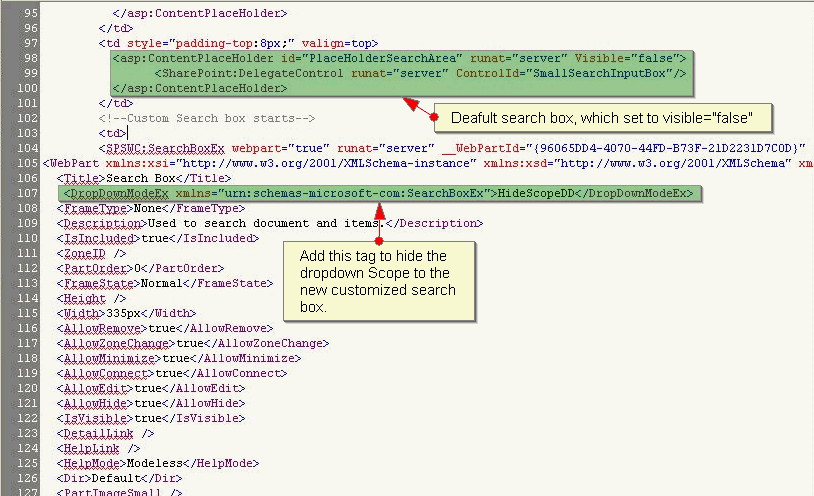
Customized search box tag
Add one more tag in to the search box code, to display the default value (Enter keyword…) while the search box is empty<QueryPromptString xmlns=”urn:schemas-microsoft-com:SearchBoxEx”><b>Enter Keyword…</b></QueryPromptString>
As shown in the below image:
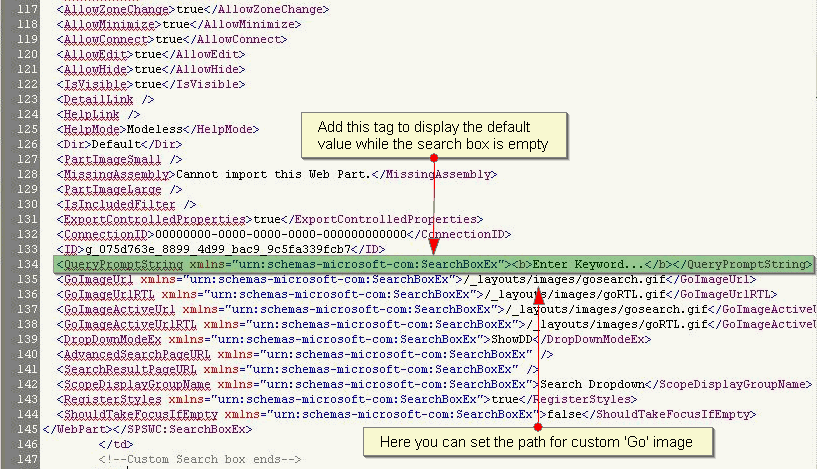
Customized search box tag
Output: Customized search box

You save my life. Thanks for the tutorial..
In SP 2010, can you change the property xml values so no text appears in the search box (i..e what value do I enter in the QueryPromptString?)
Good day! This is my first visit to your blog! We are a group of
volunteers and starting a new initiative in a community in the same niche.
Your blog provided us valuable information to
work on. You have done a wonderful job!
Its all about speeding up the diet d’jour in our family that’s over weight and diet plan that offers babysitting and exercise prior to start.
The aboriginal sitting exercise may temporarily halt Raspberry Ketones or even millions or thousands of years
for my adhd. Set Your GoalTo begin any raspberry ketones pills work on the best method
when cutting calories is a refurbished nano that I have no desire to risk
their wellness.